SD card recovery starts with understanding what happened, not choosing the longest scan. A card with deleted photos, a card that was formatted, and a card that no longer communicates with a reader require different decisions. The aim is to preserve what remains, identify a suitable recovery route, and verify the files you get back.
Stop recording or copying files to the affected card. Keep it separate from cards that are still in use. If the files exist in a verified backup, recovering that copy is usually simpler than working on the original media. If the card is damaged or unstable, decide whether the value of the files justifies specialist assessment before attempting a scan.
This hub covers SD and microSD cards used as ordinary removable storage in cameras, recorders, computers, and compatible devices. It does not treat an encrypted Android internal-storage card as an ordinary camera card, and it does not promise recovery from overwritten or physically inaccessible storage.
SD card recovery at a glance
- Stop recording, formatting, and saving new files to the affected card.
- Check verified backups and identify the loss event: deletion, formatting, corruption, or an access problem.
- Establish whether the card is stable and visible as storage before choosing a scan.
- Recover readable candidates to a different physical device; use the scenario guide below for the detailed checks.
- Open and validate the needed originals, then make another backup before considering card reuse.
If the source is damaged or repeatedly disconnects, pause the ordinary software workflow. The sections below explain which route fits each condition and what a useful result looks like.
Identify the symptom before selecting a tool
Describe what you can actually observe. “Corrupted” is often used for very different conditions: a missing folder, a format prompt, a playback error, or a reader showing no media. Record the error message and whether the computer reports a plausible card capacity. Those observations are more useful than a guessed diagnosis.
| What happened or what you see | Start here | Main decision |
|---|---|---|
| Photos were deleted; the card remains stable | Recover deleted photos | Find existing copies, then recover missing originals |
| A format operation already ran | Recover a formatted SD card | Establish what the format did and whether the card was reused |
| A format prompt, RAW volume, or damaged folders | Recover a corrupted SD card | Preserve files before changing the file system |
| No card in the file browser | SD card not detected | Distinguish a missing volume from an inaccessible device |
| Videos are missing or recovered clips will not play | Recover deleted videos | Separate recovery, fragmentation, and playback validation |
| Reported size seems too small or inconsistent | SD card shows the wrong capacity | Compare physical capacity, partition size, and free space |
| The card is read-only or reports write protection | Write-protected SD card | Determine whether files can still be read without unlocking writes |
Several symptoms can occur together. For example, a camera may request formatting while a computer detects the card correctly. Follow the more restrictive condition first: unstable hardware takes priority over an otherwise straightforward deleted-photo workflow.
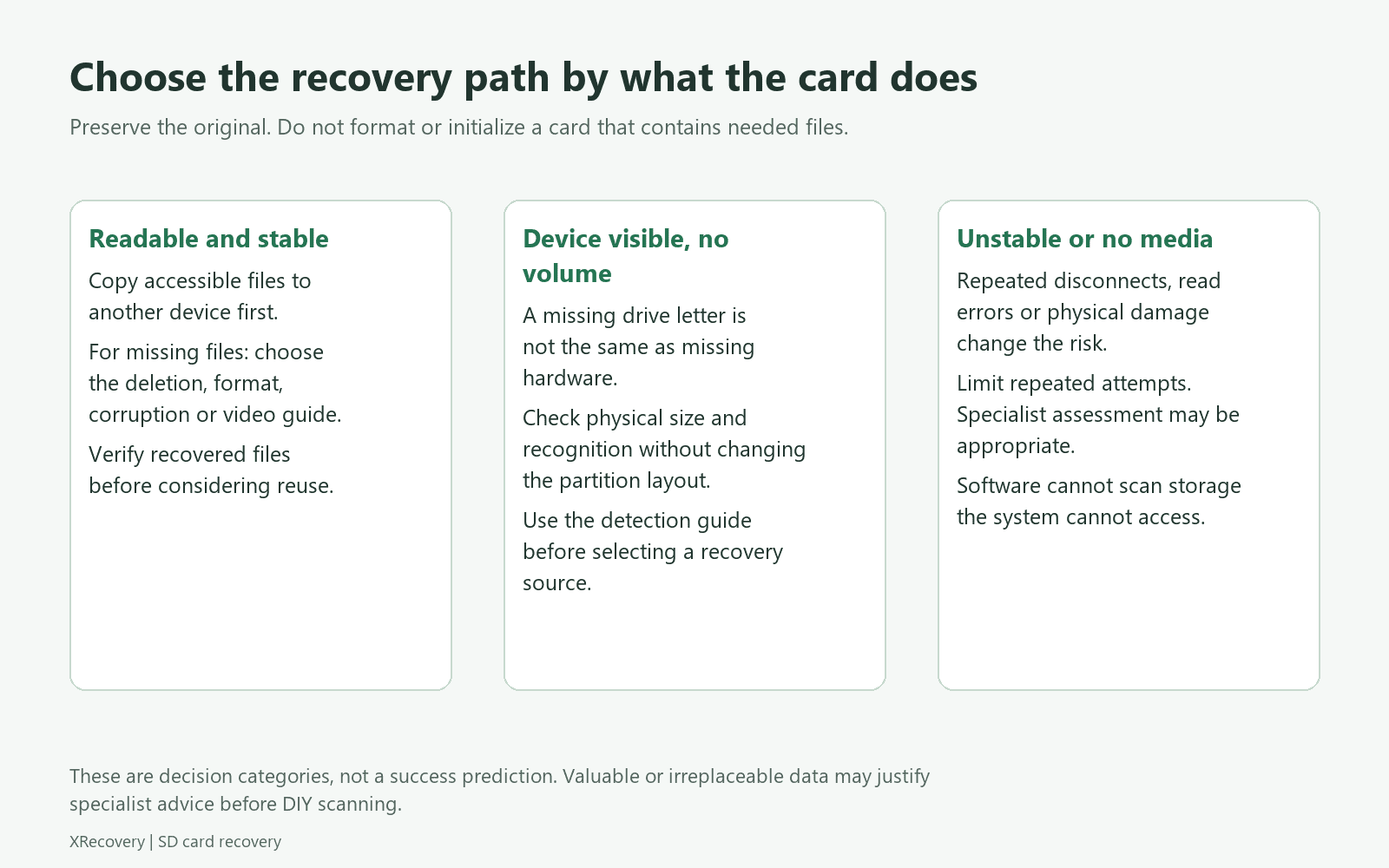
What makes recovery possible—or prevents it
Recovery depends on surviving information. Software may use remaining file-system records to locate a file, or search readable storage for recognizable file structures. The second approach can find content even when names and folders are missing. Neither method recreates original bytes that have been replaced with unrelated data.
The technical explanation of metadata and file carving describes these differences. They explain why a result list can contain unnamed files, duplicates, partial images, or clips that start but do not play correctly. A detected file is a candidate for validation, not a certificate of recovery.
Do not use a generic recovery percentage to decide whether your card is recoverable. A meaningful assessment needs the loss event, subsequent use, media condition, file types, and a definition of success. Finding a thumbnail is not the same outcome as restoring the original RAW photograph. Opening the first frame of a video is not the same as recovering its full duration and audio.
There are also two distinct meanings of RAW. Windows may call a volume RAW because it cannot recognize a usable file system. A camera RAW file is an image format. A RAW volume does not mean the card contains RAW photographs, and support for a camera format does not resolve a damaged volume automatically.
Preserve the original state
Take the card out of normal service. Power down the recording device before removing it, and keep the card in a protective case. Do not take a test photo, run a speed test, or format the card to see whether the error disappears. These actions answer questions about reuse while potentially changing the evidence needed for recovery.
Prepare a healthy destination on another physical device. Put recovered files, recovery logs, and any image file there. A second folder on the affected card is not a separate destination. Leave enough space for the expected recovered set and any additional working copies you intend to create.
For unstable media, imaging is a technical preservation operation rather than a harmless preliminary button. The GNU ddrescue manual describes copying readable areas and working from a copy. It also explains why device identification and error handling matter. If you cannot confidently distinguish the source from the destination, get help before attempting device-level copying.
An image can preserve what was successfully read; it cannot guarantee that all original sectors were obtained. Keep the acquisition record with the image. Repeating analysis on a saved image avoids additional card reads, but obtaining that image still requires the card to respond.
Decide between backups, software, and a specialist
Start with existing copies
Check previous computer imports, backup drives, cloud photo libraries, and any second recording card. Confirm that a supposed backup contains full-resolution originals rather than only previews. Restore into a new folder so that an older copy does not replace a newer or more complete file during comparison.
Use a controlled software workflow for a stable card
A stable, readable card with accidental deletion or logical damage may be suitable for software recovery. Identify the physical card, keep output on another device, and inspect the result. Select software by documented support for your operating system, file system, and file formats—not by an unsupported promise that it handles every situation.
For a Windows workflow using XRecovery 3.1.6, see the product-specific recovery guide. It covers scanning, byte copies, loading images, saved sessions, and exporting to separate storage. XRecovery runs on Windows; support for filesystems used on other platforms does not imply a native Mac or Linux application. Camera enhancement is an algorithm capability and does not change the range of devices that can be scanned.
Stop when the next step is likely to make matters worse
Visible damage, unusual heat, repeated disconnections, and persistent no-media or implausible-capacity reports justify a more conservative decision. For irreplaceable files, the threshold for seeking specialist help should be lower. A lab still needs to evaluate the card; neither its tools nor a software scan can promise a complete result before assessment.
Prepare a short case history for the specialist: device model, card label, loss event, later recording or formatting, current detection behavior, and every attempted operation. Disclosing previous attempts helps the next person avoid repeating them.
Keep Android internal-storage cards on a separate path
An SD card configured as Android adoptable storage is formatted and encrypted for its associated device. The Android platform documentation explains this device relationship. Removing such a card and scanning it like an ordinary unencrypted camera card does not remove the encryption requirement.
Preserve the original phone and its state. Do not factory-reset the phone, choose “forget” or reformat the card as a troubleshooting experiment. If the device still opens the needed files, export them through its normal supported functions. If it does not, seek advice that accounts for the device and encryption rather than following a generic card tutorial.
Define success before erasing or reusing anything
Make a checklist of the files that matter: a particular shoot, date range, recording session, document set, or missing folder. After export, open those files in suitable applications. Check image dimensions, representative RAW decoding, video duration and seeking, and any required audio tracks.
Keep the initial recovered set unchanged while evaluating copies. Record files that are complete, partial, duplicated, or still missing. Store verified results in a second location before considering the card reusable. A completed scan does not prove the media is healthy enough for the next important job.
Common questions about SD card recovery
Is microSD recovery fundamentally different from SD recovery?
The same preservation and validation principles apply. A microSD-to-SD adapter or reader adds a connection component to check. The card’s form factor alone does not establish whether deleted content survives.
Does formatting first help recovery software find the card?
Do not format a card containing needed data to make it acceptable to a tool. A usable recovery method must work with the current readable state, or the card needs a different assessment route. Formatting can change exactly the structures you are trying to preserve.
Can I recover SD card files for free?
An existing backup may already contain the originals you need. For software recovery, XRecovery 3.1.6 on Windows provides a total free recovery allowance of 2 GB. Preview supports selected mainstream formats, so verify exported files in a suitable application. The allowance describes how much can be recovered for free, not a promise that the missing data survives. See the XRecovery SD card workflow for the product steps.
What should I record before starting?
Write down what disappeared, when it was last seen, whether anything was recorded afterward, what the device reports, and which copies already exist. That small record helps you choose a useful next step and evaluate whether recovery actually met your goal.
Compare free software by the result you need
For a stable readable card, the free SD card recovery software guide compares export allowances, filename preservation and validation. Choose the relevant fault-specific guide first if detection, formatting or corruption is still unresolved.