A write-protected SD card may still allow files to be read and copied. If your goal is recovering important data, making the card writable is not the first requirement. Start by determining whether the files are accessible and preserve them on another device.
This guide covers the lock switch, adapter-related behavior, and unexplained read-only states. If the card is not detected or has no readable capacity, follow the detection guide instead. Write protection and missing media are different problems.
Identify which operation is failing
Write down the exact error and what triggered it. Was the camera trying to record, Windows trying to delete a file, or the recovery application trying to save output? A source card can be read-only while a recovery workflow still succeeds by saving elsewhere.
Also confirm which device the application is trying to write to. Accidentally choosing the affected card as the recovery destination can produce a write-protection error. The correct response is to choose a separate healthy destination, not to remove the protection so the application can write over potential source data.
In XRecovery, scanning is read-only. Its normal source-partition destination protection can be overridden by the user, so keep recovery output on another device rather than forcing a write back to the source. See the XRecovery SD card workflow for that distinction and the export steps.
| Observation | First response |
|---|---|
| Files open but new files cannot be saved | Copy needed content to another physical device |
| Recovery export fails with a write error | Verify destination identity, free space, permissions, and file-size support |
| One adapter reports protection and another does not | Investigate the adapter after preserving files |
| Read-only behavior persists across compatible readers | Record it and assess card health; do not assume a switch fix |
| Reading also fails or the card disconnects | Stop the ordinary recovery workflow and reassess the device |
Understand the lock switch
Full-size SD cards and many microSD-to-SD adapters have a mechanical lock tab. It signals the lock state to the host arrangement; it is not a universal guarantee that every possible interface will block writes. The SD Association’s physical-layer specification places enforcement of the mechanical switch with the host.
Kingston also explains that an adapter’s switch only applies while the smaller card is in that adapter. It does not permanently change a microSD card into read-only storage. See Kingston’s adapter FAQ.
For ordinary file preservation, do not write a test file to the affected card to prove that a lock setting works. A forensic workflow needs a verified write-blocking arrangement and documented handling; a plastic switch alone should not be advertised as equivalent protection.
Preserve accessible files first
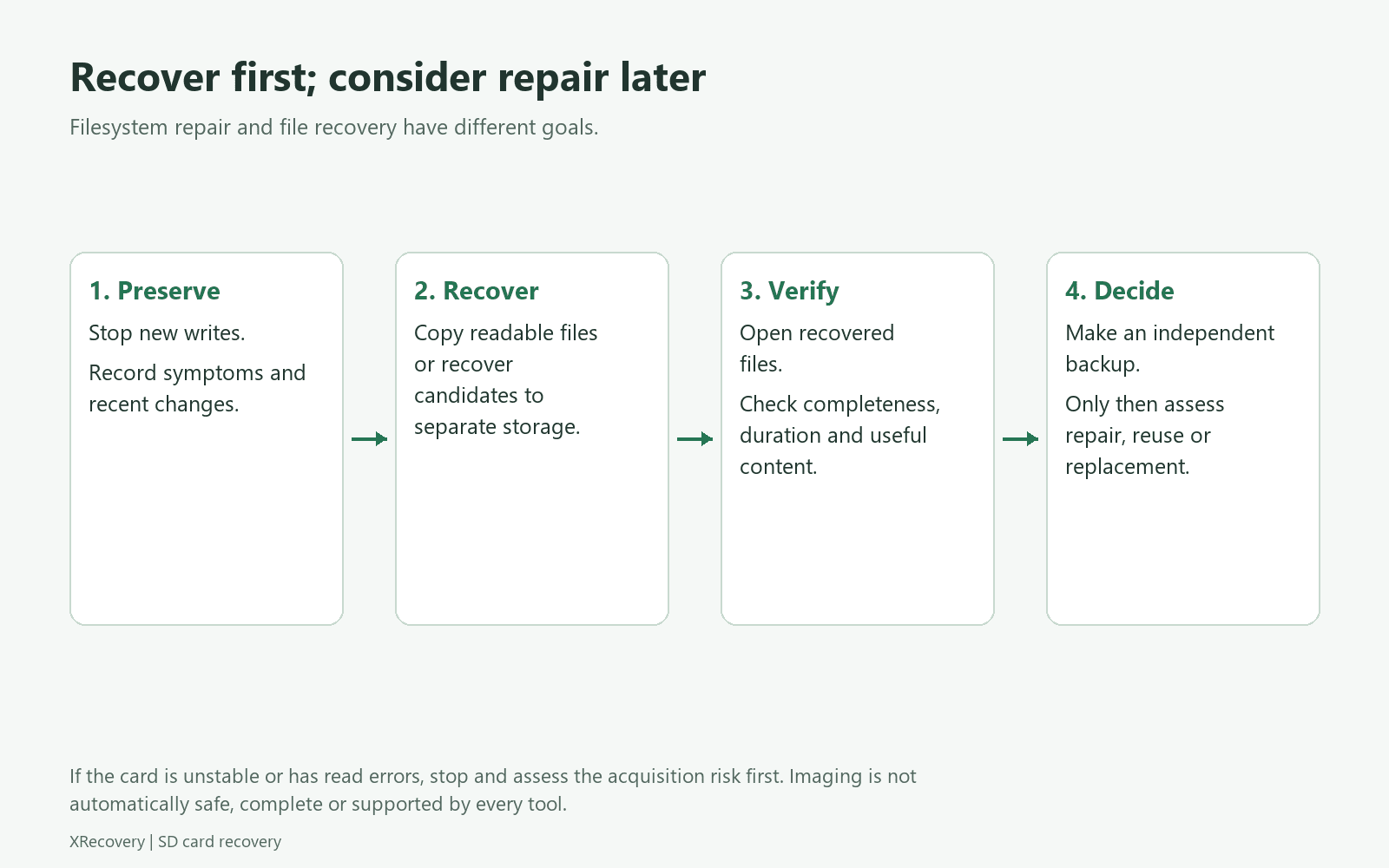
If the card reads consistently, copy important files to another physical device. Open the copies to confirm their contents. Keep folder organization where possible and record any read failures rather than skipping them silently.
If files were deleted, use a recovery workflow that reads the source and exports elsewhere. The fact that the card refuses normal writes does not by itself rule out recovery of readable data. It also does not prove that deleted data survives. Follow photo recovery or video recovery according to what is missing.
Do not delete old files, reformat, or clear protection attributes to make space on the source. None of those actions is needed to create a safe recovery destination on a different device.
Check an adapter without forcing a repair
After safely disconnecting, inspect whether the lock tab is loose or damaged. A tab that moves during insertion can create inconsistent behavior. Use a known-good compatible adapter when available, and keep notes about what changed.
Do not glue or tape a damaged adapter and rely on it for critical recovery. Replace the adapter for testing where appropriate. If the microSD card itself remains unstable in a sound connection, stop treating the adapter as the only possible cause.
If the card has no mechanical switch, a read-only state can still exist. Operating-system settings, device behavior, and card health require separate investigation. Avoid treating every such case as a registry setting that can be safely overridden.
Persistent read-only behavior can be a warning
SanDisk documents that some cards can enter write protection when usable blocks fall below a threshold. That supports card-health assessment as a possibility, not a diagnosis for every write-protection error. See SanDisk’s write-protection guidance.
If normal reading still works, prioritize preserving files. If errors accompany the read-only state, consider specialist assistance before repeated full scans. A card that becomes writable again is not automatically trustworthy for another important shoot.
Do not attempt firmware tools, controller-reset utilities, or low-level formatting based on an internet promise to “unlock any card.” Those operations may change the evidence or erase data, and this guide does not establish that they are appropriate for your specific device.
Separate recovery from returning the card to service
Only after the needed files are verified and separately backed up should you decide whether unlocking or reuse is worthwhile. For a simple adapter-tab issue on otherwise reliable media, replacing the adapter may resolve the access problem. For persistent unexplained behavior, replacement is usually a more defensible choice for critical work than repeated attempts to force writes.
Keep the original card while any important files remain missing. An unreadable or incomplete result should not be hidden by declaring the card repaired. Your recovery record should distinguish what was copied, what was recovered, what is partial, and what remains unknown.
Frequently asked questions
Do I need to unlock the card before scanning?
Not merely because it is read-only. A suitable recovery workflow reads source data and writes the result elsewhere. Check the tool’s requirements and the actual error rather than enabling writes by default.
Can the switch protect files that were already deleted?
It cannot undo deletion. A respected lock state may prevent subsequent ordinary writes through that connection, but recoverability still depends on surviving data and metadata.
Why does the camera refuse to record while the computer can copy files?
Recording needs write access; copying files from the card needs read access. These observations can coexist. Preserve the files before investigating how to restore recording capability.
Should I clear read-only attributes with a command?
That is a change to investigate only after establishing the cause and protecting the data. It is not a universal recovery step, and it will not resolve every hardware-enforced or failure-related condition.
For other symptoms on the same card, return to the SD Card Recovery guide and select the relevant recovery route.