An SD card showing less space than its label does not always have a fault. You may be comparing decimal gigabytes with binary units, a partition with the whole device, or free space with total capacity. A card that reports zero bytes or changes size unpredictably is a different situation.
If files are missing, do not format, repartition, or run a capacity-writing test yet. First establish which number is wrong. This guide separates normal display differences from conditions that require a recovery-first approach.
Compare like with like
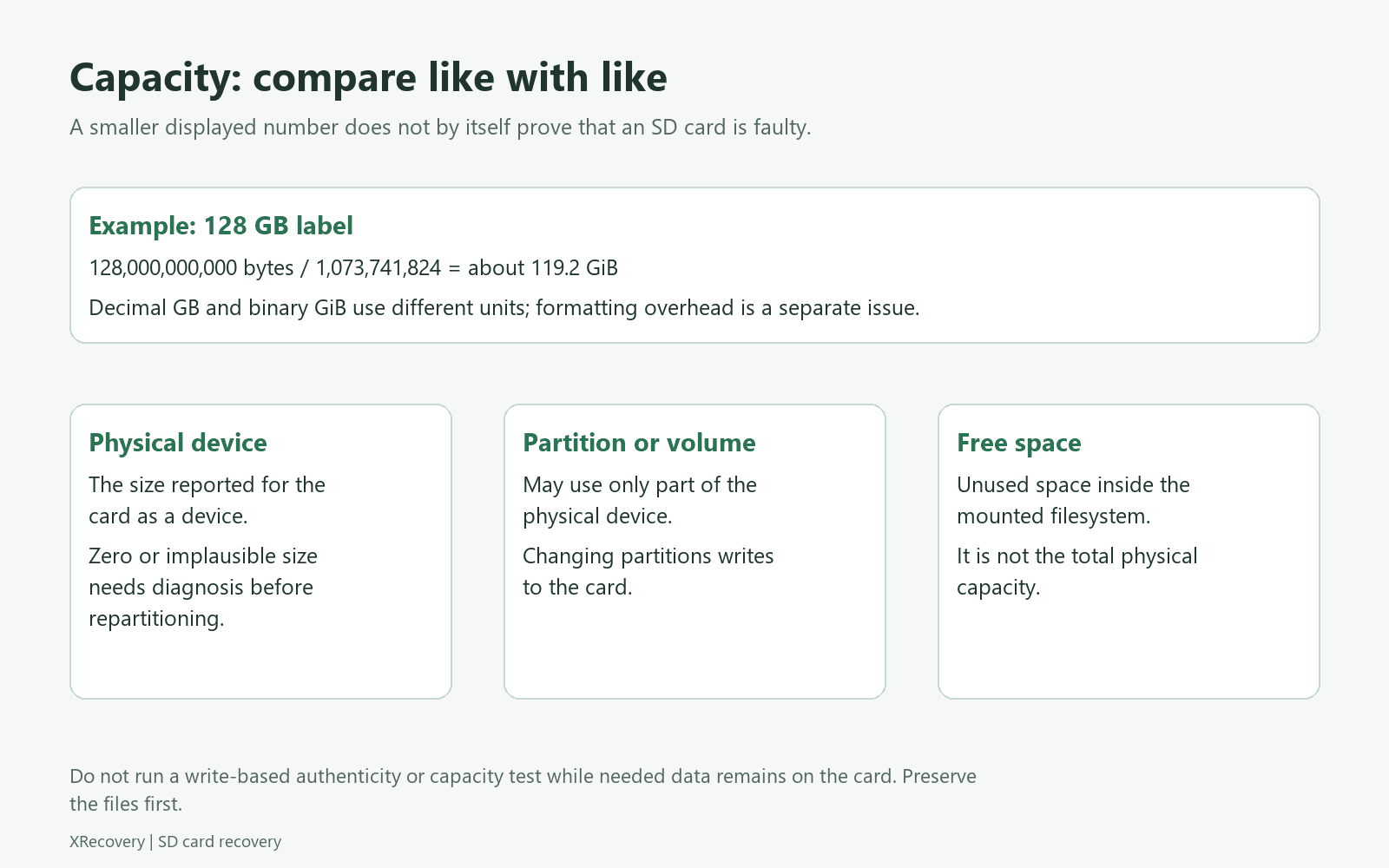
Record four values where available: the capacity printed on the card, the physical device size reported by the operating system, the size of its partition or volume, and the remaining free space. These are related, but they are not interchangeable.
| Number | What it describes | Why it may differ |
|---|---|---|
| Card label | Marketed nominal capacity | Commonly expressed in decimal units |
| Physical device size | Storage presented through the reader | May be displayed in different units; may also reveal detection problems |
| Partition or volume size | Space assigned to a particular volume | Can be smaller than the whole device |
| Free space | Unused space within that volume | Excludes existing files and file-system overhead |
For a unit-only illustration, 128,000,000,000 bytes divided by 1,073,741,824 is about 119.2 GiB. Seeing a number near 119 for a marketed 128 GB card can therefore be normal. This arithmetic example is not a promised exact usable capacity for every 128 GB product.
The SD Association FAQ explains differing capacity calculations between tools. Check units and the actual byte value before interpreting a modest numerical difference as lost storage.
Inspect the layout without repairing it
On Windows, open Disk Management and identify the physical card by its connection and capacity. Compare that disk entry with the partition rectangles and volume information. Do not use Initialize Disk, Delete Volume, New Simple Volume, or Format during this inspection.
On a Mac, Disk Utility’s Show All Devices view separates a device from its volumes. Inspect the relevant entries without running Erase or First Aid. Record a screenshot if it will help a technician understand the layout later.
A correctly sized device containing a smaller partition is not the same as a physical device that itself reports a much smaller size. The first observation points toward layout analysis; the second needs investigation of the reader and device presentation. Neither observation tells you that missing files can safely be restored by creating a bigger partition.
Recognize the main cases
The difference is explained by units
If the byte count and marketed capacity are consistent after conversion, no “capacity restoration” operation is needed. Investigate the missing files independently. Changing the layout to make a displayed number look closer to the label can create a real problem where none existed.
The partition is smaller than the physical device
This can follow previous use in another device, an altered partition layout, or other changes that require a case history. If needed files are missing, preserve the original layout and use a recovery method that can evaluate the relevant readable areas. Do not enlarge or recreate partitions merely to expose a bigger drive in the file browser.
The reported physical capacity is implausible or changes
Try one known-good compatible reader or adapter if the card is physically intact. Record whether the reported size changes with the connection. If the result remains implausible, or the card disconnects while being read, stop repeated software scans and seek an appropriate assessment.
A correct-looking device size is not proof that all of that storage is genuine or reliable. Conversely, a wrong number alone does not identify a counterfeit card or establish an internal failure diagnosis. Keep those as hypotheses until there is evidence.
The card reports its capacity but older files become damaged after use
Record how much was written and what failed. Possible causes require separate evaluation, including unreliable or misrepresented media. Do not perform a full write-and-read capacity test on the only copy of needed data. Such testing deliberately fills storage and belongs after recovery and backup, on media that can be erased.
Match the reader to the card standard
The SD Association’s capacity overview distinguishes SD, SDHC, SDXC, and SDUC. Physical fit is not a complete compatibility check. Consult the reader and originating device documentation, especially with older readers and newer capacity standards.
Do not use a new file system as a substitute for hardware compatibility. Changing a card to a different format does not make an unsupported reader implementation reliable, and it changes the source while files are still at risk.
Preserve files before investigating reuse
If the card is stable and ordinary files remain accessible, copy important files to a separate device and verify them. If files were deleted or the volume is damaged, choose the relevant recovery route. For valuable data, an acquisition specialist can help preserve the state before layout experiments.
Keep a record of the original capacity readings and partition layout. If a later operation changes them, that record helps distinguish the original failure from the effects of troubleshooting.
Once the needed files are verified and backed up, you can separately evaluate card authenticity and suitability for reuse. Follow the manufacturer’s appropriate procedures. Replace questionable media for important recording rather than treating a successful format as a reliability certificate.
Useful answers to common capacity questions
Does a 128 GB card showing about 119 mean 9 GB is broken?
Not necessarily. Decimal-to-binary conversion explains that approximate difference. Check the byte count and distinguish total capacity from free space before concluding that anything is missing.
Can I use DiskPart clean to restore the full size?
Do not use it as a recovery diagnostic. It changes partition information. If files matter, preserve or recover them before deciding whether any layout-reset operation is appropriate.
Why does a card reader show a device but no usable capacity?
The reader can be recognized without providing access to the card’s storage. Follow the not-detected guide; a visible reader entry alone is not a source that recovery software can necessarily scan.
Can software recover files beyond the genuinely available storage?
Software needs surviving readable information. If data was never successfully stored or was overwritten, a larger-looking capacity label cannot provide the missing bytes. Avoid promises based only on what the card claimed to hold.