A formatted SD card may still contain recoverable files, but “formatted” does not describe one consistent operation. Recovery depends on the formatting method, the device that performed it, whether the operation completed, and what happened afterward. Do not assume either that everything is gone or that a deep scan will restore everything.
Stop using the card immediately. Do not format it again, change its file system, or record new material as a test. If a camera is still prompting for formatting but no format has run, use the corrupted-card guide instead: a prompt and a completed operation are different events.
Reconstruct the formatting event
Record the device and application used, the option selected, whether the operation finished, and whether the card was used afterward. Save any existing screenshot or error message without reconnecting the card just to reproduce the event. “I clicked format in the camera” is useful history even when the exact option is unknown.
Check for copies from before the event: computer imports, an external backup, cloud originals, a second recording card, or files sent to a client. Finding a complete backup can eliminate the need to scan the card for those files. Keep lower-quality copies as identification references when the originals remain missing.
Quick format and overwrite format are not equivalent
The SD Association distinguishes its Formatter’s Quick format from Overwrite format. Quick format resets file-system information without clearing the file data area; Overwrite format also overwrites that area. These definitions describe that specific utility. They do not establish what every camera or third-party formatter does. See the SD Association Formatter FAQ.
If an operation actually overwrote the sectors containing a file, ordinary recovery software cannot recover the previous contents of those sectors. An interrupted operation may leave a mixture of changed and unchanged areas, so partial survival does not imply that every file is intact.
The label “full,” “low-level,” or “secure” should therefore be investigated in the relevant device documentation rather than treated as a universal technical description. Elapsed time alone is also not enough to identify the method: capacity, interface speed, and the device’s implementation affect duration.
New recording changes the assessment
Formatting followed by a new shoot creates a different case from formatting followed by immediate removal. New recordings can occupy space formerly used by older files. You cannot calculate the fraction of recoverable photos simply by subtracting the size of the new shoot from the card’s capacity.
An older file may be spread across several areas, and losing one necessary part can make it incomplete. Conversely, some files may survive even when nearby content does not. Use actual recovered-file validation rather than an invented percentage based on how full the card looks now.
Keep any new files that matter as well. When the card is stable, copy readable important files to separate storage before a workflow that might alter their organization. Do not delete the newer files from the card in an attempt to make the older files reappear.
Select the right recovery route
| Current condition | Appropriate next decision |
|---|---|
| Stable card, accidental format, no known reuse | Evaluate software recovery or an image-first workflow |
| Stable card, format followed by recording | Expect a mixed result; prioritize the most important missing files |
| Overwrite operation is documented as completed | Look for independent copies; do not purchase software on a promise to reverse overwritten bytes |
| Card disconnects or reports no media | Use detection triage before a scan |
| Card was adopted as Android internal storage | Preserve the original device and investigate encryption requirements |
Do not change the card to FAT32 or exFAT merely because a tool refuses the current state. Recovery should address the existing data, not require preparing a fresh destination file system on the source.
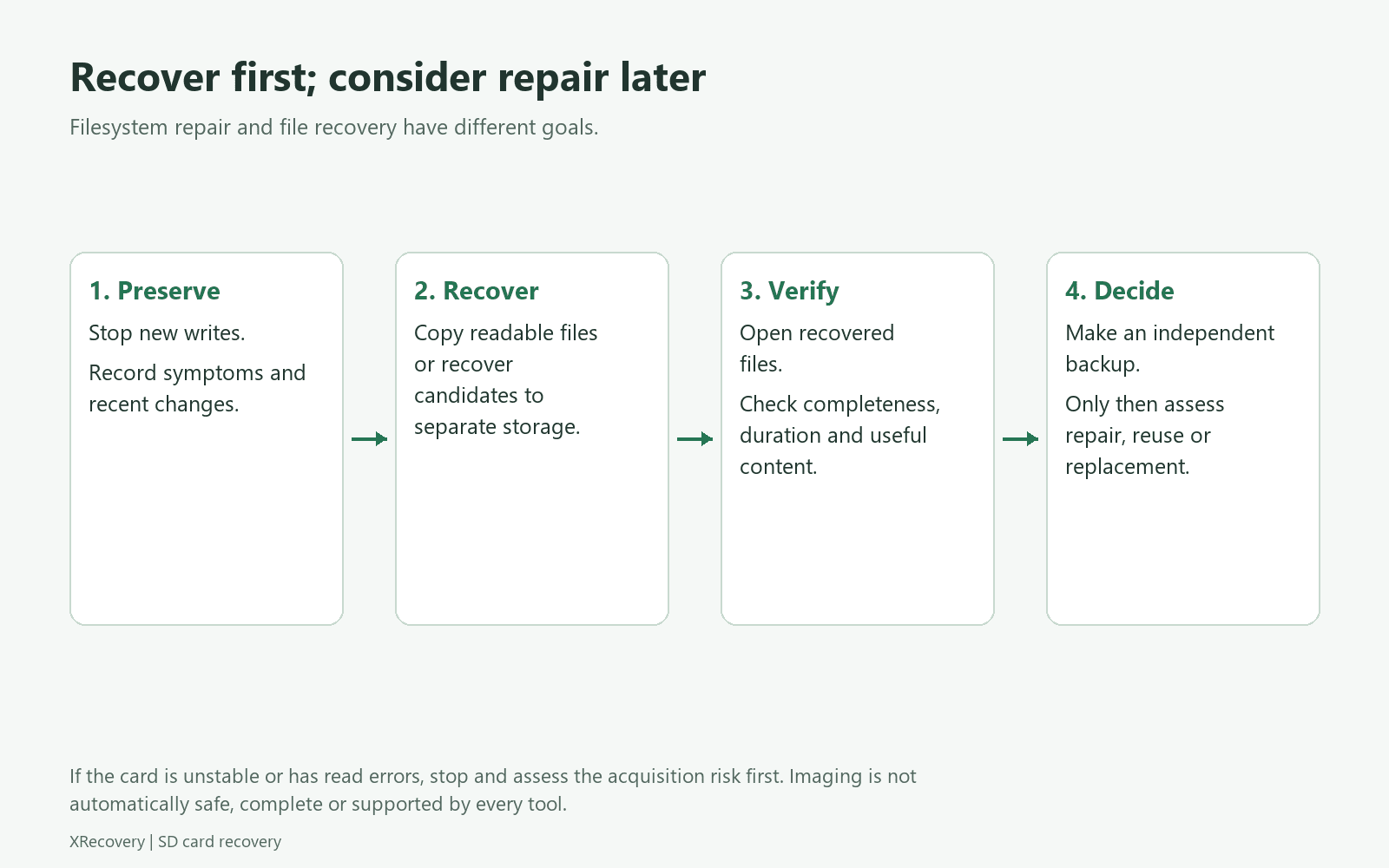
Run a controlled recovery attempt
Prepare a separate destination
Use another physical device with sufficient capacity for the recovered files and, if planned, a card image. Give the case a folder name that identifies the card and date. Keep notes and scan exports there, not on the formatted source.
Identify the physical card
Compare reported size with the card label and reader connection. A new empty volume may exist after formatting, but the file-system view of that volume may not describe the previous layout. Use the recovery tool’s documented options for the physical device or the relevant acquired image when appropriate.
For XRecovery 3.1.6, Windows must recognize the source device; a normal mounted volume or drive letter is not the prerequisite. Its supported sources include partitions, disks, external devices, and compatible loaded images. Follow the XRecovery workflow to select the intended source without formatting again.
Examine both structure and content candidates
Some results may come from remaining metadata; others may come from recognizable file signatures. Original filenames and folder paths can be absent after formatting. The metadata and carving explanation helps interpret why usable photos may appear under generated names while familiar-looking filenames may still point to incomplete data.
Do not repeatedly scan a deteriorating card for a more attractive directory listing. Preserve a suitable image or seek specialist assistance if reads are unstable. A second analysis method is most useful when it tests a specific hypothesis, such as a supported camera format not included in the first search.
Recover candidates without overwriting other results
Export each method’s results to a distinct folder on the healthy destination. This allows comparison of complete and partial candidates without accidentally replacing a good copy. Record which method produced each set.
Validate photographs and video separately
For photos, inspect resolution and full image content; for RAW files, test decoding with a compatible application. For video, check duration, seeking at several points, audio, and the end of the clip. A playable opening does not demonstrate a complete recording.
Build a simple list of expected sessions or dates and mark recovered originals, partial results, backup-only copies, and missing files. Scan totals may include duplicates, old files, and previews, so the total is not a reliable measure of how much of the intended shoot was restored.
Keep the source or acquisition image until you decide whether additional specialist work is worthwhile. Back up verified output before organizing, repairing, or converting working copies.
Common questions after an accidental format
Can I “unformat” the card to make it exactly as before?
Do not assume that restoring a previous-looking partition or directory also validates every file. The practical goal is to retrieve and verify the needed content on another device. Restoring the original storage layout is a separate operation with its own risks.
Does a familiar folder name prove recovery worked?
No. A folder listing is useful evidence about metadata. Open the recovered files to establish whether their content is complete. The reverse is also true: a lost filename does not automatically mean the file content is unusable.
Can an SD formatter recover the missing photos?
Its purpose is preparing media for use, not retrieving your missing photographs. Treat formatting as a later reuse decision, after the recovery case is closed and verified copies are safe.
What if the exact format method is unknown?
Record it as unknown. Preserve the card and assess the readable results without promising an outcome. A careful uncertainty statement is more useful than guessing that all cameras perform the same kind of quick format.
Return to the SD Card Recovery hub for related routes, or continue with photo validation and video validation once files have been exported.