An SD card missing from File Explorer is not necessarily missing from the computer. The reader may be detected while the card is not, or the card may be visible as a physical device without a usable volume. Before installing recovery software, determine which layer is missing.
Do not format or initialize a card that holds needed files. This guide uses observation and a limited connection check to decide whether a normal software recovery path is available. It is not a sequence of increasingly destructive “fixes” to try until something changes.
First, decide whether to stop immediately
If the card is cracked, bent, wet, unusually hot, or repeatedly disconnecting, stop repeated tests. When the missing material is irreplaceable, specialist assessment can be appropriate before any additional powered attempt.
For an apparently intact card, write down the camera’s message and the computer’s behavior. Distinguish “not in the file browser” from “No Media” and “0 bytes.” These phrases describe different observations. Do not replace them with a general label such as “dead SD card” in your notes.
Check the connection path one part at a time
A typical path is card, adapter if used, reader, USB cable or port, and operating system. Change only one part for each controlled check. If everything is changed together, a temporary improvement tells you little about the cause.
- Connect a compatible reader securely, preferably without an unnecessary hub.
- If the reader uses a detachable cable, check its connection and suitability.
- Try a known-good reader or microSD adapter when one is available.
- Use an expendable spare card to determine whether the reader works at all.
- Record whether the affected card is detected consistently through the new path.
Do not bend the card, scrape contacts, open its casing, or apply improvised heat treatments. A connection test should not become a physical repair attempt.
Reader compatibility matters. The SD Association distinguishes SD, SDHC, SDXC, and SDUC standards and their capacity ranges. A reader that accepts one card physically is not thereby proven compatible with every card standard. Check the reader’s specification rather than changing the card’s format to compensate. See SD capacity standards.
Inspect the physical device and the volume separately
On Windows
Open Disk Management and inspect the list without making changes. Match the physical disk by reported capacity and reader connection. Do not select Initialize Disk, Format, or New Simple Volume.
Note whether there is a disk entry, whether the entry represents readable media, and whether it contains a visible partition. A detected USB reader with no readable card is not the same result as a correctly sized card with a RAW volume.
On a Mac
Open Disk Utility and choose View > Show All Devices when available. This view distinguishes storage devices from their volumes. Apple’s Disk Utility instructions document that view. At this diagnostic stage, inspect the listing; do not start First Aid or Erase on the only copy.
XRecovery 3.1.6 runs only on Windows. To use it with a card from a Mac or Linux computer, connect the card to a Windows computer. For a disk, a removable disk can be attached through a suitable connection. Filesystem support and operating-system support are different: Windows must recognize the storage device, but need not mount its filesystem as a normal drive letter. Check the specific filesystem and encryption requirements.
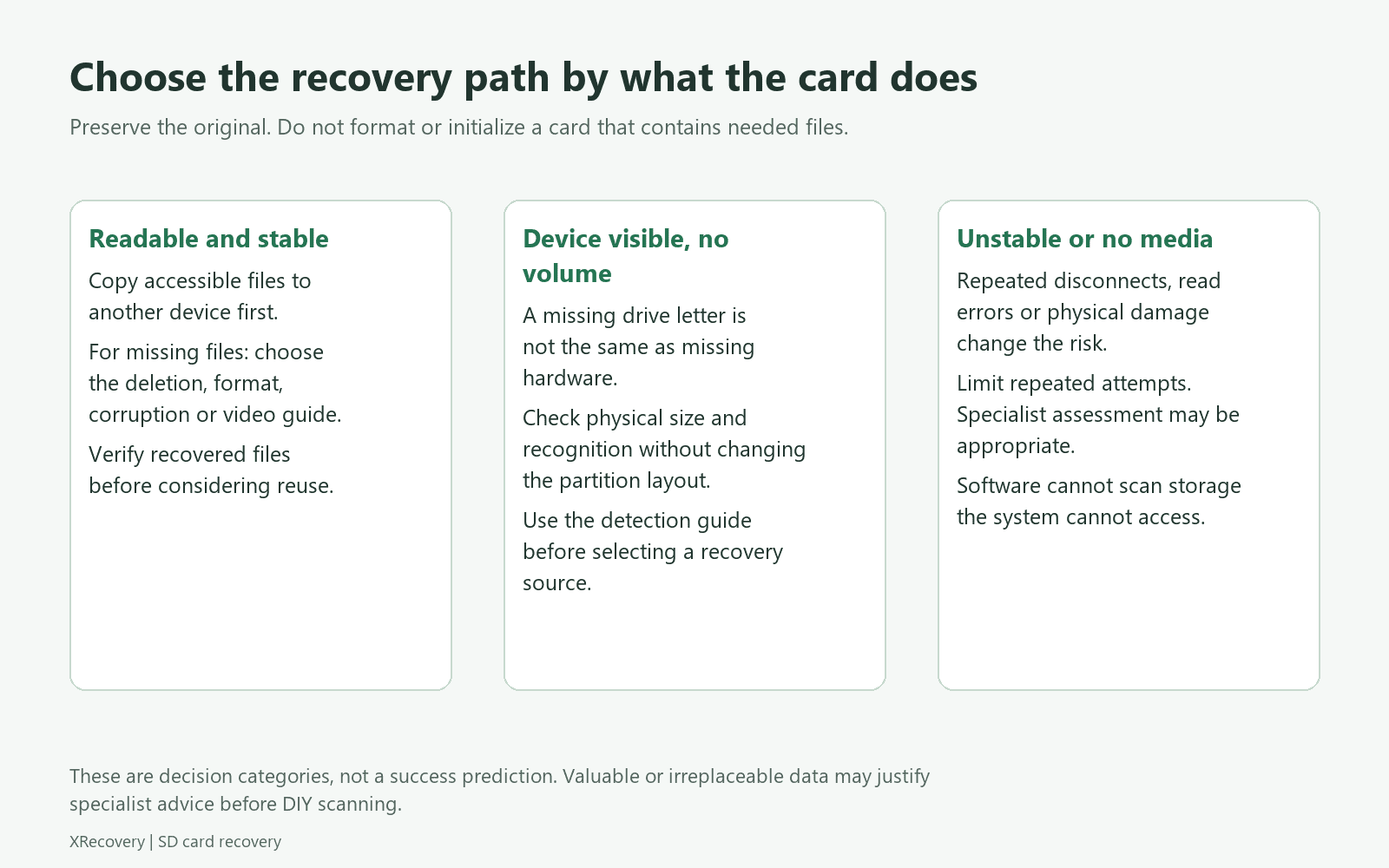
Interpret the observation conservatively
| Observation | What it establishes | Next step |
|---|---|---|
| Card appears in one compatible reader only | The connection path affects detection | Preserve files through the stable path; assess the original reader separately |
| Correct physical capacity, no usable volume | The storage is at least visible, but normal volume access is unavailable | Follow corruption recovery without creating a volume |
| Correct capacity and readable files | Ordinary access currently works | Copy important files to another device; investigate missing files separately |
| No Media or zero readable capacity | The reader is not presenting normal card storage | Stop repeated scans; investigate the reader/card boundary |
| A much smaller or changing physical capacity | A capacity or device-level problem needs assessment | Use the capacity guide |
| Device disappears while reading | Stable access has not been established | Stop the normal long-scan workflow |
These are decision points, not definitive diagnoses. For example, a No Media result does not prove exactly which internal component failed. It does establish that buying a file-recovery application alone will not necessarily provide a readable source.
A missing drive letter is only one possible case
A healthy supported volume may lack a drive letter, but do not assume that every inaccessible card is in that condition. First distinguish a healthy partition from RAW, unallocated, or unstable storage.
If the volume is healthy and needed files are accessible through a supported read path, preserve them. Drive-letter assignment can be considered afterward as a separate access issue. If the file system is damaged, assigning a letter does not rebuild the missing structure or restore overwritten file data.
Avoid registry edits, driver-removal sequences, and disk-cleaning commands as a generic recovery checklist. They change the system or source state without first establishing why the card is missing. A targeted reader-driver fix may be appropriate when a known-good spare also fails and the reader manufacturer’s guidance supports it; document that evidence.
When software recovery becomes a reasonable next step
The source must be readable through the operating system or through a supported acquisition method. A normal recovery tool cannot scan a device that offers it no readable storage. Once the card is stable and its identity is clear, choose the route that matches the loss event.
Use photo recovery for accidental deletion, formatted-card recovery after a format operation, and corruption recovery for damaged volume structures. Do not run all three as independent scans just because all three titles sound relevant.
If you choose XRecovery, a Windows-recognized SD card is a supported scanning source. Camera enhancement is an algorithm capability and does not determine whether the card itself can be scanned. The product workflow explains source selection and saving files elsewhere.
If acquisition or scanning repeatedly stalls with errors, reconsider the plan rather than increasing retries automatically. Preserve the information already gathered for a technician. A lab may be able to investigate below the level available to ordinary software, but an assessment is still required and success is not assured.
What to record before asking for help
Include the card’s brand and stated capacity, camera or originating device, reader and adapter, operating system, exact message, and whether another reader changed the result. Report any previous formatting, recording after loss, repair commands, or failed imaging attempts.
If you share a screenshot of the disk list, remove unrelated personal information while keeping the relevant capacity and status visible. Do not include license keys, passwords, or private recovered files in a public support post.
Frequently asked questions
The camera sees photos but the computer does not. Are they safe?
It shows that the camera can currently access something, not that every original is intact. If its documented transfer method can export the needed originals, use that route and verify the copies. Do not format the card to make the computer agree with the camera.
Should I keep reinserting the card until it appears?
No. A limited test with a known-good compatible connection can be informative. Repeatedly power-cycling an unstable card without a new hypothesis adds attempts without resolving the underlying uncertainty.
Is “RAW” the same as “not detected”?
No. A RAW volume is already visible at some level. The problem is interpreting a usable file system, which leads to a different workflow from a device that presents no readable media.
For the complete sequence from diagnosis to verifying recovered files, return to the SD Card Recovery guide.