
To recover files from a FAT32 USB drive or memory card, stop writing to it, identify the source and save any recovered files to a different device. A deleted file or a quick-formatted volume can still contain useful data, but the outcome depends on what remains readable and whether later writes have replaced it.
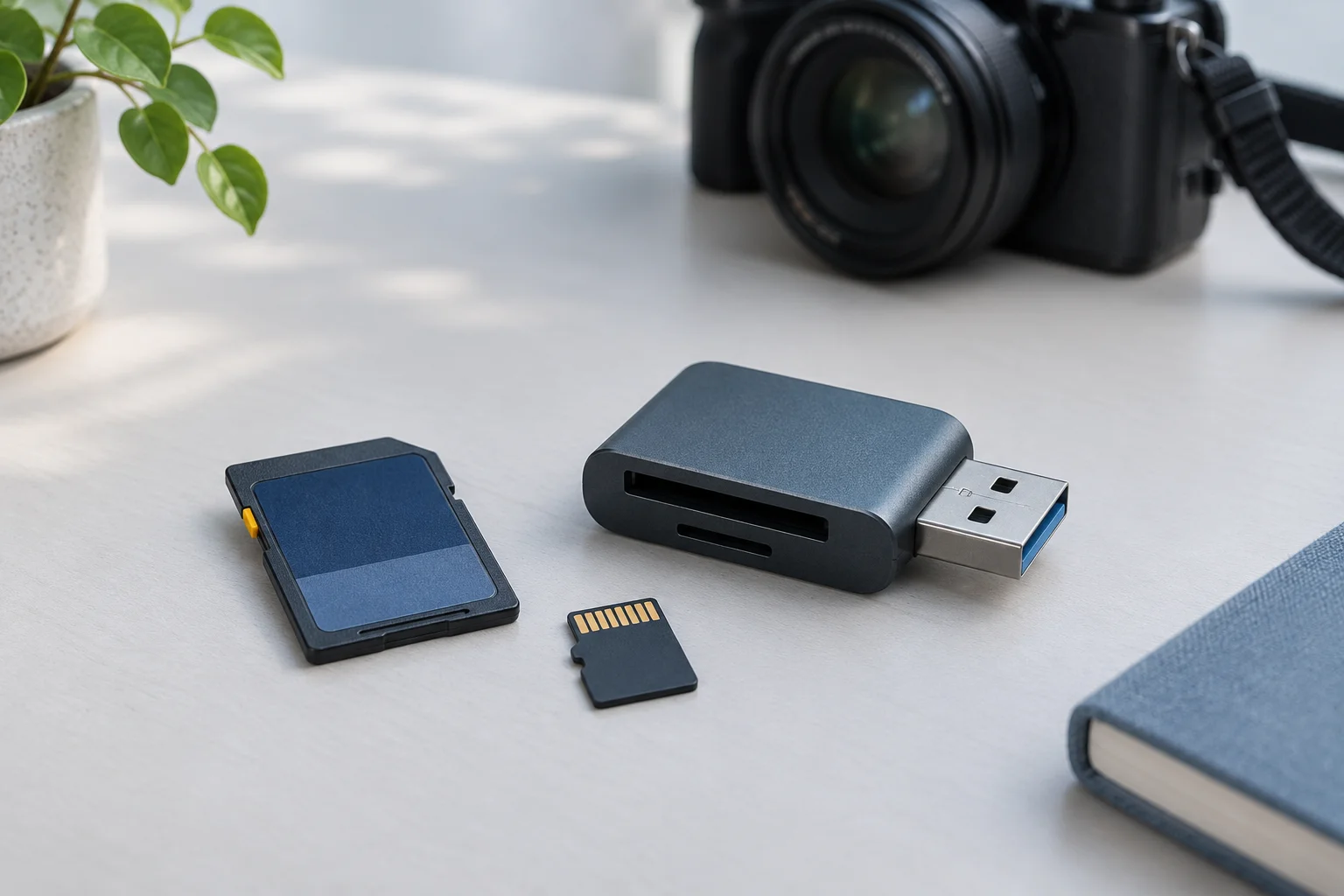
This guide focuses on FAT file recovery across USB drives and memory cards. If the immediate problem is a device that will not connect or a damaged card, start with the relevant USB recovery guide or SD card recovery guide.
First, identify what happened
| Situation | Start here |
|---|---|
| Files are visible and open | Copy them to independent storage and check the copies before changing the source. |
| Files were deleted or the volume was quick-formatted | Stop saving new data to it; look for backups and scan the readable source if needed. |
| Windows asks to format the drive or shows RAW | Cancel the format prompt. Keep the source unchanged while deciding how to recover files. |
| The drive repeatedly disconnects or has obvious physical damage | Stop repeated scans and assess the device; an unstable source may need specialist help. |
A file system label alone does not tell you whether a particular file can be recovered. If the source volume still opens in Windows, right-click it in File Explorer, select Properties, and look for File system. If it is RAW or unavailable, do not guess its former format from the device’s appearance.
FAT12, FAT16 and FAT32 are different FAT variants; exFAT is a separate file system. XRecovery supports scanning and recovery for FAT12, FAT16, FAT32 and exFAT, but a result on one source does not prove that a different device or damaged layout will behave identically. Microsoft’s file-system comparison provides general context.
Prepare a separate destination
Use another physical disk with enough free space for the files you need. Do not save the recovery results back to the affected USB drive or card: writing there could overwrite data you are trying to retrieve.
If you expect large individual videos or archives, check the destination file system as well as its free space. FAT32 cannot hold a single file of 4 GiB or more. The recovery destination guide covers space, device identification and file-size limits.
Scan and recover a readable FAT source
- Connect the USB drive directly or put the memory card in a compatible reader. Identify it by its reported capacity and other available details so you do not select the wrong disk.
- Install XRecovery on a different disk from the affected source. Select the original partition when identifiable, or the corresponding readable disk if its partition entry is missing, and start a scan.
- Browse results by original path and by file type. Search for a familiar name when available, then inspect candidates with supported previews.
- Select the files you need and save them to the separate destination. Open the exported copies and check the content that matters.
XRecovery offers free ordinary scanning and supported original-file previews. Recovery and repair share a cumulative 2 GB free allowance. Results depend on the source’s condition and the data that remains.
Deleted files and quick-formatted volumes
After deletion, surviving directory information may help preserve a file’s name and folder. A file found by its contents may have a generated name instead. If similar results appear in different views, compare their actual content before discarding alternatives.
After a quick format, prior folder information may be less complete. Inspect candidates by type and size, then open the exported copies: check image dimensions, relevant document pages, full video playback or important archive entries. Avoid formatting again or attempting an in-place file-system repair before securing the files.
USB and memory-card details
For a USB drive, identify the correct physical device when several drives have similar labels. If it is RAW, see recovering files from a RAW USB drive. If it disconnects repeatedly, focus on the connection and device condition before scanning again.
For a memory card, use a reader that fits the card and inspect an adapter’s position if access is blocked. If photos are the missing files, the deleted SD-card photo guide covers how to inspect originals after recovery. Avoid taking new pictures on the card until the missing files are secured.
Older FAT12 or FAT16 media deserve the same careful identification and separate-output workflow. Their age or file-system label does not establish how much data remains. A file scan is also different from rebuilding a partition or repairing allocation structures in place.