
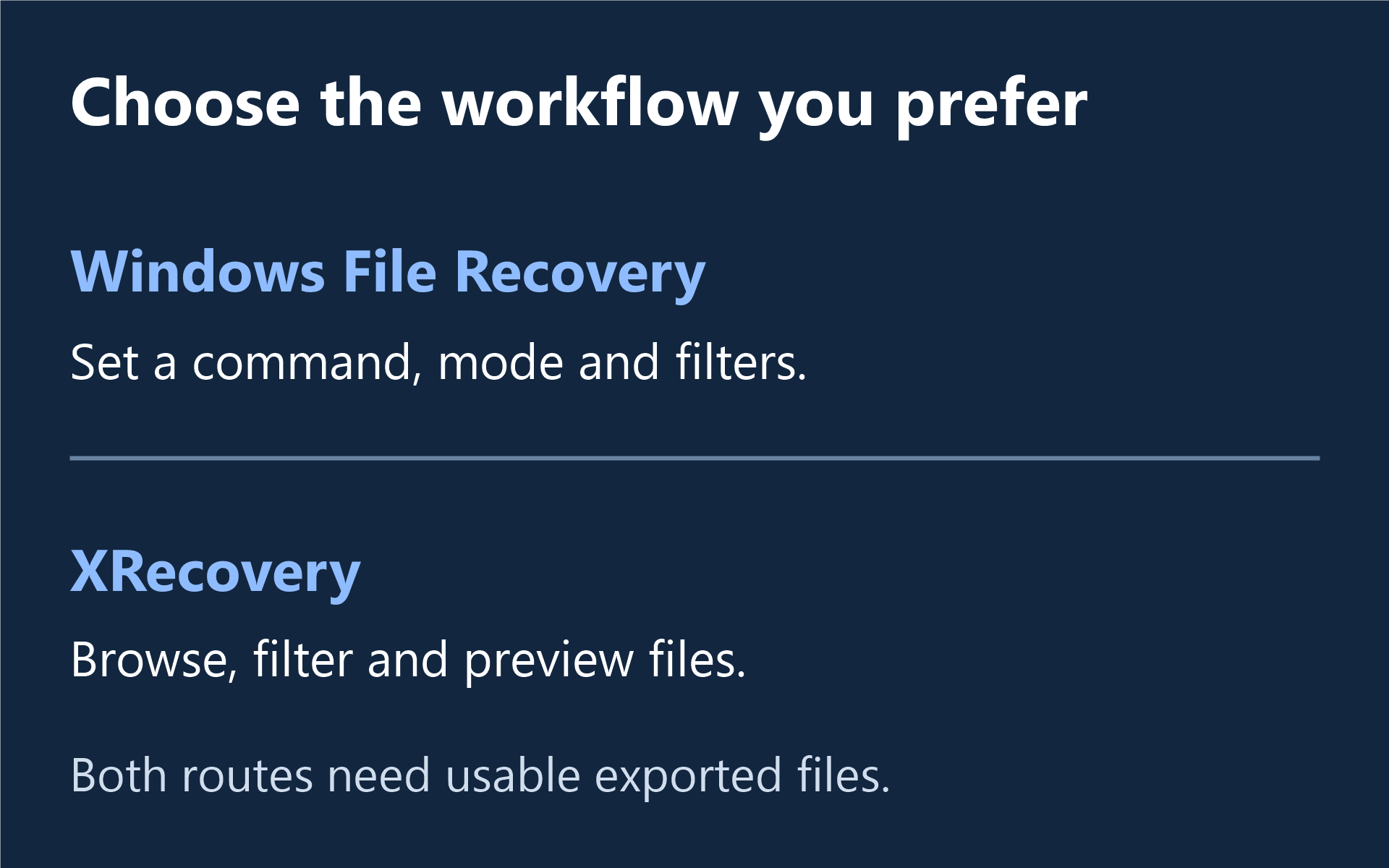
Choose Windows File Recovery if you prefer a command-line workflow for local storage. Choose XRecovery if you want to browse results, filter files and inspect supported previews before saving. Both choices still depend on readable source data and files that survive intact.
Windows File Recovery vs XRecovery
This comparison is published by the XRecovery team. Microsoft’s side follows its official Windows File Recovery documentation; the XRecovery side uses our published 4.0 product information.
| Compare | Windows File Recovery | XRecovery 4.0 |
|---|---|---|
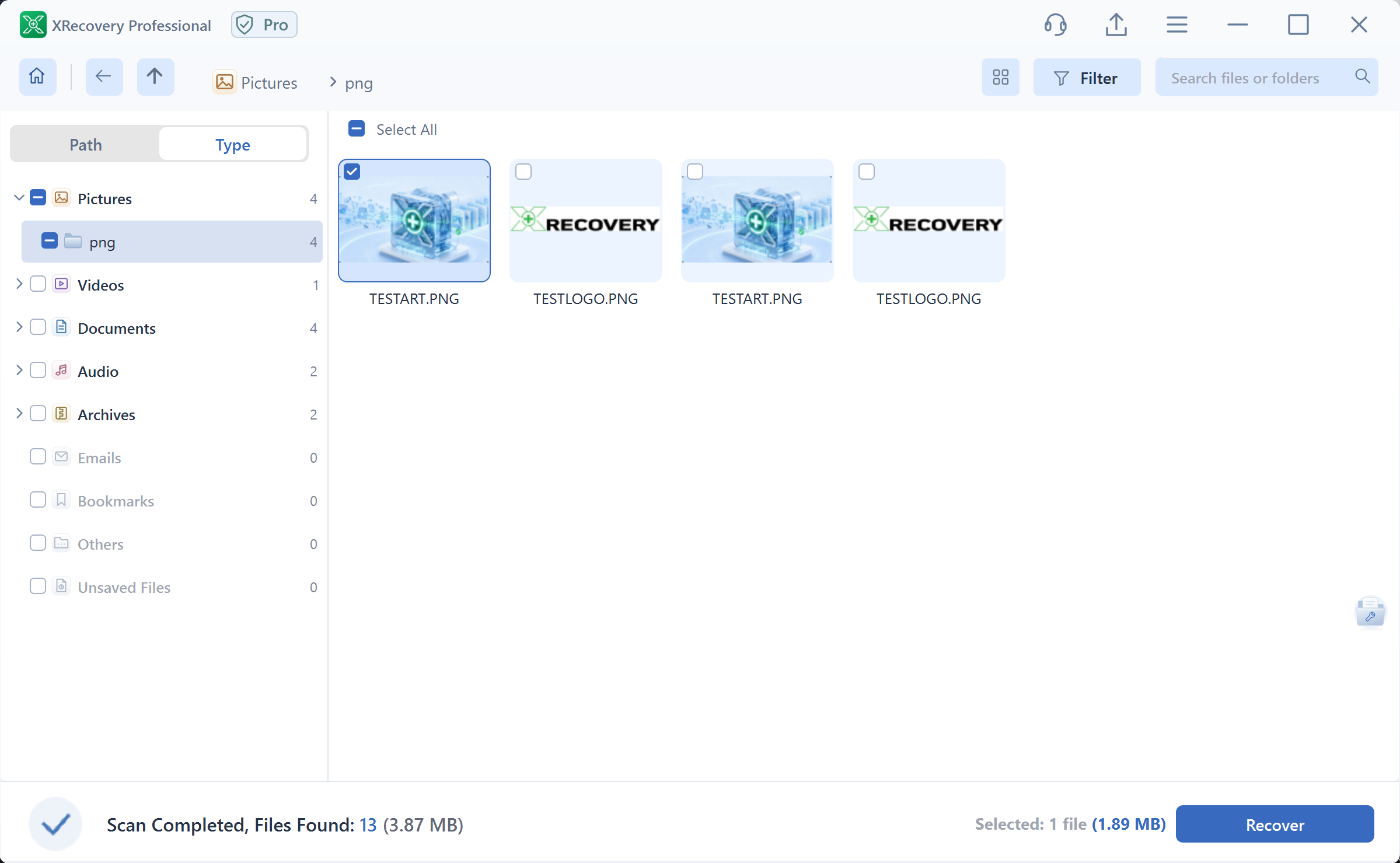
| Interface | Commands, mode selection and filters. | Graphical Path/Type views, search, filters and supported previews. |
| Windows scope | Microsoft’s guide applies to Windows 10 and 11. | Windows 7 SP1 or later; x86 and x64. |
| Source choice | Local storage; cloud storage and network shares excluded. | Supported readable drives/cards; also listed disk images, authorized OneDrive and SSH/root NAS or Linux workflows. |
| Scan choice | Regular or Extensive; FAT/exFAT use Extensive. | Quick/deep scanning where supported, plus content-signature search. |
| Inspecting content | Check exported files in the relevant application. | Preview supported original files before selecting exports; check saved files too. |
| Recovery and repair | The cited guide describes file recovery. | File recovery plus separate repair of listed damaged formats. |
| Export terms | Free Microsoft Store app. | Free recovery and repair share a cumulative 2 GB allowance; paid recovery has no capacity quota during its term. |
Prefer a visual route? Scan and preview supported files for free with XRecovery before deciding what to recover.
Windows 7 SP1 or later. Need the 32-bit installer?
When is Windows File Recovery a good fit?
It can suit a local-storage task when you are comfortable identifying the source and destination and choosing command options. Follow Microsoft’s current instructions for your file system and loss event, and use different source and destination drives. This comparison is not a command recipe for your disk.
When is XRecovery worth trying?
A graphical workflow can help when there are many similar files or versions to inspect. Browse by original path or file type, search and filter candidates, then preview supported content. XRecovery also lets you add an existing damaged file for supported repair without first running a disk scan.
How should you compare the results?
Before either route, check available backups, stop unnecessary writes and prepare another output device. If you evaluate both, keep exports in separate folders and record the source, version and settings. Results from a source that changed between attempts are not a controlled comparison.
Open the required documents, full-size photos or complete recordings. Check content integrity separately from names and folder organization. Switch tools to address a specific missing function or unusable workflow, rather than assuming that a higher price must return more bytes.
For XRecovery, Compare monthly and annual plans once useful files exceed the free balance. Monthly and annual licenses have the same functions for one computer and renew manually. The Windows recovery walkthrough and support details cover the operating steps and scope.