
Vlog footage lost is almost never a failed memory card. It is a failed workflow, and the failure is structural: a vlog is assembled from four or five devices that have no shared naming scheme, no shared clock discipline, and no shared destination. A phone, a mirrorless body, a drone, a lavalier recorder, and a screen capture each produce files with their own conventions, and each one holds the only copy until someone remembers to move it.
The practical consequence is that your most valuable clips are usually the ones sitting in the fewest places. The single-camera B-roll is backed up twice by habit; the phone pickup interview that took three attempts exists only in an app sandbox that a cache cleanup can empty. The workflow below fixes that imbalance without turning a one-person operation into a studio.
The Real Problem Is Naming, Not Storage
Creators assume the enemy is capacity. It is not. Terabytes are cheap. The enemy is that your footage has no identity until you edit it.
A camera names files DSC_0473.MOV. A phone names them IMG_2043.MOV. A drone names them DJI_0088.MP4. Your audio recorder names them 231117_004.WAV. None of those names tells you which shoot, which day, or which camera angle they belong to, and none of them survives an import into a phone editor that renames everything on the way in. Two weeks later, when you need the shot of the coffee cup from the Tuesday run, you have a folder of four hundred files with no ordering principle.
Naming is the cheapest fix available and the one most often skipped. A single convention — date, project, device, take — applied at the moment of offload solves most of the retrieval problem before it starts. It also makes duplicates visible, which matters because duplicate detection is how you avoid overwriting a good take with a bad one during a manual copy.
Where Vlog Footage Actually Disappears
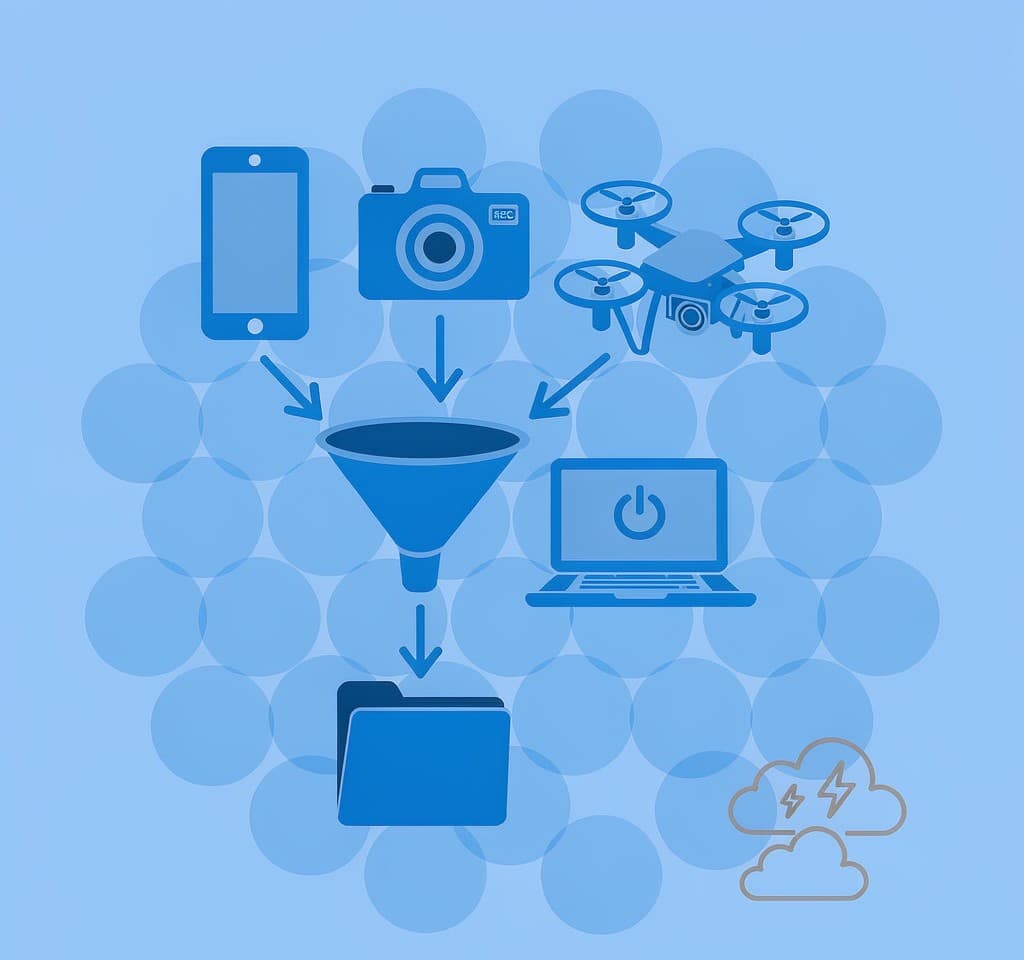
Six losses account for nearly every case reported by solo creators, and only one of them involves hardware failure.
| Loss site | What actually happens | Recoverable |
|---|---|---|
| Phone editor sandbox | App imports by reference or into a private cache; clearing app data or storage empties it | Sometimes; the source clip may still be in the camera roll |
| Social platform drafts | Draft is held inside the app’s own storage, not in your photo library | Rarely; the draft is not a file you can copy |
| Camera roll offload | “Optimize storage” moves originals to a cloud library and leaves low-resolution proxies | Yes, from the cloud library if it is reachable |
| Multi-device card swap | A card used in two bodies accumulates two folder trees; one gets deleted as a mistake | Yes, if the card has not been reused |
| Audio and screen capture | Never copied off the recorder or the computer at all | Yes, if the device is still available |
| Interrupted transfer | Cable pulled mid-copy, leaving a truncated file that will not open | Often, by re-copying with the source intact |
Read the table as a priority list. The top two rows are the ones that destroy work outright, because in both cases the only copy lives inside an application that has no obligation to keep it.
Phones Are the Weakest Link in the Chain
A phone is the device that shoots the most footage and protects it the least, for reasons that are architectural rather than careless.
When an editing app imports a clip, it may do one of three things: copy the file into its own sandbox, link to the file in the photo library, or keep a compressed working proxy and discard the rest at export. Only the first preserves your data in a form you can copy elsewhere, and even that form lives inside app storage that the operating system may clear when space runs short. A phone that warns about storage and offers to remove unused app data does exactly what it says — and if your only copy of an interview is inside that app, it is gone.
Platform drafts have the same weakness with a worse failure mode. A draft that you spend forty minutes assembling is not a video file; it is a project record inside the app, referencing media that may itself be a temporary copy. Reinstalling the app, signing out of the account, or an update that changes the project format can end it. The honest rule is that a draft is a working surface, never a storage location, and anything that matters gets exported and copied out the same day.
When a phone-side loss does happen, the same logic that governs camera cards applies: stop writing to the device, and the source may still be findable. The specifics are in phone camera data recovery.
A Lightweight Staging Rule for Solo Creators
The workflow that survives contact with real shooting days is not a studio pipeline. It is three habits.
Offload per device, per day. Not per project, not per week. Every device that recorded anything gets emptied onto a single staging drive at the end of the day, into a folder named with the date and the device. This takes ten minutes and prevents the situation where the drone card and the camera card have both been reused before anyone noticed which shoot was missing.
Copy, verify, then clear. Never delete from the source until the copy has been confirmed. Confirm means comparing file count and total size, not glancing at a progress bar. A copy that reports success after the cable was nudged is the single most common source of truncated files.
Keep two copies before you edit anything. A staging drive plus one more location. The second copy can be a portable SSD, a cloud upload, or increasingly a NAS at home, and the point is not sophistication but the existence of a second artifact. The reasoning behind that number is explained in the 3-2-1 backup rule.
If you shoot in the field without a laptop, the same three habits work with a different physical setup — the options and their failure modes are set out in a field offload routine that works without a laptop.
The Naming Scheme That Solves Most of It
A workable convention needs four fields and no more: date, project slug, device code, and a sequence number. 2026-09-14_kitchen-series_A7_0012.MOV can be sorted, searched, and traced back to a camera. It also survives being handed to an editor or a client without explanation.
Two supporting details make it hold. First, set every device’s clock correctly before a shoot, because file timestamps are the fallback when naming fails and a camera that is eleven minutes off will scramble your ordering. Second, apply the convention during offload rather than importing raw card folders and planning to rename later — later never arrives. The device-level habits that keep a multi-body shoot consistent are in a pre-shoot checklist.
Social Drafts and Cloud Folders Are Not Backups
The most expensive assumption in creator workflows is that the platform is holding your work. It is not.
A draft in a social app is a convenience feature. It is stored in the app’s private data, tied to an account and a device, and it is not exportable in any meaningful sense. Cloud folders have a subtler problem: a folder that syncs is a folder that mirrors deletions. Delete a file locally to free space and the sync service deletes it remotely, which is a design decision rather than a fault, but it turns your “backup” into a second point of failure. Genuine cloud protection uses versioning or archival tiers rather than a mirror, as described in cloud backup tiers for photographers.
The counterpart rule is that the archive must be boring. Files that are only ever read, on a drive that is only ever written to during offload, with a second copy that is never edited in place. Creators who manage several shoots a month end up needing something close to the discipline a production data management role applies to a commercial shoot, scaled down to one person and a shelf.
What to Do When a Clip Is Already Missing
Stop using the device. That is the whole first step, and it applies whether the missing clip was on a card, a phone, or a card inside a drone.
If the source is a memory card or a phone’s internal storage and the file was deleted or the volume was reformatted rather than overwritten, the file system has lost the reference while the data remains in place. In that state, if you are on Windows and the card is still detected by a computer, a purpose-built recovery tool such as XRecovery (xappset.com) can scan SD, microSD, and other memory cards for deleted or formatted photos and videos. As with any recovery tool, stop writing to the card first and always save recovered files to a different drive. A memory card that has not been reused gives up its clips cleanly; a card that has been recording again may return only fragments. For action-camera and drone sources, backing up and offloading those devices without a computer covers the device-side routine.
Frequently Asked Questions
Why did my vlog footage disappear when nothing was deleted?
The usual cause is application storage rather than user error. Phone editors and social apps keep imported media inside their own sandbox, and clearing app data, reinstalling, or letting the operating system free space can empty that sandbox. If the clip was never exported to the camera roll, the app was holding the only copy.
Are social media drafts a safe place to store an unfinished video?
No. A draft is a project record inside one app, tied to one account and one device, and it is not a file you can copy. Treat drafts as a working surface only: export anything that matters and move it to your own storage the same day.
What is the simplest workflow to stop losing footage across devices?
Offload every device to one staging drive at the end of each shooting day, into folders named by date and device. Verify by file count and total size, then clear the source. Keep a second copy of the staging drive before you start editing.
Does the cloud count as a backup for video files?
Only if it versions or archives. A folder that syncs mirrors your deletions, so a file removed locally disappears remotely too. Use a service with version history or an archival tier, and keep at least one copy you control on physical media.