
The 3-2-1 backup rule photography exists to answer one question, and most photographers get the answer wrong before they ever count their copies: a backup is a copy that a mistake cannot propagate to. Three copies on two media with one offsite is the classic formulation, but the test that matters is not arithmetic. If deleting a file in one place deletes it everywhere, you have one logical copy wearing three hats, and a stray keystroke in a sync folder will prove it to you within the hour.
So start by auditing rather than adding. Count how many of your “copies” would survive an accidental deletion at the source, then read the rest of this page to fix what does not.
What the Rule Actually Says, Stripped of Slogans
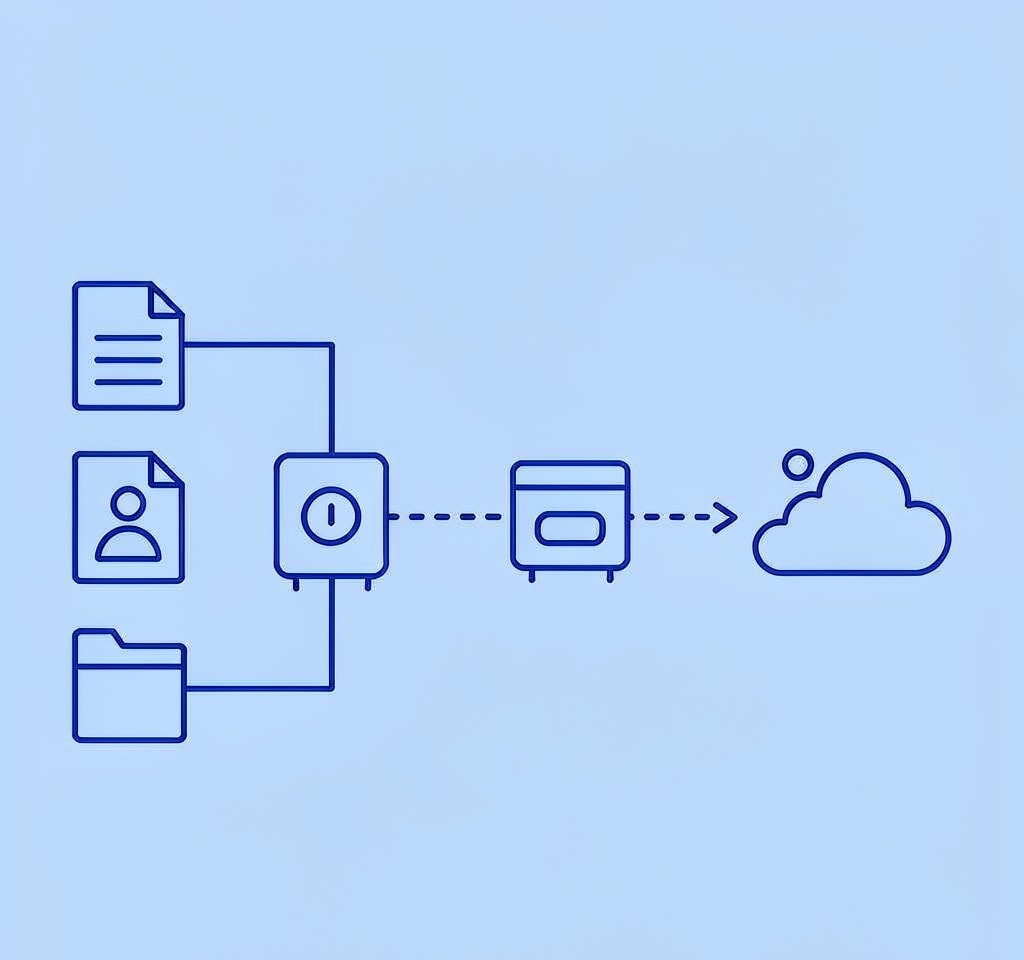
The three numbers describe a shape, not a shopping list.
Three copies means three independent instances of the same data, including the original. A card still in the camera counts as one. That surprises people who assume the count starts after import.
Two media types means the copies should not share a failure mode. Two hard drives on the same desk share a power supply, a surge event, and a theft; two SSDs from the same production batch can share a firmware defect. A hard drive plus cloud storage, or a hard drive plus optical media, are meaningfully different media.
One offsite means the copy lives somewhere that a single local event cannot reach. A fire, a flood, a power surge, or a burglary takes out everything in the room. Offsite is the copy that survives the room.
Two additions have become standard practice since the rule was written. Some photographers use 3-2-1-1-0, where the extra 1 is an offline or immutable copy and the 0 is a verified-restore count — zero errors on a test restore. The immutable idea is the valuable part, because it addresses the failure mode that 3-2-1 alone does not: ransomware and accidental deletion that reaches every connected copy.
The One-Point Rule: A Sync Is Not a Backup

This is the misconception that costs more photography than hardware failure ever has, and it deserves to be stated plainly.
Synchronization makes two locations identical. Backup makes a second location hold a historical state. Those are opposite goals.
When you drop a folder into a desktop sync client, the client’s job is to propagate change. Delete a photo on your laptop and the deletion is pushed to the cloud within seconds, then pulled down to the second machine. Edit a RAW file destructively and the previous version is overwritten everywhere. A ransomware process that encrypts your working folder gets its encrypted output uploaded as the newest state of every file. In all three cases the sync worked exactly as designed, and in all three cases you lost data with no error message.
The diagnostic question is short. If you delete a file right now from your main working folder, how long do you have to change your mind, and does the second location still have it? A true backup answers “forever, from yesterday’s snapshot.” Sync answers “until it propagates,” which is usually seconds.
There is a second, subtler gap. Sync clients are built for documents, not for the write pattern of a 900 GB import. Interrupt a large upload and the client may resume from the wrong offset, silently skip files above a size threshold, or stop with a generic “everything is up to date” indicator that reflects a queue rather than a verified state. The mechanics of wireless and cloud transfer reliability deserve their own treatment — the material on cloud backup for photographers covers what to expect from each service class, and the GoPro cloud sync failed analysis covers what happens when a transfer silently drops files.
The counterintuitive consequence: the more devices you sync, the less safe your data is, not more. Each additional synced device is another place where a mistake can originate and replicate.
Choosing the Second Medium When One Card Holds a Terabyte
The awkward part of applying 3-2-1 to modern photography is scale. A 1 TB CFexpress card or a full-day 4K shoot can produce 400–900 GB in one session, and a workflow designed for 32 GB cards does not survive contact with that volume.
Practical media choices, with their real trade-offs:
| Medium | Write speed for a full-day shoot | Cost per TB | Failure mode to plan for | Good role in 3-2-1 |
|---|---|---|---|---|
| External SSD (USB 3.2 / Thunderbolt) | Fastest, 30–60 min for 800 GB | High | Controller firmware failure, no warning | Working copy and fast second copy |
| External HDD (7200 rpm) | Slow, 2–4 hours for 800 GB | Low | Mechanical shock, head crash | Local archive, powered only during use |
| LTO tape | Very slow | Low at scale | Drive compatibility across generations | Studio archive past 20 TB |
| Cloud object storage | Limited by uplink, often overnight or multi-day | Recurring | Silent partial upload, quota limits | Offsite copy, verified after upload |
| Optical (M-DISC) | Very slow | High | Media handling | Small irreplaceable sets, long-term cold storage |
Three rules follow from that table.
The second copy must be made before the card is reformatted, and it must be verified, not merely written. A file copy that completes without a checksum comparison proves only that the bytes were sent. Verifying each file against a source hash is what catches the one file that copied as zero bytes.
Rotate the archive drives. A drive that is plugged in permanently is exposed to surges and to any process that encrypts connected volumes. A drive that lives on a shelf and is powered on monthly for verification is a materially different risk profile.
Match the medium to the payload. Putting 800 GB of RAW onto a spinning drive overnight is normal and fine. Putting the same data onto a sync folder and calling it done is the mistake.
The field version of this problem — backing up without a laptop, often with a phone or an SSD with a card reader — is covered in the field backup workflow guide, and the studio-scale version belongs to the DIT data management process.
The Copy That Matters Most Happens Before the Card Leaves the Slot
Most backup plans are designed for the desk, and most data loss happens before the shoot ends.
There is a window between the last frame and the first safe copy, and during that window the card is the only copy that exists. That window is where cards get formatted in-camera “to clear space,” where a card drops out of a pocket, where a battery dies mid-transfer, and where a formatter is pressed by mistake. A plan that only starts at the desk leaves that window entirely unprotected.
Three habits close it:
- Do not format a card in the camera until its contents exist in two verified places. Not one. An in-camera format is quick and recoverable, but recoverable is not the same as safe, and the copy that existed only on the card is now a recovery project.
- Make the field copy while the card is still in hand. An SSD with a built-in card reader and a checksum-verifying copy tool turns a ninety-minute car ride into a covered window.
- Never take a card out of the camera with the power on. An unclean removal can leave the last file unindexed, and the clip that will not play is the one from the shot you cared about.
The condition of the card is part of the backup chain too. A card that is silently replacing good clusters produces copies that verify as complete and decode as garbage on the last third of the file. Regular card health testing — a full-capacity write-read cycle, not a quick format — catches that class of failure before it reaches a shoot.
What “Offsite” Means in Practice
Offsite is the part of the rule that photographers most often fake. Leaving a drive at a relative’s house is offsite. A second drive on the same desk is not, no matter how many copies it holds.
Workable offsite options, ordered by effort:
- Cloud object storage or a photography-specific backup service. No physical action required, but upload time is real: 800 GB on a 20 Mbps uplink is over four days of continuous transfer. Budget for it and verify completion.
- A rotated drive kept at a second address. Copy to the drive, take it there, and swap it with the one that has been offsite for a month. The rotation guarantees each drive is unplugged for most of its life.
- A second site you control — a studio and a home, or two offices. This is the strongest option for a working photographer, since it removes a third party from the chain.
- A mail-rotation arrangement. Effective and slow. Suitable for a monthly archive tier rather than a working copy.
Whichever you choose, the offsite copy must be dated and its restore path tested. An offsite drive that nobody has read from in two years is an assumption, not a backup.
A Twenty-Minute Audit of Your Current Setup
Answer these eight questions honestly and count the failures. Two or more is a plan that will lose work.
| Check | Passing answer | Common failing answer |
|---|---|---|
| Count your copies, including the card | Three or more, independently stored | One on the laptop, one in a sync folder |
| Can an accidental delete propagate everywhere? | No; at least one copy holds a prior state | Yes, sync propagates in seconds |
| Are two media types in play? | Different technologies | Two drives from the same batch |
| Is one copy physically offsite? | Yes, at a different address | A drive on the same desk |
| Has a restore been tested in the last 6 months? | Yes, files opened and checked | Never tested |
| Is the offsite copy immutable or offline? | Yes, unplugged or versioned | Continuously connected |
| Are two copies verified against a hash after import? | Yes, with a checksum log | Copy completed, no verification |
| Does the plan cover the shoot, not just the desk? | Yes, field copy before format | Starts at import only |
The single most common failing answer in that table is the last one, and it is also the cheapest to fix.
The rule is a floor, not a ceiling. Three gaps remain after 3-2-1 is satisfied: ransomware and malicious deletion, which only versioning or an offline copy addresses; silent bit rot, which checksum manifests generated at import and verified on a schedule are the only defense against; and metadata loss, because a folder of perfectly intact RAW files with no sidecars and no catalog is a backup of the pixels and not of the work. That is why a plan should be tested by restoring something real. The identical discipline applies after a recovery operation, where the equivalent step is to open a sample of recovered files before deleting the source, as described in verify recovered files. If your setup has already failed — files gone from a card that is still detected — the camera data loss prevention overview covers the immediate handling steps.
Frequently Asked Questions
Is a cloud sync folder a backup?
No. Sync makes two locations identical, including deletions, edits, and encryption from malware. A backup preserves a historical state that a mistake at the source cannot reach. Versioning history in a sync service narrows the gap but does not close it, because the version window is usually short and often not co-located.
Do I really need three copies if I shoot to dual cards?
Dual-card recording protects against one specific failure: a card dying. It does not protect against theft of the camera, formatting both cards after a mix-up, or a firmware fault that corrupts both writes. Dual recording is a good field measure, not a substitute for 3-2-1.
How do I back up a 1 TB card without waiting a week?
Copy to a fast external SSD first, which takes under an hour for most sessions, then let the cloud upload run from the SSD in the background. Verify the SSD copy against a checksum before you format the card, and treat the cloud copy as the offsite tier rather than the working copy.