
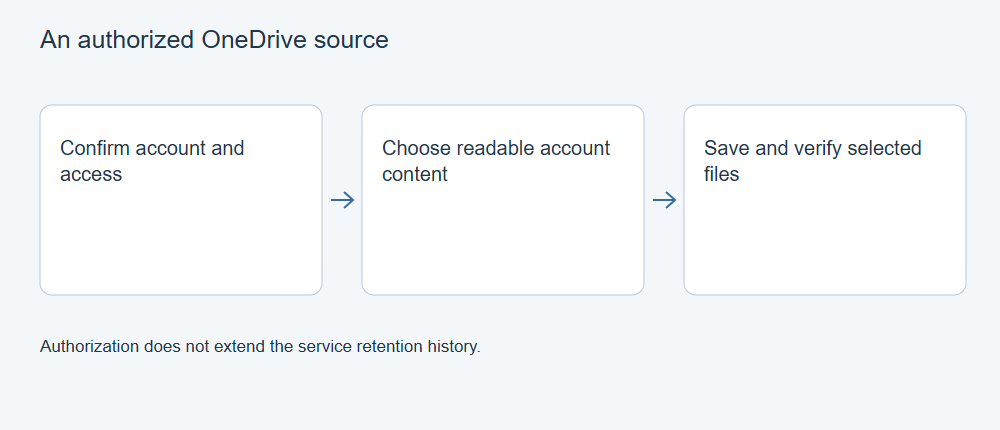
XRecovery’s documented OneDrive source function concerns files that an authorized account can still make readable. It does not extend the service’s deletion history or promise recovery of permanently unavailable account data. First check whether OneDrive’s native recycle bin or version controls already supply the required copy.
Confirm the account and intended result
Identify the personal or managed account, owner, path and version you need. If the item belongs to a shared or organizational location, confirm your authority and any administrative conditions. A successful login to another account does not establish access to the missing content.
Check existing copies before beginning another retrieval. Preserve current work before restoring an older version. If the source item is unavailable under the account’s recovery conditions, authorizing a third-party app cannot bring it back.
Authorize through the product’s normal route
Use the OneDrive option in the installed XRecovery 4.0 cloud-source workflow and follow its normal sign-in and consent process. Verify the account identity and requested access before approving. Do not copy passwords or authorization tokens into support messages.
If organizational policy blocks the application or the necessary content, ask the authorized administrator to assess that condition. Do not try to bypass the policy by sharing credentials or presenting another person’s account as your own.
Identify readable content and a destination
Compare listed items with the required path and owner. Seeing an item in the list does not mean you have retrieved its full contents or the earlier version you need. Select the files you want to save.
Choose a separate, identifiable destination for output. Check available space and applicable recovery rights before execution. Avoid replacing the only current working copy with an uncertain candidate.
Retrieve and validate a representative file
Start with an important readable file where the terms permit. Open the saved output in its intended application, inspect required content and confirm the version. For projects, obtain the dependencies as well as the project file.
Retain the initial saved copy before repair, conversion or editing. If it fails to open, record the actual condition rather than treating a completed download indicator as proof of success. Compare a hash with a known-good original when available; without that reference, the hash only identifies the retrieved bytes.
Diagnose the correct failure
Separate sign-in, consent, listing, retrieval, destination and content-validation failures. Record the build, stage and non-secret error details. An item absent from the service, insufficient account access and a full output disk need different responses.
Use the provider’s OneDrive recovery guidance for account-native restoration. Keep that task separate from downloading a file the authorized product session can already read.