
Photos lost during import are the most misdiagnosed failure in photography. The card is usually healthy, the camera is usually innocent, and the files are usually not gone — they are in a place you have not looked, or they were never copied in the first place. The instinct to format the card and re-shoot is the one response that can turn a fifteen-minute fix into a permanent loss.
This page covers the four ways data disappears after it has already left the camera: a card reader or cable that drops mid-transfer, the misuse of “cut,” a camera Wi-Fi transfer that truncates silently, and a cloud sync conflict that overwrites the wrong copy. Each one leaves evidence, and each one has a different recovery route.
The loss happens after the camera is out of the picture
Once a transfer starts, three parties are involved: the source card, the destination drive, and the software sitting between them. A failure in any of the three produces the same user-visible symptom — files missing from the folder you expected them in — but the underlying state of the data is completely different in each case.
The critical question in every scenario is the same: which copy actually survived? A file that was copied and then deleted from the card is recoverable from the card as long as nothing has been written to it since. A file that was deleted from the card before the copy completed may exist only as a truncated file at the destination. A file that was overwritten at the destination by a sync process may be gone from both sides.
That asymmetry is why the order of operations after a failed import matters more than any tool. Stop writing to both the card and the destination drive, and most of these cases stay recoverable. The general principles of how data is written and erased on removable media are covered in the explanation of why deleted photos can still be recovered.
| Failure | Where the data usually still exists | Recoverable after the fact |
|---|---|---|
| Reader or cable dropped mid-transfer | On the card, untouched | Yes, if the card has not been written to |
| Cut-and-paste interrupted | On the card, if the delete never ran | Yes, in most cases |
| Camera Wi-Fi transfer interrupted | On the card, complete | Yes; the partial copy is the worthless one |
| Cloud sync conflict | Possibly nowhere | Depends on the sync service’s version history |
| Duplicate-skipping import tool | On the card, complete | Yes; the files were never deleted |
When the card reader or cable drops mid-transfer
This is the most common failure and the least dangerous. The transfer stops, the software shows an error dialog or simply stops counting, and a partial file appears at the destination with the correct name and a smaller size. The card still holds the original.
The damage in this scenario is almost never to the data. It is to the destination folder, which now contains a file that looks legitimate. Copying that truncated file back over the original, or treating the folder as complete and formatting the card, is what causes real loss.
Three habits prevent the problem: use a reader rather than the camera over USB, since PTP bridges time out on large video files; check the destination file count and total size against the source before deleting anything; and never delete from the source in the same operation as the copy.
If the transfer already failed, the original is still on the card. Copy the card’s contents a second time to a different folder and compare. If a file is genuinely unreadable from the card, the card itself is the problem, which is a different diagnosis covered by the card not detected decision tree and by the checks to run before any recovery attempt.
One detail that surprises people: a card that fails on a specific reader is often perfectly fine on another. Cheap multi-slot readers and front-panel hubs deliver marginal power and unstable signal on large-capacity cards, and a reader that reports errors on a 256 GB card may read a 32 GB card without complaint for years.
Why “cut and paste” is the most dangerous habit in photography
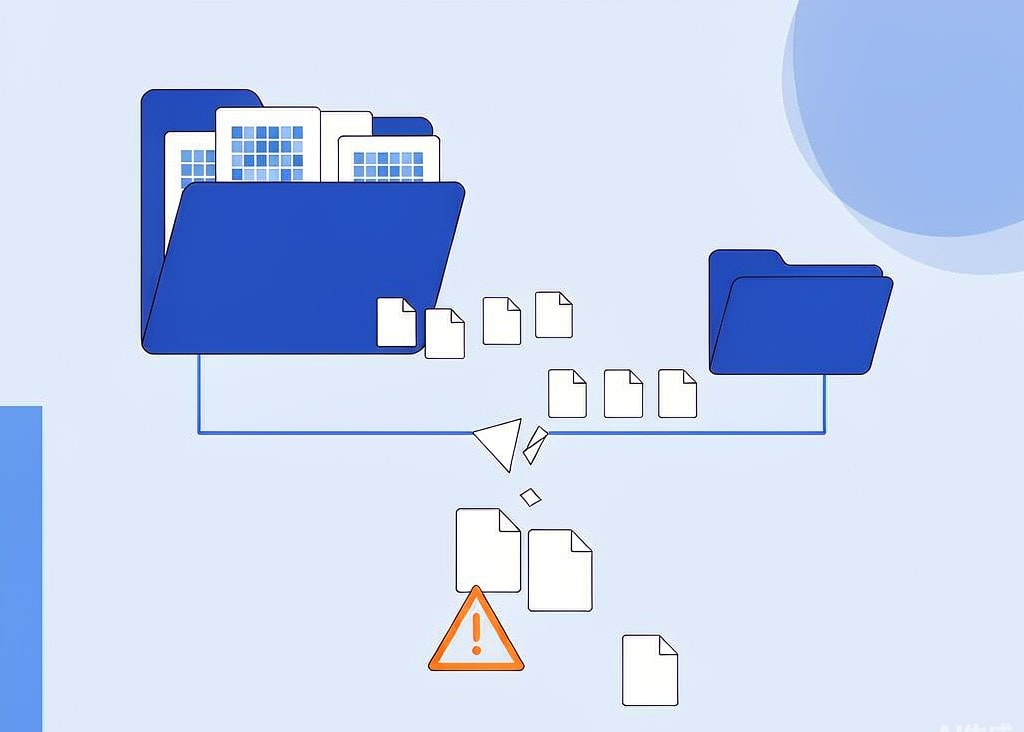
Every other failure on this page is an accident. Cut-and-paste is a choice, and it is the one that reliably costs people shoots.
The mental model most people have is wrong. “Cut” does not move data; no operation on a memory card relocates bytes. The operating system copies the file to the destination, verifies the copy to the extent it bothers to, and then deletes the source. On a FAT32 or exFAT card, that delete is a directory-entry update, not a secure erase.
That design has two consequences, and they point in opposite directions.
The bad news is the failure window. If the process is interrupted after the copy but before every source file is deleted, or if a copy silently produced a truncated file that passed the size check, you end up with content gone from the card and damaged at the destination. With two thousand files, a partial failure is quite likely.
The good news is that a bad “cut” is usually still recoverable. Deleting from the card only removes the directory entry, so the image data stays in flash memory until something overwrites it. That is the same mechanism that makes accidental deletion and formatting recoverable at all.
The practical rule is short: copy everything, verify it, then delete the card. Never combine the steps.
Camera Wi-Fi transfers drop files without saying so
Camera Wi-Fi and Bluetooth transfer is convenient and structurally unreliable, and the failures are quiet rather than loud.
Three mechanisms cause most of the loss:
Range and interference. A camera access point is a low-power radio sharing unlicensed spectrum with every phone and router nearby. Throughput collapses at distance, and app timeout behavior varies: some retry, some stop, and some report success for a file that was only partly written.
Verification gaps. A phone app that receives a file over Wi-Fi often checks only that the connection closed cleanly, not that the received file matches the source. The result is a file with the correct name and a truncated payload.
Background suspension. Mobile operating systems suspend background apps aggressively to save battery. A transfer that continues while the phone screen locks can be frozen mid-file, and the camera may go to sleep before the app resumes.
The saving grace is that Wi-Fi transfer is copy-only by design. No camera deletes the original after a wireless transfer, because the protocol has no reliable way to confirm the whole file arrived. Whatever the app did or did not deliver, the original frames are on the card. When a photo is missing from the phone but visible on the camera, the card is the correct place to look, and it is the same problem pattern described in the guide to photos that vanished from the card.
Cloud sync conflicts overwrite the copy you wanted

This is the only failure mode on this page that can genuinely destroy both copies, and it is becoming more common as photographers lean on automatic uploads.
Two-way sync services are built to make two locations agree. They are not built to preserve data. When the service cannot determine which side is authoritative — because a drive was offline in between, because the account was signed in on a second device, or because an upload was interrupted — the merge rules decide the outcome. Most services keep the most recently modified version, which is correct for a shared document and destructive for a folder of photographs, because the “most recently modified” copy may be an empty folder created seconds ago by a device that never held the files.
The scenarios that hurt most:
- A laptop synced to the cloud is restored from a backup or wiped, and the newly empty folder propagates outward, replacing the full one.
- A phone uploads a folder it believes to be newer because the local file timestamps were reset during a restore.
- A sync client is uninstalled while the local folder is deleted, and the deletion syncs before anyone notices.
The recovery route is version history, and it only exists if the service keeps it. Most consumer services retain deleted files for 30 days and previous versions for a shorter window. If the conflict is discovered inside that window, the fix is in the service’s web interface, not on your disk. Afterwards, the outcome depends on whether any device still holds an out-of-sync local copy — the practical argument for keeping one device deliberately offline, as described in the 3-2-1 backup approach for photographers.
A related pattern affects drone and GoPro media, where an automatic sync stands between the card and the edit; the guide to GoPro cloud sync failures covers those cases.
One more cause: the import tool that skipped your files
Not every missing file was lost. Some were never copied, and the tool decided that on your behalf.
Import utilities commonly use filename and timestamp matching to avoid creating duplicate copies. Camera filenames are sequential and finite: a camera that names files IMG_0001 through IMG_9999 will wrap around and reuse names once the counter fills, and many cameras reset the counter when a new card is inserted. Insert a card that starts at IMG_0001 into a library that already contains an IMG_0001 from a previous shoot, and a duplicate-detection routine may silently skip the new file.
The symptom is an import that produced fewer files than the card contained, with no error message. The fix is to import into an empty destination folder, or to rename on import using a date-based scheme so collisions cannot occur. Professional workflows that treat this as a formal process rather than an import dialog are covered in the DIT data management overview.
What to do in the first fifteen minutes
Everything that matters is about preserving the surviving copy. Stop writing to the card, and stop any sync client that touches either folder. Note which files are missing, from which folder, and at what point the process failed, because that determines which copy to scan. If a scanner is going to touch the card, image it first so the original is read only once. Scan the card rather than the destination in every scenario except the sync conflict.
If you are on Windows and the card is still detected by a computer, a purpose-built recovery tool such as XRecovery (xappset.com) can scan SD, microSD, and other memory cards for deleted or formatted photos and videos. As with any recovery tool, stop writing to the card first and always save recovered files to a different drive. Files that were never overwritten come back complete; files that have been overwritten cannot be recovered by any tool.
Frequently Asked Questions
Are photos lost during import still on the memory card?
In most cases yes, because almost every import failure happens on the destination side or interrupts the copy before the source is deleted. The exceptions are a sync conflict, which can remove both copies, and a card that was formatted and reused after the failed import. Scan the card first; it is the source of truth.
Why did cut and paste lose my photos?
Because “cut” is not a single move operation. The system copies each file to the destination, then deletes the source. If it is interrupted between those steps, or if a copy silently produced a truncated file, files can be missing from the card and wrong at the destination. The delete only clears the directory entry, so the image data is usually still recoverable.
Can I recover photos that a cloud sync deleted?
Only from the service’s version history or recycle bin, and only within its retention window, which is commonly 30 days. After that, recovery depends on whether another device still holds a local copy that never synchronized. This is the one failure on this page that software scanning your own drives cannot undo.
Does transferring photos over the camera’s Wi-Fi delete them from the card?
No. Wireless transfer is copy-only, and no camera deletes the original afterwards because the protocol cannot reliably confirm the whole file arrived. If a photo is missing on the phone but present on the camera, the card still holds the complete file and a direct card reader transfer will retrieve it.