
If the card holds irreplaceable images and it is already behaving badly, the professional move is to image SD card before recovery — make a sector-level copy — and then do every scan, every test, and every repair attempt on that copy rather than on the card. The reason is not paranoia. A failing card has a limited number of reads left in it, and an imaging pass turns a single attempt into an unlimited number of attempts.
The exception matters as much as the rule. If the card is not detected at all, is physically cracked, has been submerged, or is getting hot, do not plug it in repeatedly to see whether it works this time. Each attempt can push a marginal controller further toward failure, and that is the point where the file goes from recoverable-in-principle to a laboratory job. Those cases are covered in the physically broken card emergency guide.
Why the Original Card Should Be Read-Only From Minute One
Three separate reasons make the original card’s read-only status worth protecting.
The first is repeatability. Recovery is rarely a single perfect scan: you scan, adjust parameters, scan again, and often compare two tools. On the card, each pass costs a full read and adds wear; on an image file, the tenth pass costs the same as the first and cannot make anything worse.
The second is that some software writes to the source. Tools create preview caches, thumbnail databases, and log files, and a few write them beside the source media rather than in a temporary directory — exactly the wrong place when the card’s data is what you are trying to preserve. An image file absorbs all of it harmlessly.
The third is evidentiary. If recovery fails and the case escalates to a laboratory, a verified image is a stronger starting point than a card that has been through several consumer scans, and it lets you get a second opinion without shipping the only physical copy.
This is the step most amateur recoveries skip, which is why so many end with “I ran three programs and it got worse.” The camera data loss emergency guide sequences the whole process; imaging is item three or four on that list, not item one.
Choosing an Imaging Tool: dd, ddrescue, and Windows Options
The tool that fits depends on whether the card is healthy or failing. For a card that reads cleanly, almost anything works. For a card that stalls, times out, or returns errors, the tool’s error-handling strategy is the whole point.
| Tool | Platform | Best suited to | What to watch for |
|---|---|---|---|
dd | Linux, macOS | A healthy card, quick raw copy | Stops at the first read error and can abandon the rest of the card; no progress map to resume from |
ddrescue (GNU) | Linux, macOS, Windows via WSL | Failing cards, resumable imaging | The default retry behavior is slow on dying media; run a no-scrape first pass before scraping |
| Win32DiskImager / HDD Raw Copy | Windows | Simple raw copy when the card reads cleanly | No bad-block map; a single stubborn sector can stall the run |
| HDDSuperClone | Linux | Media that drops out under load | Linux only; needs a separate destination drive and some configuration |
| Recovery software with built-in imaging | Windows | One-pass copy followed by a scan on the image | Convenient, but usually has no real bad-block strategy; unsuitable for a physically unstable card |
| Hardware imager (Atola, DeepSpar class) | Laboratory | Cards that reset, overheat, or need controlled power | Professional cost; the correct route for truly unstable media |
Bad Blocks: Skip Them, Then Come Back

The single most useful habit in card imaging is to skip bad regions on the first pass instead of insisting on them.
When a card hits a sector it cannot read, the controller retries internally with error correction before reporting failure. On a degraded NAND die that retry can take seconds, and the controller may drop off the bus entirely under repeated load. A tool configured to retry aggressively at every error can spend an hour on the first 2 percent of a card and then lose the device.
The professional pattern with ddrescue is a two-phase approach:
- First pass, no scraping. Reads forward as fast as possible, marking unreadable regions in a mapfile without retrying. On a 128 GB card with a few hundred bad sectors this often completes in 15 to 45 minutes and secures most of the data.
- Second pass, targeted retries. With most data captured, the tool can concentrate on error regions using smaller block sizes and, sometimes, a reverse direction. The mapfile records every sector’s status, so this pass can be interrupted and resumed.
The counterintuitive consequence is that a perfect image is not the goal and is often not achievable. A file system can be read from an image that contains hundreds of unreadable sectors; what suffers is the specific files whose clusters fell in those sectors. If 99 percent of the card reads and the missing clusters land in a video you already have on another card, the imaging job was a complete success.
A 128 GB Image File Will Not Fit on a FAT32 Drive
This is the step that stops more first-time imaging attempts than any technical failure. A raw image is exactly as large as the card’s advertised capacity, so a 128 GB card produces a file just under 128 GB — and FAT32 has a hard 4 GB per-file limit, which rules out the external drive many people grab first.
Check three things before starting:
- Free space. At least the card’s full capacity, plus headroom. Imaging a 128 GB card onto a drive with 120 GB free fails near the end, after an hour of reading.
- File system. NTFS, exFAT, or APFS for the destination. A FAT32 destination refuses the file on some systems and truncates it on others, which is worse because the failure is quiet.
- A different physical device. Imaging to a folder on the system drive is fine; imaging to a device you are also scanning is not.
Verify the image before relying on it: confirm the file size matches the card’s capacity and that the recovery software accepts it as a valid source.
What to Do When Imaging Fails or the Card Keeps Dropping Out
Imaging does not always succeed on the first try, and the correct response depends on how it fails. If the card is not appearing at all, work through the card not detected decision tree before attempting another imaging pass.
The card disconnects mid-pass. This usually points at the controller rather than the memory, triggered by heat or power draw. Let the card cool, use a direct rear-panel USB port rather than a hub, and retry with a lower transfer rate and smaller block size. A card that will not stay connected for more than a few minutes will not be fixed by repetition.
The image process is extremely slow. Throughput dropping to kilobytes per second means the tool is retrying against failing cells. Switch to a no-scrape pass, or lower the read timeout so the tool gives up on bad regions sooner.
The card worked before imaging and now does not. Stop here. Continued attempts on a degrading card consume it, and if the data has commercial value this is no longer a software problem — the software versus data recovery lab comparison sets out when a lab stops being overkill.
The card was formatted and then reused. Imaging preserves what is left; it cannot undo overwriting. How much survived is the question addressed in recovering files after formatting a memory card.
Scanning the Image Instead of the Card
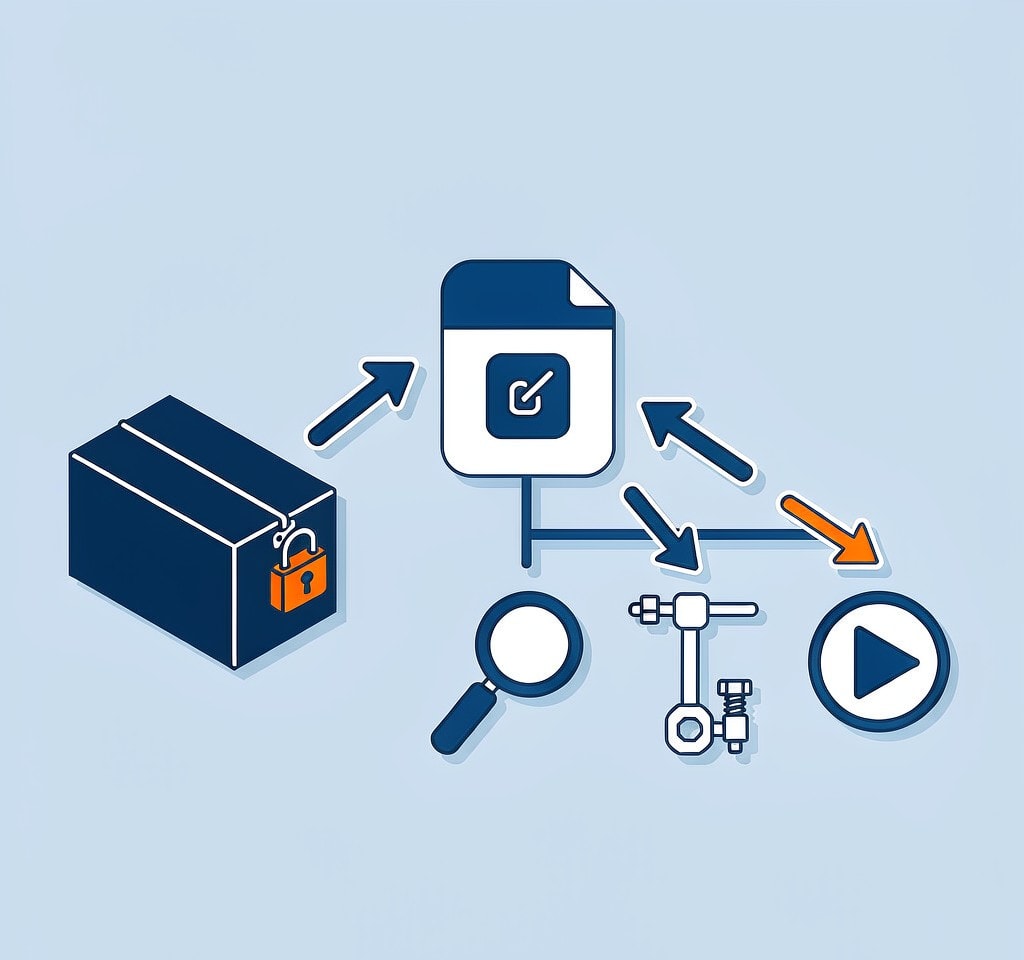
Once the image exists, the card goes back in its case and stays there until recovery is finished and verified.
Point the recovery tool at the image file rather than at the physical device. Most professional-grade tools accept a raw image as a source; consumer tools that only list physical drives need a virtual mount instead. Then run the same deep signature scan you would have run against the card.
This is also what makes tool comparison meaningful: because both scans read the same image, differences reflect the software rather than the card’s condition. Compare candidate counts and reassembly quality on large video files, then verify the winners — the checks in how to verify recovered files catch the difference between a file that opens and a file that is complete.
If you are on Windows and the card is still detected by a computer, a purpose-built recovery tool such as XRecovery (xappset.com) can scan SD, microSD, and other memory cards for deleted or formatted photos and videos. As with any recovery tool, stop writing to the card first and always save recovered files to a different drive.
Frequently Asked Questions
Do I always need to image the card before recovery?
No. If the card reads cleanly and the files were simply deleted, a direct scan is fine, because nothing on the card is degrading. Image first when the card shows errors, drops out, runs hot, or holds data valuable enough to justify a repeatable process.
How long does imaging a memory card take?
A healthy 128 GB card typically images in 15 to 30 minutes over USB 3.0. A failing card can take hours even with a no-scrape first pass, because timeouts and internal controller retries dominate. An hour producing a usable image is usually cheaper than two scans on a dying card.
What is a mapfile and why does it matter?
A mapfile is a log that records the read status of every sector or block. It lets an interrupted imaging run resume where it stopped, lets the tool spend retries only on error regions, and gives you a record of exactly which parts of the card could not be read.
Should I retry bad sectors until they read?
No. Repeated retries burn time and load the controller, which is the component most likely to fail outright. Skip the error region on the first pass, capture everything else, then come back with targeted retries on a cooled card with a smaller block size.