
If an SSD is not detected, first determine whether it is missing from File Explorer, Disk Management or the computer’s firmware. These are different layers. Recovery software needs a readable storage device; it cannot scan a name, an empty USB bridge or a drive that the access path does not expose.
Identify the hardware accurately
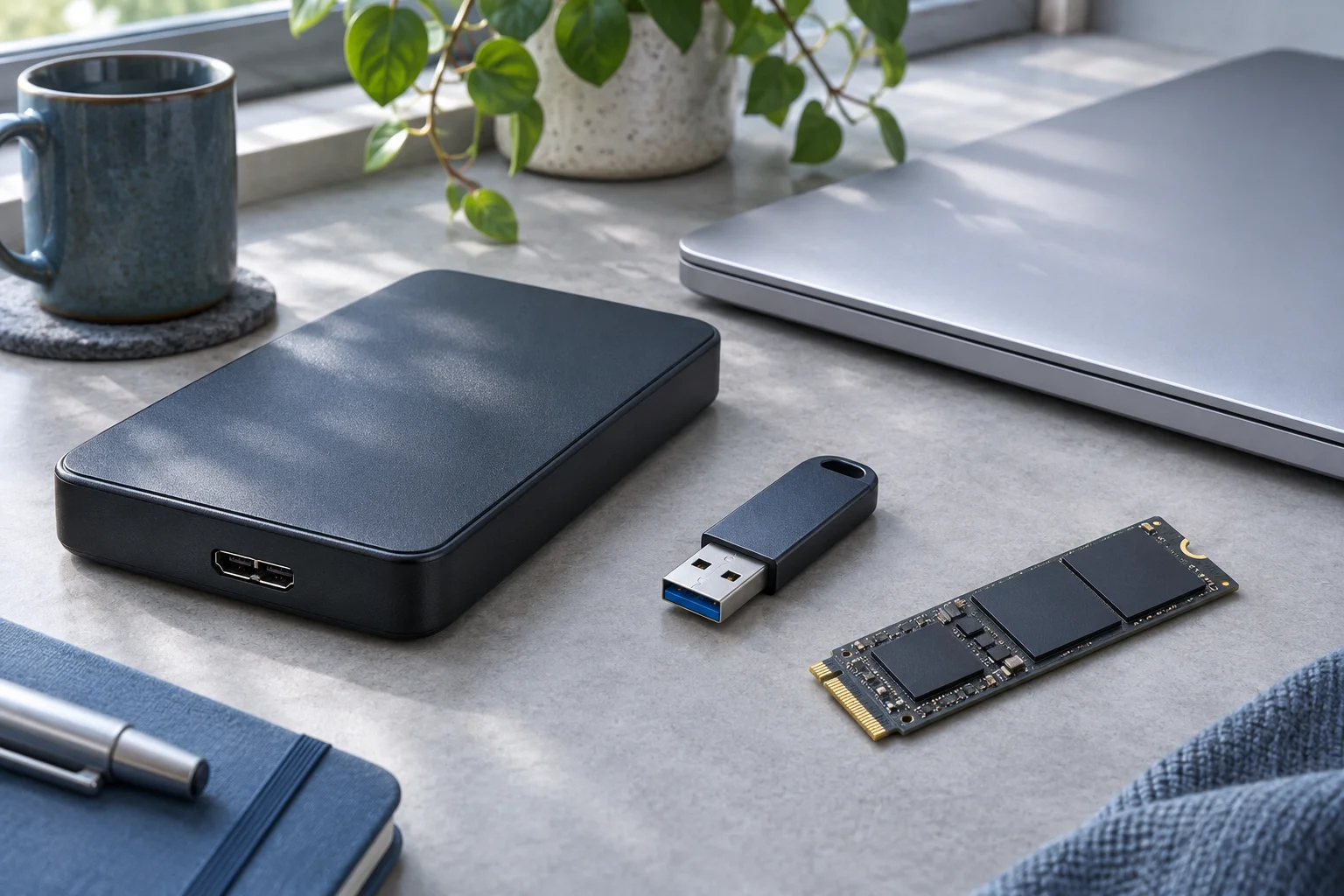
Record the SSD model and connection. For M.2 devices, verify whether the drive is SATA or PCIe/NVMe and whether the slot or enclosure supports it. Kingston explains the two M.2 interface families; physical fit is not a sufficient compatibility check.
For internal hardware checks, follow the computer’s service instructions with the required power-off and battery precautions. Do not reseat a live drive or change BIOS storage modes at random. If the disk contains the only copy and hardware handling is unfamiliar, obtain qualified assistance.
For an external SSD, try one known-compatible data cable and direct port when there are no electrical-damage signs. A cable that charges another device is not automatically a verified storage data cable. Keep the original enclosure and record exactly what was changed.
Find the layer where detection stops
For an internal SSD, firmware detection can help distinguish a hardware access problem from Windows volume mounting. The names and locations of those screens depend on the computer; check its documentation rather than changing settings to match a generic screenshot.
In Windows, open Disk Management. Look for a credible physical capacity and note any volume state. A controller or USB enclosure in Device Manager is not the same as the SSD appearing as a correctly sized disk.
| Observation | Appropriate next decision |
|---|---|
| Healthy recognized data volume, no letter | Assess drive-letter or mounting access |
| RAW or unallocated used disk | Preserve files; cancel preparation prompts |
| SSD visible but locked | Resolve legitimate encryption credentials |
| Zero/wrong capacity or repeated disappearance | Assess connection or device access |
| Absent through a verified compatible path | Stop ordinary scans and seek assessment |
Microsoft’s Disk Management guidance distinguishes volume states and warns against preparing used storage when recovery is needed. Do not initialize, format or create a new volume merely to obtain detection.
If access becomes available
If files are present and read normally, copy them first to another physical device. Verify the contents before continuing with less important material. A connection working once does not establish long-term source reliability.
If the device is stable but files are missing, XRecovery supports SSD recovery from recognized readable sources. Select the actual source, inspect the relevant results and export elsewhere. Validate a priority sample before a large batch.
For deleted content, successful detection does not reverse TRIM or overwrites. It merely establishes the access prerequisite. Keep detection success, file discovery and usable export as separate outcomes.
If it remains undetected
Do not repeatedly power-cycle, update firmware or dismantle a sealed SSD as generic recovery steps. Record the compatible path used, model, displayed capacity and errors for support or a recovery specialist. If no usable blocks are exposed, changing scan depth cannot create a source. Existing backups and a hardware-level assessment are the relevant alternatives.