
To safely eject SD card media you need about thirty seconds, and the habit prevents a failure class that no recovery tool fully repairs. The reason is structural rather than superstitious: when you pull a card the system is still writing to, the photograph you were copying is rarely the casualty. What breaks is the metadata that tells every later device where the files are and how large they are.
That is why the damage usually surfaces later — at the next import, on a different computer, or in the camera itself. What follows covers the correct order in the camera, the differences between operating systems, and what a bad removal actually destroys.
The File You Just Copied Is Not the One at Risk
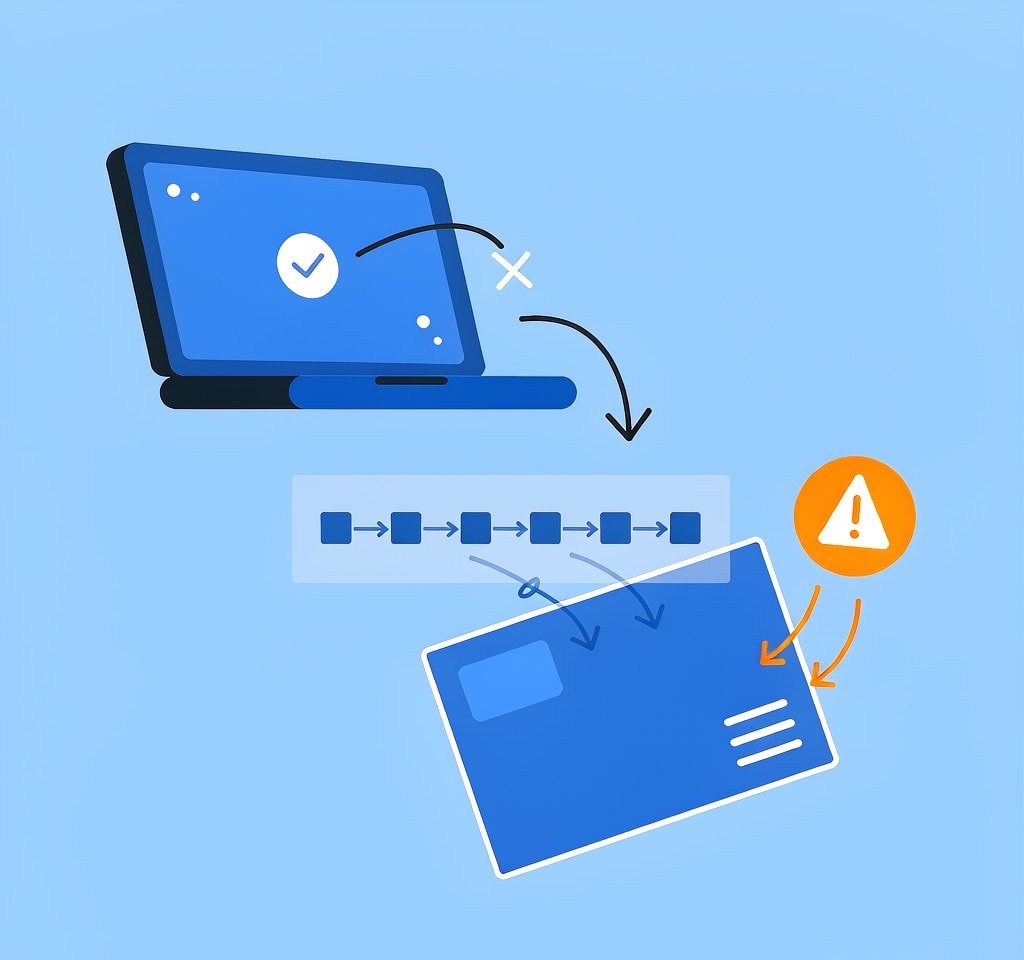
When people say they have never had a problem pulling cards, the claim is usually true and usually measured on the wrong thing. The visible file transfers first. The folder entry, the allocation table, and the recorded file length are written afterward, in a small batch at the end of the session. Yanking the card mid-session interrupts that batch, not the payload.
The consequences are quiet. A directory entry may point at a cluster chain that is now short or circular. Free-space accounting may be wrong. On exFAT, which almost every card above 32 GB uses, a volume dirty flag stays set and the next mount runs a repair pass that discards anything it cannot reconcile. The structure of these volumes is covered in how file systems on camera cards are organized.
So the practical warning is not that a file might be truncated. It is that the card may mount and lie to you — showing the wrong capacity, hiding folders, or reporting zero bytes while hundreds of images still sit on the NAND.
In the Camera: Disconnect in the Menu, Then Power Off
A camera that has just written an image still has housekeeping queued: directory updates, thumbnail files, and on some bodies the folder index and shot counter. Opening the card door is the equivalent of unplugging a drive mid-write.
- If the camera is connected over USB, use the menu option for ending the connection — often labeled
PC connection,Disconnect, orStorage— before you unplug the cable. - Power the camera off with its own switch and wait for the access lamp to go dark.
- Open the card door only after that, and take the card by its edges.
- If the camera must stay powered, remove the card only when the access indicator is dark and the camera is not in playback.
Some bodies expose a Remove card or Eject item that flushes open handles before you touch the door. It costs two seconds and it is the only point in this workflow where the device can tell you it has finished with the card.
In Windows: “Quick Removal” and “Better Performance” Are Not the Same Deal
Windows has two device policies for removable storage, and which one is active on your machine changes how much the Eject step matters. Many photographers have never seen this setting.
| Policy | Write caching | Eject required? | What an abrupt unplug risks | Cost |
|---|---|---|---|---|
| Quick removal | Disabled per device | Not strictly | A partial write if a transfer is running | Slower sustained writes |
| Better performance | Enabled | Yes | Finished writes still held in RAM | Faster large transfers |
Since Windows 10 version 1809, the default for removable drives is Quick removal, which is why people report years of unplugging without incident: the cache is off, so no completed writes exist only in memory. That is a genuine improvement, but it does not make the practice free. A transfer still running is still interrupted, and the file-system bookkeeping can still be left inconsistent.
Check which policy a reader uses in Device Manager under Disk drives, then the device’s Properties, then the Policies tab. If Better performance is selected — common on machines that offload large RAW or video files — the Eject step is not optional. Files that the browser shows as fully copied may still be entirely in the cache, meaning the copy you visually verified does not yet exist on the card.
On macOS: Why the Trash Is Not an Eject Button
The macOS habit that causes trouble is treating the Trash as the safety mechanism. It is a delete destination, not an unmount command, and the two actions look similar enough to be confused.
Dragging a volume’s own icon to the Trash does eject it, and the Trash icon becomes an eject symbol while you do it. Dragging a file to the Trash is a write. It changes the directory and moves the file, and on a card it leaves the volume mounted with open handles. Pull the card after that and you have performed a write and skipped the flush.
The reliable actions are these. Press the eject symbol beside the volume in a Finder sidebar, or select the volume and use Command-E. From a terminal, diskutil unmount flushes pending writes and detaches the file system while leaving the device in place; diskutil eject does the same and then powers the device down, which is what makes physical removal safe.
One detail catches photographers who assume a Mac reads passively: mounting a card lets Spotlight and the Finder write to it. Cards browsed on a Mac commonly carry .Spotlight-V100, .fseventsd, and ._ sidecar files. Those are writes, which is a good reason to set the write-protect tab before opening a card you intend to recover from.
With a Card Reader There Are Two Devices to Release
A reader adds a layer, and the common mistake is releasing the wrong one. The volume must be unmounted before the reader is disconnected, because until it is, the operating system still believes it is talking to a live device.
The order is: eject the volume, confirm it has disappeared from the file manager, then unplug or power down the reader. Two smaller notes. Multi-slot readers present each slot as a separate volume, so ejecting one says nothing about the others. And a reader that disappears mid-copy from a USB hub is showing the same failure as an unsafe removal; replace it rather than trusting it again.
What an Unsafe Removal Actually Breaks
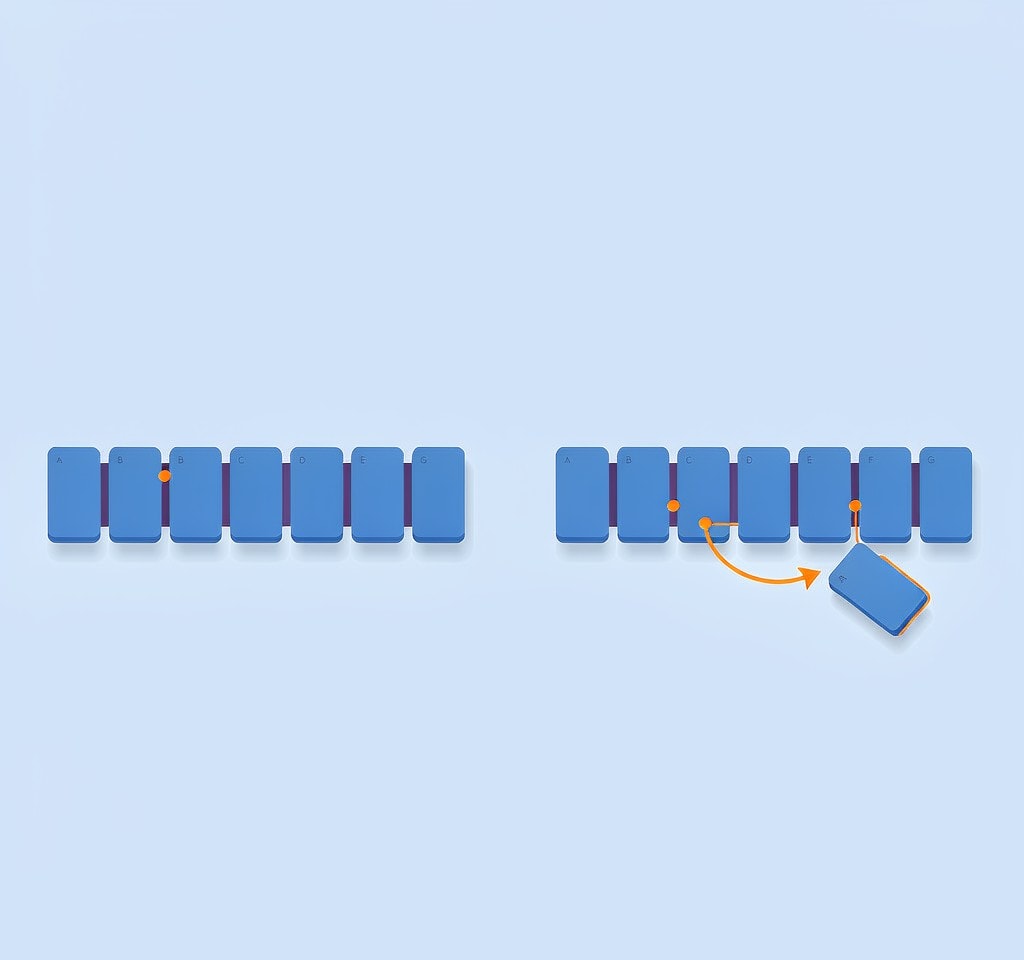
The symptoms are consistent enough to recognize.
| Symptom after an unsafe removal | What it usually means |
|---|---|
| Card mounts but shows 0 bytes or the wrong capacity | Directory or allocation table is inconsistent |
| Folders are missing, files appear as unnamed entries | Directory entries were half-written |
| Card reports “full” when it is empty | Free-space accounting is stale or corrupt |
| Last file opens but is truncated or will not play | The write was interrupted, not just its entry |
| Camera asks to format the card on insert | The camera cannot read the file system at all |
None of these mean the images are gone. They mean the map to the images is damaged, which is a recovery problem rather than a data-loss event. The first move is to set the card aside and image it before any tool touches it, following the image-first procedure used before any recovery attempt.
Decline any reformat prompt, on the camera or the computer, until you have copied or imaged the card. If it mounts but will not open, work through the symptoms in the card not detected decision tree rather than reformatting. If it opens but shows a raw or unreadable file system, the causes are mapped in what corrupts a card’s file system.
If you are on Windows and the card is still detected by a computer, a purpose-built recovery tool such as XRecovery (xappset.com) can scan SD, microSD, and other memory cards for deleted or formatted photos and videos after a bad removal has damaged the directory. As with any recovery tool, stop writing to the card first and always save recovered files to a different drive.
The failure case from the other side — what specifically goes wrong when a card is pulled while in use — is set out in the page on unsafe card removal, and the physical handling side sits in the memory card care guide.
Frequently Asked Questions
Does it really matter if I eject an SD card on Windows?
It depends on the device policy. Since Windows 10 version 1809, removable drives default to Quick removal, which disables write caching and makes an unplug far less likely to cause damage. If the reader is set to Better performance, cached writes may not be on the card yet and the Eject step is required.
Why does dragging a file to the macOS Trash not count as ejecting?
Because the Trash is a delete destination rather than an unmount command. Dragging a file there writes to the card and leaves the volume mounted. Use the eject symbol in a Finder sidebar, Command-E, or diskutil eject to detach the volume and flush pending writes.
Can files be recovered after a card was pulled without ejecting?
Usually, if the interruption damaged directory structures rather than the data itself. Stop using the card, image it, and scan the image. Files whose data blocks have not been overwritten are typically recoverable; data is only gone when something has written over it.