
Write protection blocks changes; it does not necessarily block reading. If you can open files, copy them to another device before trying to remove protection. If files were deleted, a readable source can still be scanned without making it writable first.
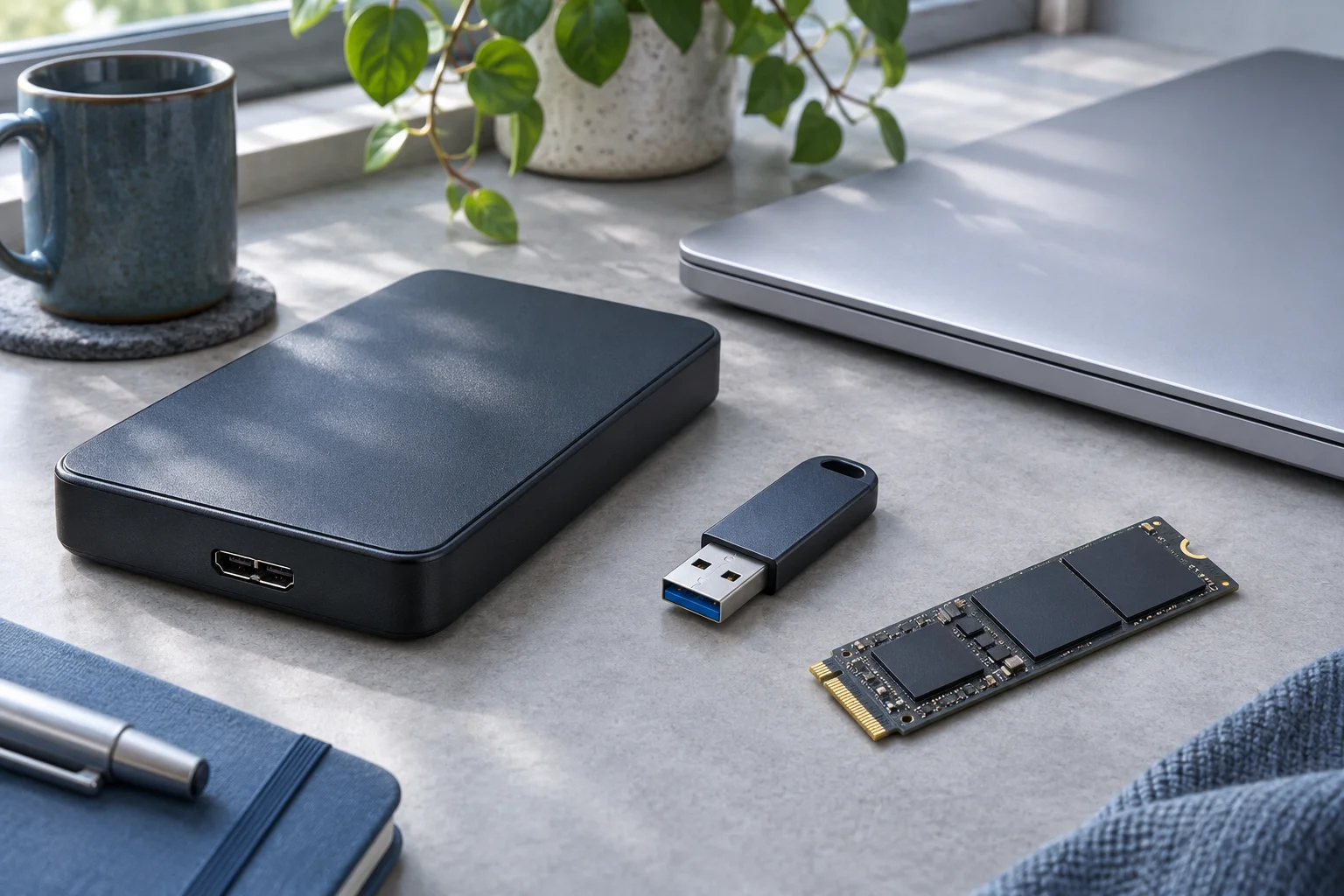
Identify the kind of protection
Inspect the USB for a physical lock switch and consult its own manual if one exists. Many USB drives have no such switch. If you are using an SD card in a USB reader, check the card or its full-size adapter for a lock slider instead. Record whether Windows says the disk is write-protected, one file is read-only, or an organization policy denies removable-drive use. These are different states.
A file’s Read-only attribute is not the same as a whole disk’s read-only state. Microsoft’s attrib documentation describes file attributes, while its disk attribute definition identifies disk-wide protection. Neither observation alone proves why a particular USB became read-only.
Export files while reading still works
Open the drive and copy important folders to a separate physical disk. Do not test whether protection is gone by creating and deleting files on a source whose missing content still matters. Verify the copied documents and media from the destination.
If some files were deleted, install XRecovery on a separate disk in the computer, select the readable USB, and scan it. Search by original path or file type, preview supported candidates, and recover them to the separate disk. XRecovery supports USB recovery; the necessary condition is readable underlying data, not permission to save back to that USB.
If an application tries to use the source as its export, temporary, or image destination, change the destination. A second partition on that USB is still the same physical recovery source.
Decide what to do about the lock afterward
For a physical switch, disconnect the device before changing its position if the manufacturer requires it. For a managed computer, ask its administrator about the policy instead of changing registry settings. If an undamaged drive unexpectedly remains read-only on multiple trusted computers, preserve the exported data and ask the manufacturer about device health or replacement.
Do not use formatting, clean, or an unfamiliar firmware utility as a recovery prerequisite. Such actions may be destructive if the protection is removed, and they do not restore deleted bytes.
If copying produces repeated I/O errors, protection is no longer the only issue. Stop repeated scans and seek a readability assessment. A drive that can be listed but not read is different from a healthy read-only drive. After your recovered copies have been checked, retire or prepare the USB according to its verified condition rather than trusting it merely because one write succeeds.