
For a missing cloud file, first identify the service, account and location that held the content. Use that service’s available deleted-item and version features before scanning a local disk. A synchronized name or online-only placeholder does not prove that the original bytes were ever stored on the computer.
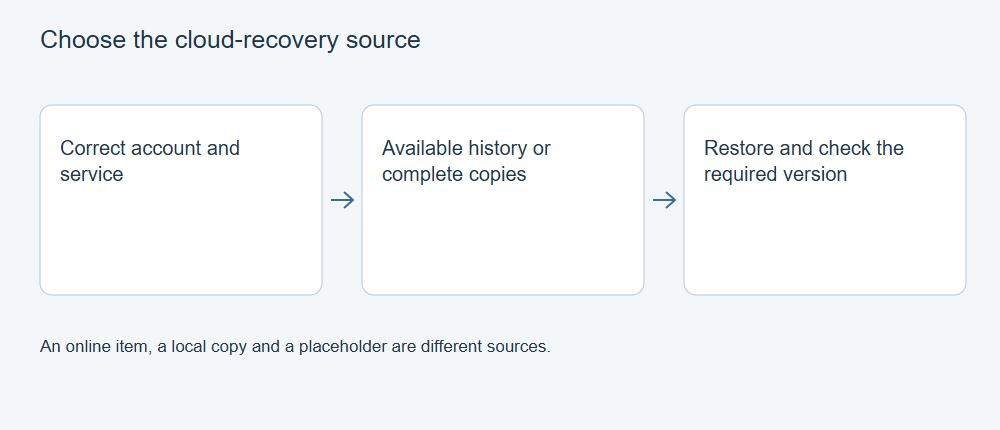
Choose the correct source
| Source | Useful starting point |
|---|---|
| OneDrive account | The correct account’s recycle bin, versions and authorized recovery options. |
| Google Drive account | Trash, ownership, versions and the account’s recovery support. |
| Dropbox account | Deleted files and version history within the account’s applicable conditions. |
| A real local copy | Backups, local deletion recovery and validation of the bytes on that device. |
Record the account, path, owner and approximate loss time. Check shared locations and moved files before deciding that content was deleted. For managed accounts, ask the administrator about the applicable policy and available recovery authority. Do not substitute another plan’s retention period for your own.
Restore a copy without replacing newer work
Inspect an available earlier version and preserve current work before restoring over it. For a project, include linked media and other dependencies. Download or copy a restored candidate where appropriate, then open it in the application that uses it.
Creating a backup now does not create a previous version that the account no longer retains. Likewise, a third-party application’s authorization does not extend the service’s retention or make permanently unavailable data readable.
Understand the product and local-disk routes
XRecovery’s documented cloud-source scope includes authorized OneDrive files that the service can make readable. You can also save recovered output to an authorized OneDrive or Google Drive destination. For Google Drive and Dropbox account recovery, start with the provider’s native recovery controls.
If a complete file was previously downloaded to local storage and later deleted, a local recovery route may apply to that source. If only a placeholder existed, the displayed name cannot supply content that was never local. Keep account recovery and local-copy recovery as separate tasks.
Missing Gmail messages are a separate task
For email, search the correct Gmail account by sender, subject and date, and inspect relevant labels, Spam and Trash. A message absent from Inbox may have been archived rather than deleted. Gmail is not a normal folder inside Google Drive.
Google’s Gmail deletion guidance explains that messages in Trash can be moved back before permanent deletion. Select the relevant messages and use the account’s Move to controls to return them to an appropriate location, then check the message and attachments. Gmail normally keeps deleted messages in Trash for 30 days. If a message has been permanently deleted, follow the account-specific recovery routes below and check any retained copies.
Personal-account support and a managed Google Workspace account have different administrative routes. Use Google’s account-specific recovery help or ask the authorized Workspace administrator when applicable. XRecovery does not promise recovery of Gmail server-side mail. A previously downloaded attachment or authorized local mail archive is a different source with its own validation needs.
Verify the restored content
Record which account copy supplied the result, the version chosen and what was inspected. Preserve an independent verified copy where appropriate. Restoring access, downloading content and validating that content are separate milestones; a visible cloud listing does not establish all three.
Related reading
Use the OneDrive deletion and version guide, Google Drive guide or Dropbox guide for an account-side task. If the item disappeared only from Windows, follow OneDrive location and sync checks. The placeholder and cache explanation helps decide whether a local scan has a source to read.
For the next step, see XRecovery scanning, preview and export steps.