
Deleting a file usually removes or changes the file system’s reference to it before every byte of its contents disappears. If enough information and data remain readable, recovery software may be able to find the file and save a copy elsewhere.
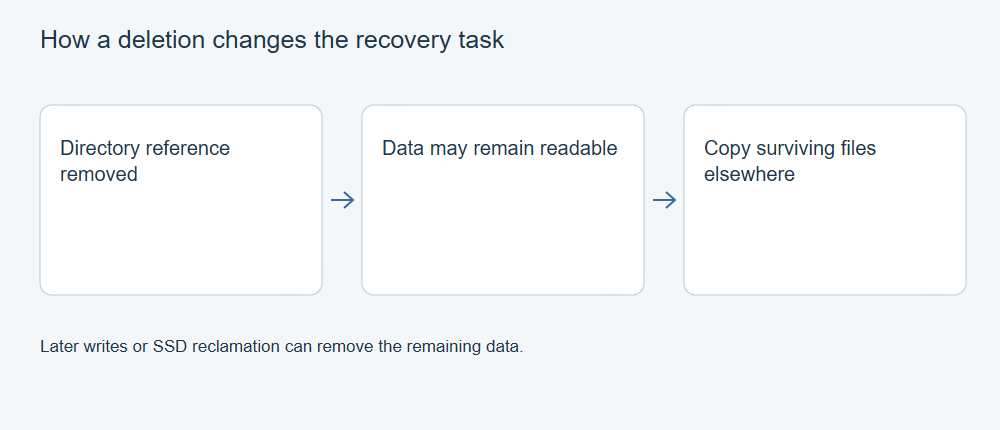
That is a possibility, not a promise. A photo deleted yesterday from a drive that has been heavily used may be in worse condition than one deleted months ago from a device that was set aside. What matters is what happened to the storage after deletion.
If you need to act now, start with the Windows deleted-file recovery guide. This article explains what is happening underneath those steps.
A filename and its contents are different things
The file system keeps information about a file, including its name, size, folder and the locations of its data. On NTFS volumes, the Master File Table is central to these records. The details differ between file systems, but the distinction is useful everywhere: the label and location information are not the same as the file’s content.
When a file is deleted, the space it occupied may become available for reuse. Until other activity changes that space, some old contents may remain readable. The Recycle Bin is a separate, easier recovery route while the file is still there; permanently deleting it removes that straightforward option.
Imagine a report stored in several regions of a drive. Its name might survive even after a later download overwrites one region. Finding the old record may point to the right locations, but it cannot bring back the portion that was replaced.
How recovery software searches for deleted files
File-system records can provide names, folders and locations. When enough of those records and the referenced content survive, a recovery tool may be able to reconstruct a familiar directory and retrieve fragmented files.
File signatures offer another route. Many file types have recognizable structures in their contents. A scanner can search readable data for those structures even when directory records are missing. Results may have generated names because the original name was stored elsewhere.
The two routes can overlap: one photograph might appear under its old folder and again in a file-type group. A signature can also occur inside another file. Check candidates individually rather than treating the number of results as a count of complete originals.
Why some recovered files are incomplete
New downloads, application updates, photographs and recovery output can reuse space that held deleted data. Once old content has been overwritten, a scanner cannot recreate those particular bytes from the overwritten location.
Fragmentation adds another challenge. A recognizable start may be present while the remaining parts are elsewhere or missing. The file can have a plausible name and size yet fail halfway through playback or contain missing document pages.
SSDs and other flash storage can behave differently from hard drives. Deallocation and the device’s internal management may affect whether old content remains accessible. Encryption is another separate issue: readable encrypted bytes are not automatically usable without the appropriate key.
What a preview can and cannot tell you
A supported preview helps identify a candidate and inspect part of its content. It is a useful checkpoint before recovering many files, but it may not exercise every page, image region or media stream.
Save candidates to a different physical device. Then open the important documents, inspect photos at full size and play recordings through the sections you need. Compare with a trusted original if one exists; a newly calculated hash identifies a copy but cannot by itself prove that copy matches a lost original.
If names or folders are missing, see why recovered files lose their names and paths. If the exported file does not open, check the export before trying repair.
What to do after an accidental deletion
Check the Recycle Bin, an independent backup or a retained cloud version first. If scanning the original device is necessary, reduce further writes and use a separate destination for recovered files. On a computer’s system drive, even installing a recovery tool can write to the affected storage, so plan the recovery route before installing anything there.
XRecovery can scan supported readable storage and preview supported file types before you select files to recover. The best outcome is not a long results list: it is a usable copy of the file you actually need.