
Choose USB recovery software that helps you get useful files off the drive before making it reusable. For a stable USB drive, XRecovery lets you search, filter and preview supported results on Windows, then save selected files to a different device.
Match the tool to what happened
| USB drive condition | A useful next step |
|---|---|
| Files were deleted | Scan for the missing documents, photos or folders. |
| The drive was formatted | Use a recovery route for the original file system; avoid further writes. |
| Folders are missing but space is occupied | Check existing paths and visibility before assuming deletion. |
| Windows asks to format the drive or reports RAW | Consider file export from the readable source without formatting it. |
| Wrong capacity, repeated disconnects or stalled reads | Assess the connection or device before comparing scan tools. |
Find the right documents without sorting everything
Use Path view when a familiar folder structure survives, or Type view when you mainly know the file format. Search filenames and filter by modification time or size to narrow years of documents. Preview supported content to distinguish an old draft from the version you need.
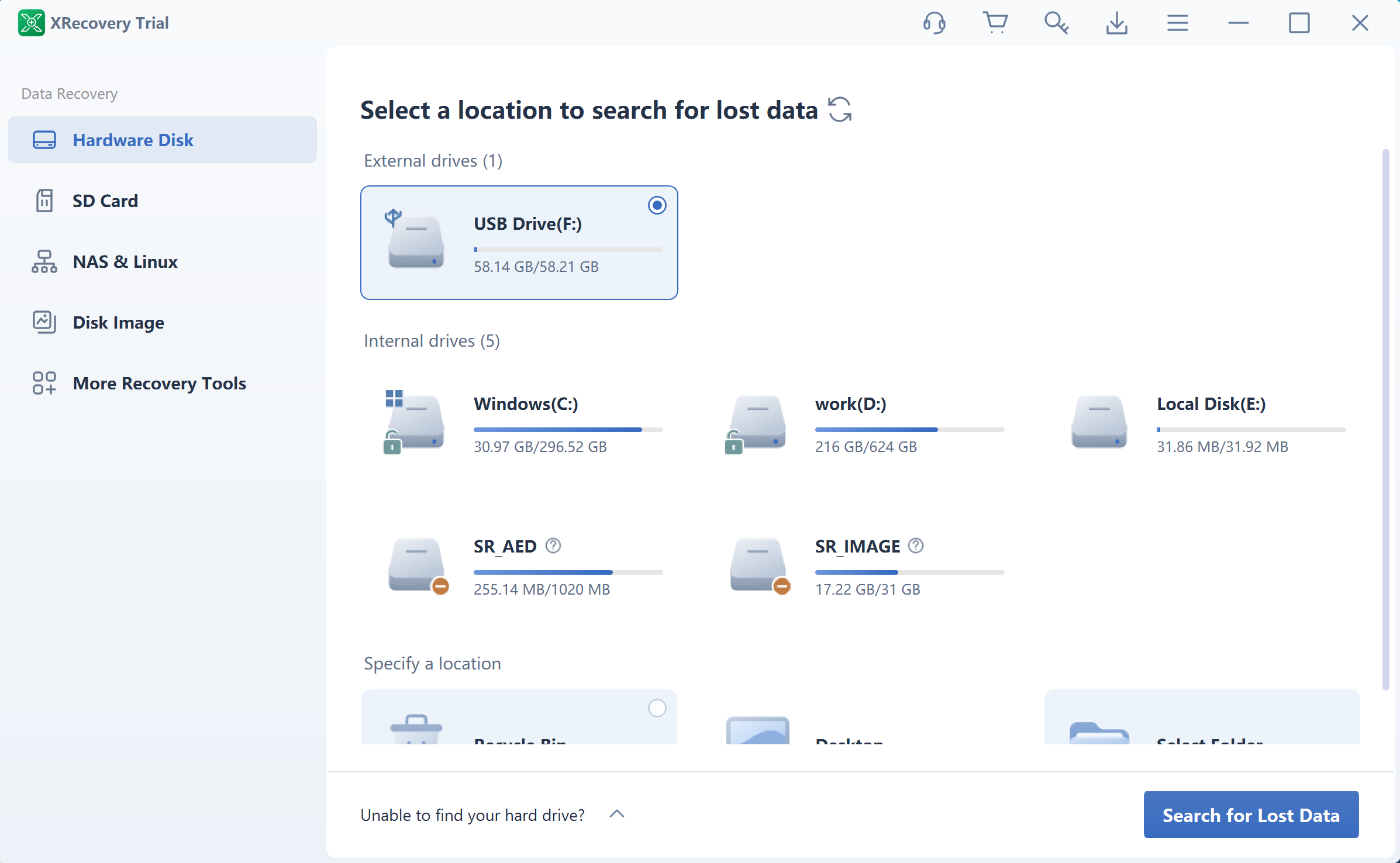
Check your USB drive with a free scan. Supported original-file preview is free, and recovery and repair share a cumulative 2 GB allowance that does not reset.
Windows 7 SP1 or later. Need the 32-bit installer?
Check what “free” lets you save
Compare scanning, preview and export separately. For XRecovery, files within your remaining allowance can be saved without buying a license. When a checked collection needs more capacity, Compare monthly and annual plans. Paid recovery has no capacity quota during its valid term.
XRecovery also repairs listed damaged document, image and video formats. That is a separate step for a file that still contains usable data, rather than a reason to format or repair the USB volume first.
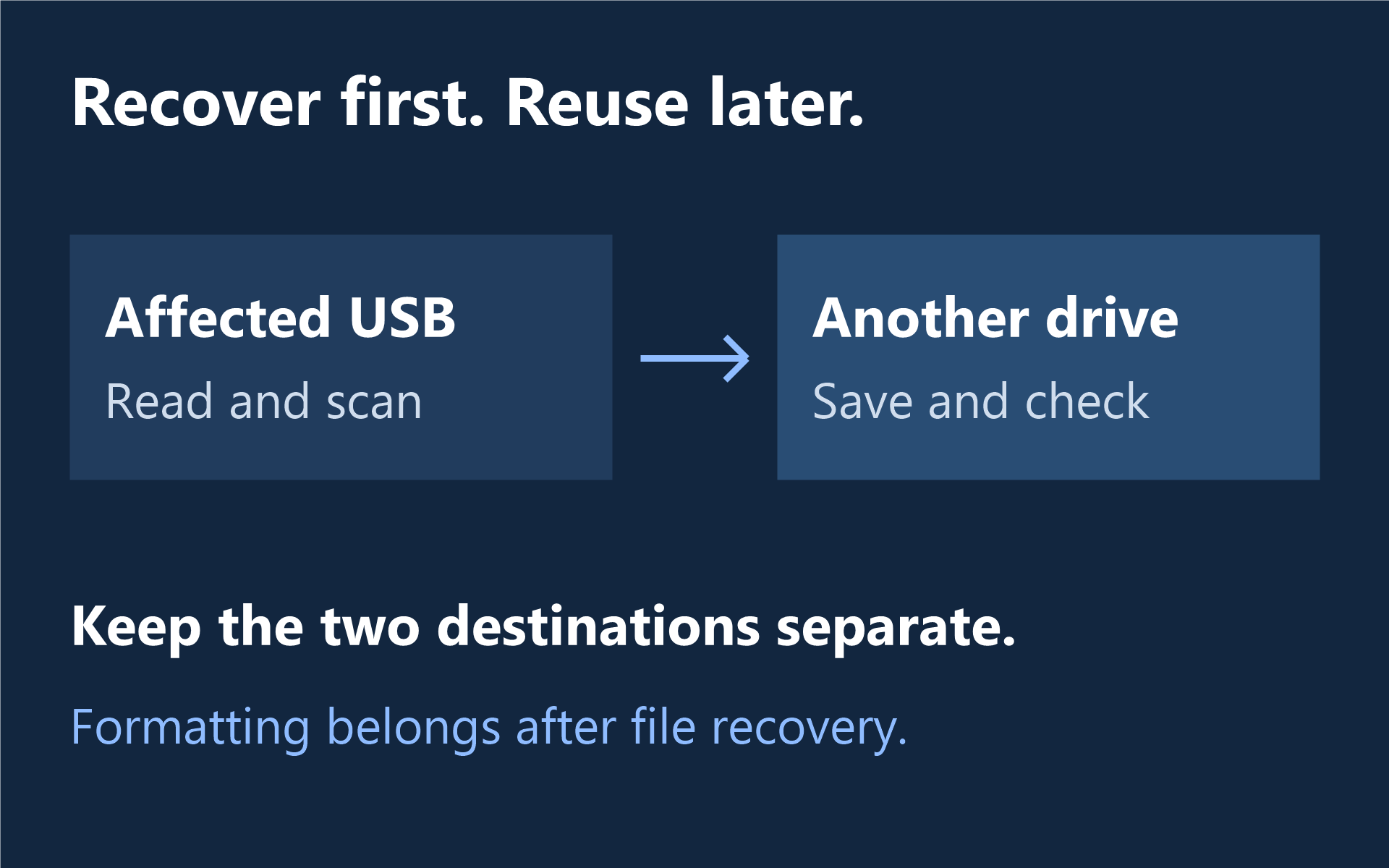
Keep a usable copy before reusing the drive
Open exported documents in their normal application and check required pages or worksheets. Inspect full-size photos and complete recordings. Keep different attempts in separate folders; if a file is unusable, note what fails before choosing another route.
Decline format or initialization prompts until important files are protected. Use the formatted USB recovery guide after a format, or the Windows recovery walkthrough for XRecovery’s steps. The USB recovery guide covers other symptoms.
This guide is published by the XRecovery team. If the device becomes unstable, stop repeated scans and use the software-or-service guide to plan the next step.