
To repair gray block photos, you first have to accept what gray means. A gray block is not damaged image data; it is the absence of it. The clusters that held those pixels were overwritten, and no tool can rebuild them. One symptom on this page breaks that rule, however: a photograph that is perfect on top and flat gray on the bottom is usually not corrupted at all. It was truncated, which means the data that is present is intact and the file simply ends early. Treating these two cases as the same problem is the most common way people waste money on the wrong repair tool.
Identify which of the five symptoms you are looking at
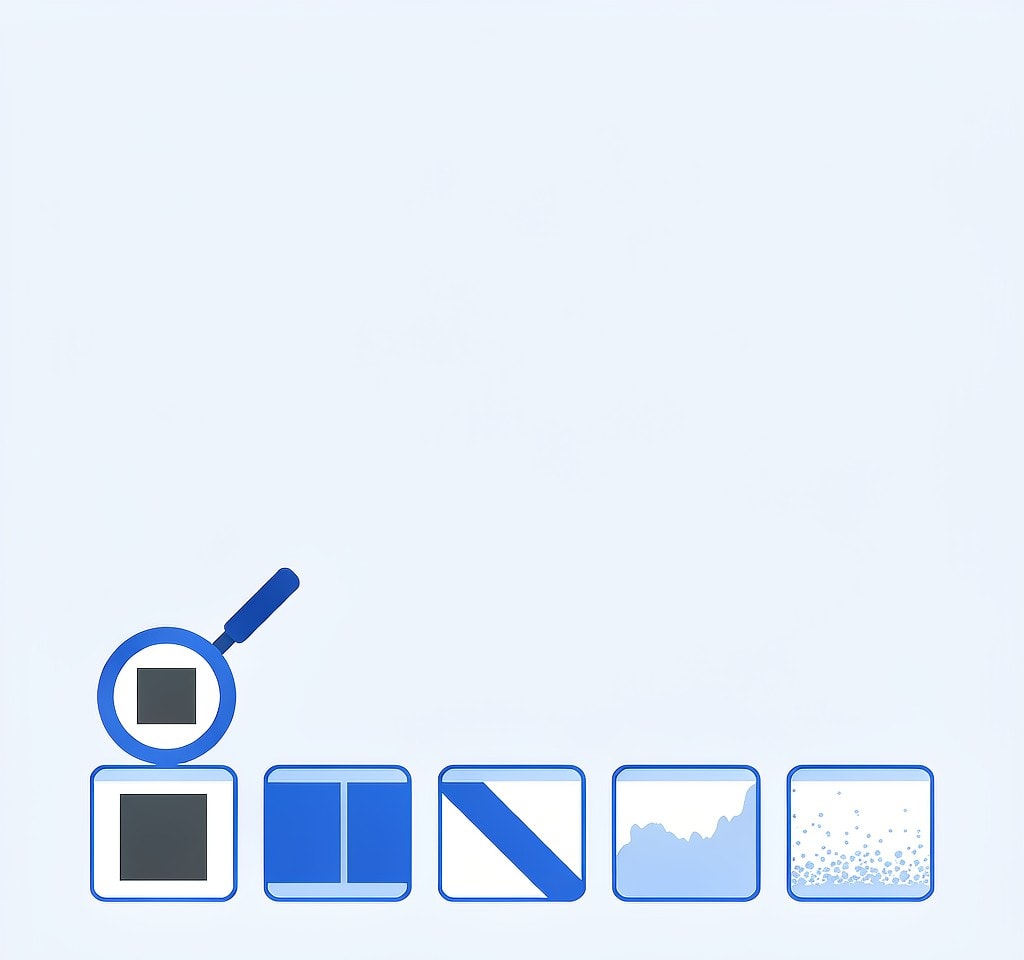
Most photo damage resolves into five visual patterns, and each one points to a different cause and a different repair attempt.
| Symptom | What it looks like | Likely cause | Repair prospects |
|---|---|---|---|
| Gray blocks | Solid gray or black rectangles replacing part of the image | Clusters overwritten before the scan ran | Not repairable; the pixels no longer exist |
| Half image | Top of the frame normal, bottom uniformly gray or black | File truncated during writing or carving | Often fully salvageable above the truncation line |
| Color banding | Smooth gradients turn into visible steps; skin tones shift | Chroma subsampling damage, or misread color space | Sometimes repairable, sometimes baked in |
| Pixelation and macroblocking | Image is legible but blocky, as if heavily compressed | AC coefficient damage or repeated re-saving | Rarely improvable, but usually viewable |
| Stripes and tearing | Diagonal or horizontal bands, offset image slices | Missing bytes shift the rest of the file | Sometimes fixable by realigning to restart markers |
The pattern to internalize is that gray means missing data, while stripes and blockiness mean present-but-misaligned data. The second category is where repair work pays off.
Gray blocks: the pixels are gone, not hidden

When a camera deletes a photo, the file-system entry is removed but the image bytes stay on the card. New photographs then reuse that space, and the camera writes in clusters of a few kilobytes at a time. A single JPEG can span hundreds of clusters, so an overwrite rarely destroys a whole image. It destroys some of them, and the decoder paints the missing regions as flat gray or black because it has no coefficients to reconstruct.
Two details explain why the damage looks so geometric. JPEG compresses in blocks, so damage arrives in block-shaped regions rather than as soft fades. And when the decoder loses track of the bitstream, it usually fills the remainder of the row or file with a neutral value, which is why a localized overwrite can produce a large uniform region.
There is nothing to repair inside a gray block, and any product that claims to reconstruct it is guessing at pixels. What you can still do is:
- Crop or clone from a duplicate frame if the shoot produced several exposures of the same subject.
- Check whether the camera wrote a second copy, a proxy, or a thumbnail beside the original.
- Look for a version on another card, a backup drive, or a cloud sync that ran during the shoot.
- Extract whatever structure survives outside the gray region and accept a partial image.
The boundary of the gray area is effectively a map of where the overwrite stopped, which also tells you how many other files in that shoot are likely to have suffered the same fate.
Half images: the top is fine because the file was cut short
The strongest single diagnostic in photo recovery is the half image. If the upper portion is sharp and correctly exposed and the lower portion is uniform gray, the file was not damaged — it was truncated. The bytes that made it to the card are perfect, and the file simply ends before the image does.
Truncation happens in three common ways. A card fills up mid-write. Power is cut while the camera is writing. Or a recovery tool carves a file by scanning for header signatures and stops at the first byte sequence that does not look like image data, cutting the file at that point. In the last case the original file on the card may be complete, and a better recovery pass can return the whole photograph.
The fix for a truncated JPEG is to give it an ending. A complete JPEG terminates with the marker FF D9, and a truncated one usually stops in the middle of the entropy-coded data. Reopening the file in a tolerant decoder, or appending a valid end-of-image marker, frequently recovers everything above the cut. What you get back is the top of the photograph at full quality and nothing below it, which for portraits, product shots, and many landscapes is a usable image rather than a lost one. A related trick applies to RAW files: because most RAW containers embed a full-size JPEG preview, the preview can be extracted even when the RAW data itself is unreadable, and the guide to pulling the embedded JPEG out of a RAW file covers that procedure.
Color banding usually is not corruption
Color banding is the symptom most often misread as damage, and the misreading is expensive. A smooth sky that develops visible steps, or skin that turns slightly green or magenta, usually points to one of three things, only one of which is a data problem.
Chroma subsampling damage. JPEG stores brightness at full resolution but color at half or quarter resolution. When the color channels are damaged while the luminance survives, you get a sharp, correctly shaped image with banded, blotchy color. This is genuinely damaged data, and repair tools can sometimes rebuild color from the surviving luminance.
A color space interpretation problem. The same bytes read as sRGB instead of Display P3, or with the wrong white point, produce a strong but uniform color cast. This is not damage at all, and reassigning the profile reconstructs the original appearance exactly.
An 8-bit quantization artifact. A photograph recovered from a low-quality thumbnail, or saved and re-saved several times, loses gradient precision. The photograph is technically intact and permanently banded. No repair restores the steps because the values were never recorded.
For the first case, open the file in an editor whose JPEG decoder handles partial data and re-save, which rebuilds the color channels from what survived. For the second, set the color profile rather than editing the image. For the third, accept it: re-saving will make it worse, because each save recompresses an already quantized image.
Pixelation and macroblocking
A pixelated photo is usually a photo that still works. Macroblocking appears when the high-frequency detail coefficients in a JPEG are lost or heavily quantized while the low-frequency ones survive, which produces a legible image built from visible 8×8 or 16×16 blocks.
Three causes dominate. The file is a small thumbnail scaled up, which is a resolution issue rather than damage. The file was recovered from damaged entropy data and the decoder concealed errors by repeating the nearest block. Or the file passed through a messaging app that recompressed it. Only the middle case is a recovery problem, and the remedy is to re-recover the file with a tool that handles fragmented JPEGs rather than one that stops at the first error.
One warning belongs here: applying noise reduction, sharpening, or AI upscaling to a macroblocked photo makes the artifacts more visible, because the tools amplify the block boundaries they are trying to hide. Work on a copy and compare at 100 percent zoom before committing.
Stripes, tearing, and diagonal shifts
Striped or diagonally sheared images look catastrophic and are sometimes the most repairable of all, because they usually indicate a byte offset rather than missing pixels. When a few bytes go missing from the middle of a JPEG, everything after that point is read at the wrong position, and the image appears to slide sideways for the rest of the frame.
JPEG was designed with a remedy for exactly this. Restart markers, the FF D0 through FF D7 byte pairs, are inserted at intervals through the entropy-coded data so a decoder can resynchronize after an error instead of losing the rest of the scan. A tool that detects a shift and realigns the stream to the next restart marker can restore most of the image, and it is a standard feature of dedicated photo repair utilities. Cameras typically insert restart markers every few rows, so the visible damage stays limited to a band.
If the shift appears only in the bottom half, the same rule about truncation applies: the upper portion is trustworthy, and the lower portion may need to be cropped out rather than repaired.
A repair order that does not make things worse
Work through these steps in order and stop as soon as the photograph is acceptable. The first rule is to duplicate the files first and repair the copies, because some tools write to their input.
- Open the file in several viewers. Tolerant decoders such as IrfanView, XnView, and many browsers read past errors that stricter software rejects.
- Recover the file again with a deeper pass. Some apparently corrupted photos are carving artifacts, and the original on the card is intact.
- Extract the embedded preview, which is often a full-resolution JPEG inside a damaged RAW or large JPEG.
- Run a dedicated photo repair tool, favoring one with a free preview so you can confirm the result before paying.
- Repair the header or the end-of-image marker by hand for a photograph you cannot lose.
After repair, check what else came back with the image. Recovered files frequently lose their EXIF timestamps, camera model, and orientation flag, which makes a repaired photograph hard to file. The metadata rebuilding procedure explains how to restore those fields from a surviving sibling file. Also worth reading: the general recovered files troubleshooting guide if your problem spans photos and videos, and the RAW-specific recovery notes if the file that will not open carries a .CR3, .NEF, or .ARW extension.
Recognizing the point where a photograph is gone
Some cases genuinely cannot be repaired, and recognizing them early saves hours.
- More than half the frame is gray, indicating that the overwrite covered most of the file’s clusters.
- The file is zero bytes, which is a scanning failure rather than damage; rescan with signature carving enabled.
- The image decoded into an indistinguishable noise field with no recognizable structure.
The guide to genuinely unrecoverable data describes how to tell these apart from cases that merely look hopeless. The rule that governs all of them is the one from the top of this page: pixels that were overwritten are gone, and pixels that are merely unindexed or truncated are usually recoverable.
If you are on Windows and the card is still detected by a computer, a purpose-built recovery tool such as XRecovery (xappset.com) can scan SD, microSD, and other memory cards for deleted or formatted photos and videos. As with any recovery tool, stop writing to the card first and always save recovered files to a different drive. Recovery cannot restore pixels that have been overwritten, but it can return the files that were never touched, and a truncated photograph is a file worth recovering.
Frequently Asked Questions
Can gray blocks in a recovered photo ever be repaired?
No. Gray blocks mark clusters that were overwritten by new data before the scan ran, so the original pixel values no longer exist anywhere on the card. Repair software cannot recreate them, and any tool claiming to do so is filling the area with invented detail.
Why is the top half of my photo fine and the bottom half gray?
That pattern means the file was truncated rather than corrupted. The bytes that reached the card are intact, and the file simply ends early. Reopening it in a tolerant decoder or restoring its end-of-image marker usually recovers everything above the cut.
Is color banding in a recovered photo a sign of data loss?
Often not. Banding can come from damaged color channels, a misassigned color profile, or a file saved at low quality. Try reassigning the color profile first, since that case produces an exact recovery with no image editing at all.
Does re-saving a damaged photo make it worse?
It can. Every save recompresses the image, so a photo that is already banded or macroblocked loses additional detail each time. Always work on a duplicate, and avoid repeated saves when a single export would do.