
Choose video recovery software that fits both the missing footage and its source. Use recovery for deleted recordings, file repair for a clip you already have that will not play, and a hardware assessment for an unstable device. XRecovery combines video recovery and supported file repair on Windows.
Which workflow fits your footage?
| Your situation | What to look for |
|---|---|
| A recording was deleted or the card was formatted | A scan of the readable original drive or card, followed by export to another device. |
| The clip exists but will not play | Playback checks first, then repair of a copy in a supported format. |
| You have only a proxy or a short preview | Look for the original recording, other cards, camera storage and backups. |
| The source stalls or disconnects | Resolve readability before continuing software trials. |
XRecovery recovers common video and audio files and repairs listed formats including MP4, MOV, AVI, MKV, TS, MTS and M2TS. You can add an existing damaged clip or send a file from scan results to the repair queue. Check file-system and preview support for your material.
Start by finding your footage and inspecting supported previews. Scanning and original-file preview are free; recovery and repair share a cumulative 2 GB allowance.
Windows 7 SP1 or later. Need the 32-bit installer?
What should a recovered video pass?
| Check | What to confirm |
|---|---|
| Identity | The right event, camera and recording session. |
| Duration | The expected length, using notes or another reference when available. |
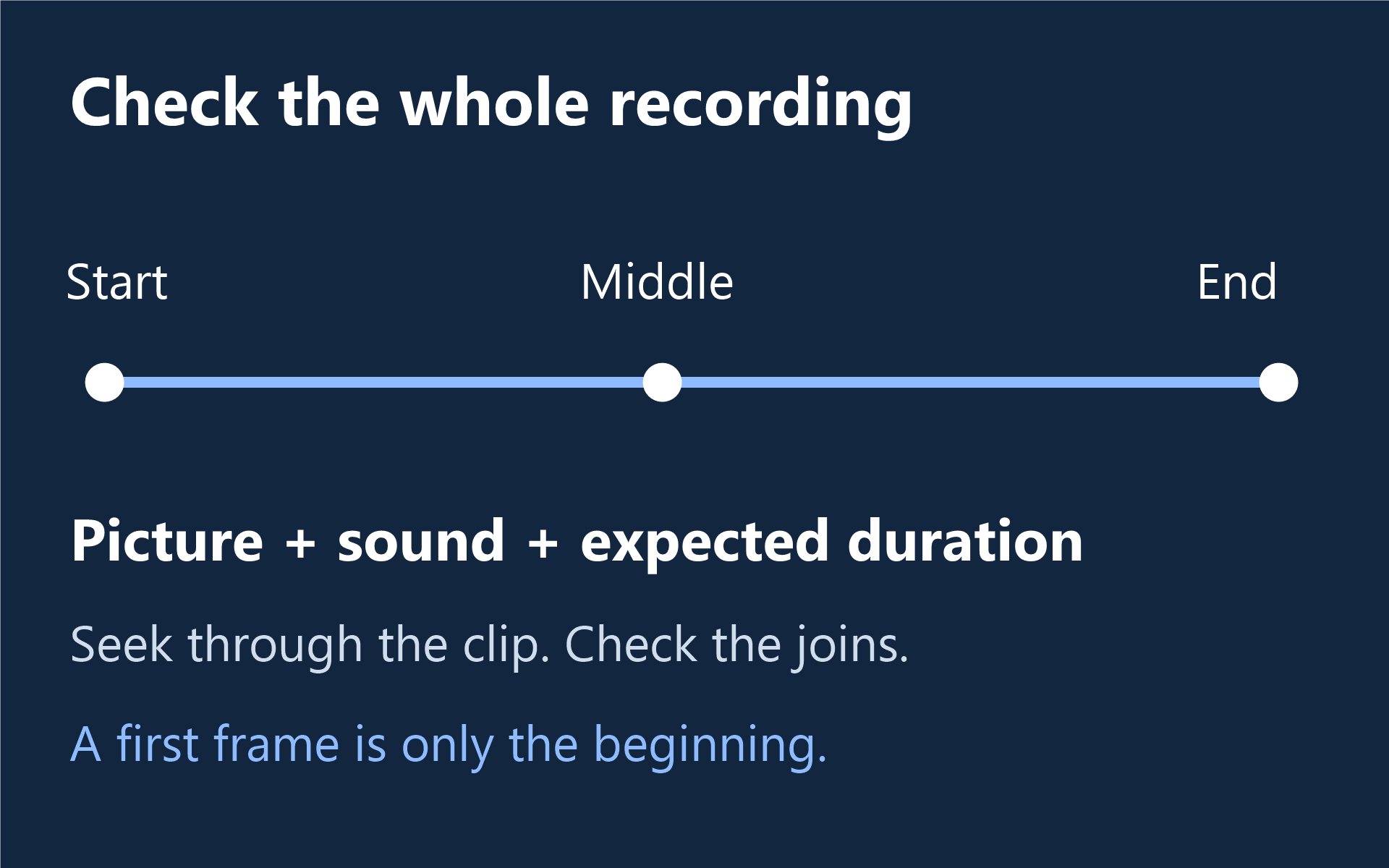
| Picture | Correct footage at the beginning, middle and end, with no missing section in the full clip. |
| Sound | Expected audio is present and stays aligned with the picture. |
| Navigation | You can seek through the recording in a suitable player or editor. |
| Related clips | Required chapters, companion files and channels are present. |
Keep the original export and work on a copy for repair or conversion. If another known-good copy exists, compare hashes; otherwise record what you checked. A missing decoder and a damaged recording require different fixes, so try a suitable playback application before judging the file.
What if one recording is larger than 2 GB?
A single 3 GB clip cannot fit within a full 2 GB free recovery allowance. Free scanning and supported original-file preview still help you inspect the result; saving beyond the remaining allowance requires a paid license. Repair uses the same cumulative allowance, so check it before starting a task.
Paid recovery has no capacity quota during the license term. Compare monthly and annual plans once you have identified useful footage. Payment changes the recovery allowance; it cannot recreate bytes that are no longer readable.
This guide is published by the XRecovery team. For operation, use the Windows recovery walkthrough. For camera-specific sources, start with camera photo and video recovery. Stop writing to affected storage and keep recovered footage on another device.