A write-protected SD card prevents Windows and applications from changing its contents. That protection can be useful during recovery, but it can also signal a loose adapter switch, a reader problem, a Windows policy, or a failing card that has entered a read-only state.
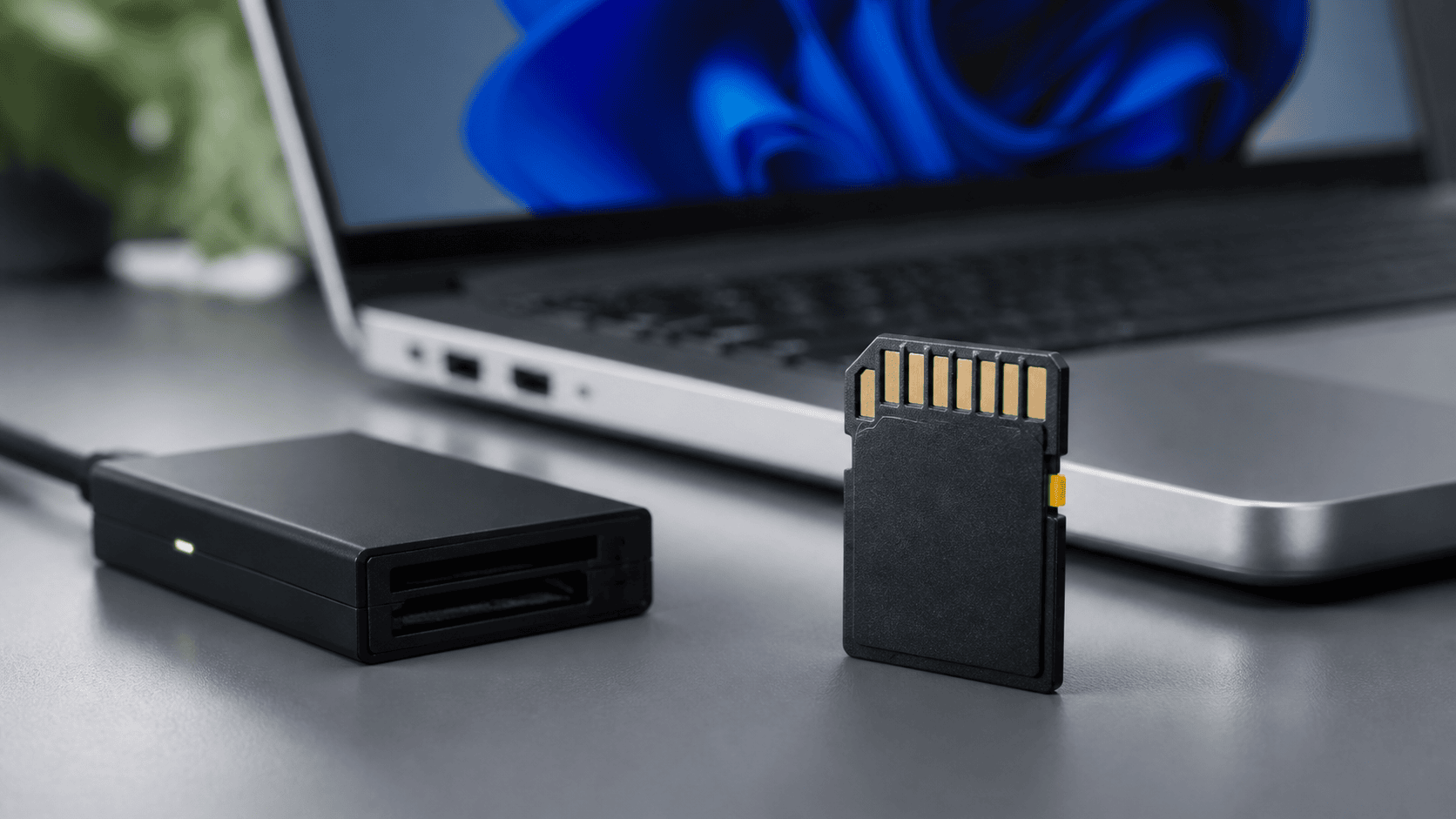
What write protection actually means
Write protection blocks changes such as deleting files, formatting the card, creating folders or modifying file-system metadata. It does not necessarily prevent reading. If the card can still be read, that is often the best time to preserve its contents.
| Symptom | Possible source | Recommended first check |
|---|---|---|
| Full-size SD adapter has a lock switch | Mechanical switch or worn adapter | Reseat the switch or use another adapter |
| Only one reader reports read-only | Reader sensing problem | Use a known-good reader |
| Every device reports read-only | Card controller, policy or media failure | Preserve data before attempting changes |
| Card became read-only after errors | Controller protection mode | Image or recover promptly |
Step 1: check the physical lock switch
Full-size SD cards and many microSD adapters have a small slider on the side. The reader senses its position; the switch does not electronically lock the flash memory. Move it fully to the unlocked position, then insert the card again.
If the slider feels loose or moves while being inserted, use another adapter. Do not tape or force a damaged adapter when the data is important, because unstable contact can interrupt reads.
Step 2: try a known-good reader and port
A reader can incorrectly sense the lock position. Test once with a reliable alternate reader and a direct USB port. If the second reader permits writing, replace the first reader rather than changing Windows policies.
If the card disconnects, slows dramatically or becomes hot, stop testing and focus on imaging or professional evaluation.
Step 3: preserve readable data
If File Explorer can open the card, copy important files to another drive. For deleted files or a damaged file system, use recovery software in read-only scanning mode and save results elsewhere. A write-protected source can be advantageous because it reduces accidental changes.
Step 4: check Windows attributes carefully
Windows DiskPart can report whether a disk or volume is read-only, but selecting the wrong disk can affect another device. Open an elevated terminal only after confirming you have a backup or image.
- Run
diskpart. - Run
list diskand identify the card by size. - Run
select disk N, replacing N with the correct number. - Run
attributes diskto inspect the state.
Do not immediately run commands that clear attributes if the card has just developed errors. First determine whether the read-only state is protecting data from a failing device.
Step 5: distinguish policy from card failure
Corporate Windows computers can enforce removable-storage write restrictions. Test the card on an authorized personal computer or ask the system administrator. When only one managed computer blocks writing, the policy is more likely than card failure.
When multiple readers and computers all report read-only, the controller may have locked the card to protect remaining readable data. That state is commonly not reversible with formatting tools or registry changes.
What not to do
- Do not repeatedly toggle or force a broken adapter switch.
- Do not format the card before recovering important files.
- Do not download unknown “write protection removal” utilities.
- Do not change registry policies unless the problem is limited to that Windows installation.
- Do not save recovered files back to the SD card.
When replacement is the correct outcome
Replace the card after data has been preserved if it repeatedly returns to read-only mode, shows verification errors, disconnects, or behaves differently between reads. A card used in a camera, drone or recorder should be reliable enough that continued use does not put new captures at risk.
Frequently asked questions
Does the lock switch protect deleted files?
It can prevent some new writes through a reader that honors the switch, but it does not restore already deleted files and is not a substitute for stopping use immediately.
Can software unlock every read-only SD card?
No. Software may clear a Windows attribute or policy, but it cannot reliably reverse a controller-enforced read-only state caused by hardware or flash failure.
Should I scan a write-protected card directly?
If the card is stable and reports its correct capacity, a read-only scan can be reasonable. If it disconnects or returns read errors, create an image first or seek professional help.
For the full decision framework, return to SD Card Recovery: Complete Topic Guide.