When an SD card is not recognized, the first task is to determine where detection stops: the camera, adapter, reader, USB connection, Windows device layer or the card itself. Avoid repair and formatting until you know whether the card is physically stable.
Stop immediately if the card is cracked, wet, unusually hot, repeatedly disconnecting, or reported with an impossible capacity. Repeated power cycles and scans can increase risk on failing media.
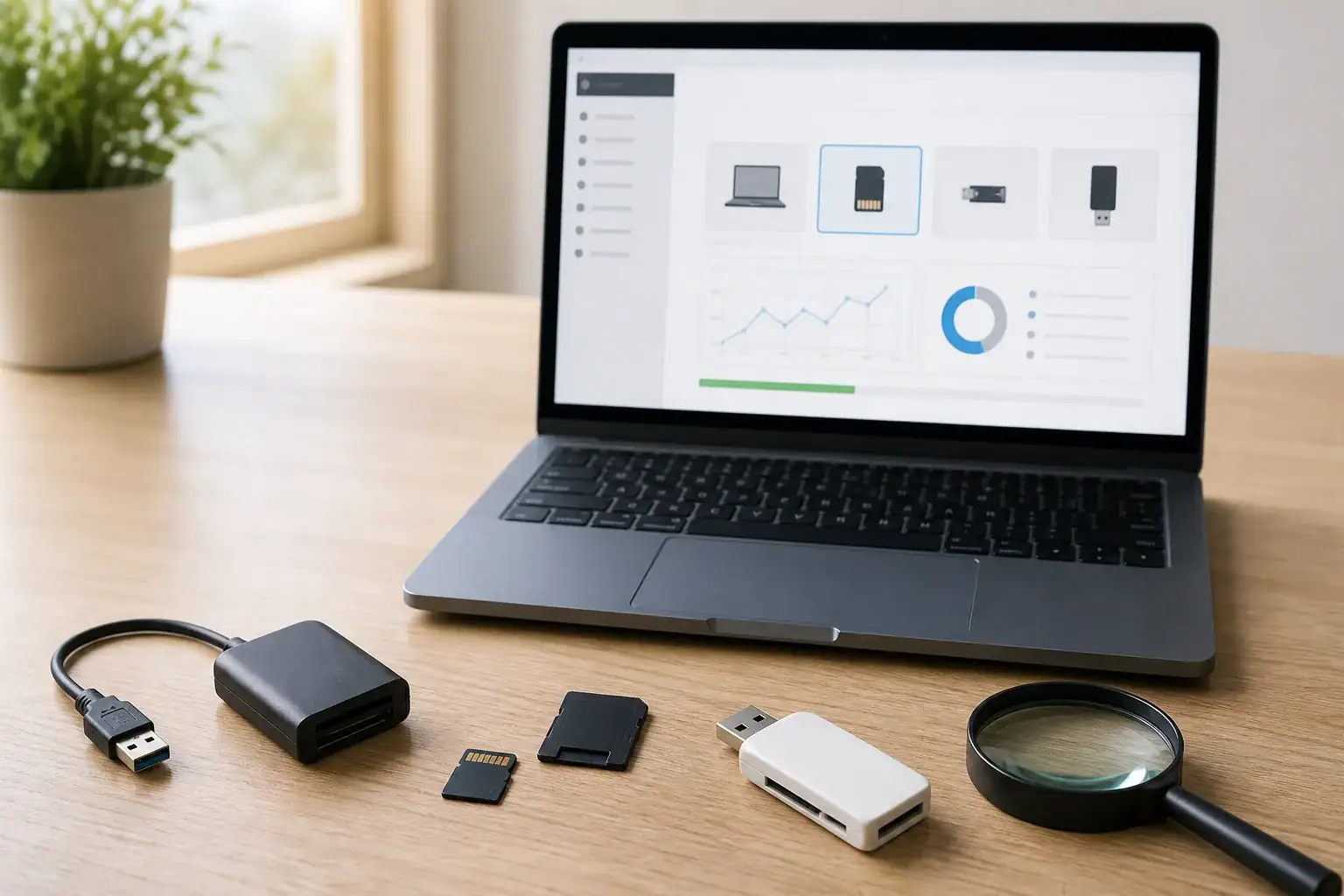
Identify the exact symptom
| Symptom | Meaning to investigate |
|---|---|
| Not detected in one camera but detected on Windows | Camera compatibility, card format or camera slot issue |
| Detected through one reader only | Reader, adapter, cable or USB port issue |
| Visible in Disk Management but not File Explorer | Missing drive letter, unsupported or damaged file system |
| Shown as RAW or unallocated | File-system or partition metadata damage |
| Absent in every device | Connection, controller or physical card failure |
| Wrong or zero capacity | Controller or hardware-level failure risk |
Safe check 1: inspect without altering the card
Power off the camera or reader before removing the card. Inspect the shell, contacts and lock switch under good light. Do not scrape contacts, bend the card, open its casing or use household cleaning fluids.
For a microSD card in a full-size adapter, remember that the adapter adds another failure point. Test another known-good adapter without changing the microSD card itself.
Safe check 2: isolate the connection path
- Connect the reader directly to the computer instead of through an unpowered hub.
- Try another USB port and, if available, another known-good reader.
- For microSD, test a second adapter.
- Restart Windows only after safely disconnecting the reader.
- Test whether a known-good spare card works in the same reader. Do not use an important second card as an experiment.
Change one variable at a time. If you replace the card, reader and computer simultaneously, you will not know which component caused the problem.
Safe check 3: inspect Windows Disk Management
Open Disk Management and compare the listed disks by capacity. Do not click Initialize Disk, New Simple Volume or Format. These commands change metadata and are not diagnostic safeguards.
| Disk Management result | Recommended response |
|---|---|
| Correct capacity and healthy partition | Check drive-letter assignment and recover important files before repair. |
| Correct capacity but RAW file system | Do not format; use a recovery-first workflow. |
| Correct capacity but unallocated | Avoid creating a volume; scan or image the device. |
| No media, zero bytes or wrong capacity | Stop repeated software scans; hardware/controller failure is possible. |
| Device appears and disappears | Minimize power cycles and consider imaging or professional recovery. |
Actions to avoid before recovery
- Initialize Disk: writes new disk metadata.
- Format: creates a new file system and may overwrite useful structures.
- CHKDSK: changes file-system records while trying to make the volume consistent.
- DiskPart clean: removes partition information.
- Camera format: prepares the card for reuse rather than preserving lost files.
- Saving recovered files to the card: can overwrite other recoverable data.
When an image should come first
A sector-by-sector image reduces repeated reads from unstable media. Consider imaging before a deep scan when the card is slow, produces read errors or disconnects. An image does not repair physical damage, but it can preserve the readable state at that moment.
If imaging cannot proceed consistently, if the card heats up, or if the files are irreplaceable, stop DIY attempts and consult a professional recovery service.
Choose the next recovery path
If Windows detects the card with the correct capacity and the connection is stable, continue with How to Recover Deleted Photos from an SD Card. For the complete decision model, see SD Card Recovery: Complete Topic Guide.
Frequently asked questions
Should I click Format disk to make the card readable?
No, not before recovering important files. Cancel the prompt and inspect the device in Disk Management.
Why does the card work in the camera but not the computer?
The reader or adapter may be incompatible or faulty, or Windows may not understand the file system. Test the connection path without formatting.
Can a different card reader help?
Yes, if the current reader or adapter is the failure point. Use a known-good reader and change only one variable at a time.
Why is the capacity wrong?
A wrong, zero or highly inconsistent capacity can indicate controller or hardware failure. Software scanning is unlikely to solve that symptom safely.
When should I stop troubleshooting?
Stop when the card is physically damaged, hot, unstable, repeatedly disconnecting, or contains irreplaceable data that cannot tolerate additional attempts.