
A true zero-byte file contains no video data for a repair tool to process. An interrupted transfer, an empty file created by an application or an unfinished recording can all leave a zero-byte item, so check what happened before choosing a fix. The recording may still exist on the camera card, another device, an import folder or a backup. The useful task is finding that data, rather than trying to make an empty file play by changing its extension.
Confirm what is actually empty
In Windows, open the file’s Properties and read Size, not only Size on disk or a thumbnail. Confirm the full extension and location. A cloud placeholder, a failed download and a local zero-length file are different objects; use the cloud service’s own web interface to check whether it still holds a complete original.
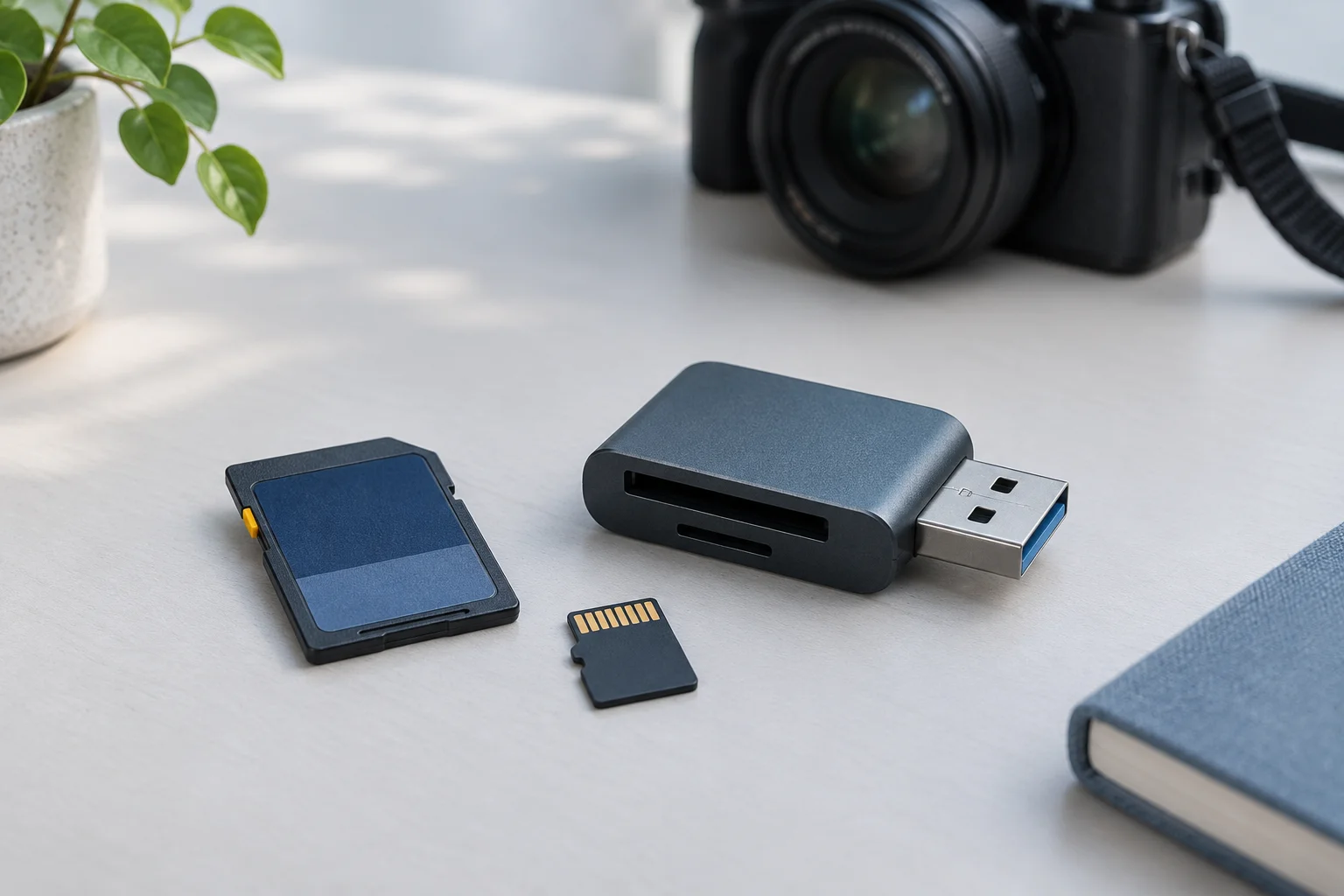
Do not overwrite an existing source with the zero-byte copy. If the file came from a camera transfer, check the card through its native playback or a compatible reader. If the source file has a nonzero size and can be read normally, copy it again to a different healthy destination, then compare the two copies. Record transfer errors rather than repeatedly moving the only original.
An empty output does not prove the card’s recording is empty. Conversely, a duration or thumbnail shown by an editor may come from its cache. Test a copied original directly, outside that cached project.
Search the places that could hold the missing bytes
Check the import folder actually selected in the camera application, the editor’s media location, another camera card slot, a mobile transfer destination and any backup made before deletion. Search by the recording date and nearby clip names; chaptered recordings may be separate files rather than one long movie.
If the card no longer lists the recording, stop shooting and assess disk recovery. On readable media, XRecovery can scan for remaining files after deletion, formatting or file-system problems. Save candidates to other storage. A result representing the old zero-length directory entry still does not contain footage; look for a separate candidate with meaningful content.
When a recoverable data area can be read but the source is unstable, preservation and hardware assessment take priority over repeatedly trying to open the zero-byte entry. Do not format or run a repair that changes the source file system merely to make the entry look normal.
Distinguish zero length from a damaged video
A nonempty MP4 or MOV can contain damaged metadata or incomplete media. Apple’s QuickTime format description separates movie metadata and media samples; having only part of that structure can make a nonempty file unplayable.
XRecovery supports repair of listed video formats, including MP4 and MOV, when retained content can be used. A repair attempt belongs on a preserved nonempty candidate. It cannot reconstruct a recording from a file containing no bytes, and a healthy reference clip cannot supply the missing scene.
Decide whether the result meets the task
Open a recovered candidate, check its real duration, picture and expected audio, and inspect the ending. If only a short segment survives, keep it with its known interval. If the original is available, compare its hash for an exact-copy check; without it, report the content checks actually completed.
When all available copies are empty and no source data survives, stop renaming, converting and repairing the same empty file. Those actions do not create a new recovery source.