
A camera’s card-error message tells you that an operation failed; it does not prove that the photographs are gone or that the card is safe to repair. Stop recording, decline format prompts, and preserve any files you can still read. The useful next distinction is whether a computer can read the card consistently through a compatible reader.
Record the message without recreating the failure
Write down the camera model, the exact wording, the card used, and what happened immediately beforehand. Include whether the camera was recording, playing back a file, importing media, or trying to format the card. Use an existing photograph of the error if you have one; do not repeatedly reconnect the card just to reproduce it.
Messages such as “cannot use card,” “not formatted,” or “unable to display” can cover different conditions across models. Do not assign a universal severity rating or a single hardware diagnosis from the wording alone. Consult the manual for that camera and firmware when interpreting a model-specific message.
If the card is visibly damaged, was exposed to liquid, becomes unusually hot, or repeatedly disconnects, stop ordinary attempts to read it. Those observations call for an assessment of the medium rather than a series of file-repair experiments.
A camera message starts the investigation. Readability and the files actually available determine the next action.
First branch: the computer can read the files
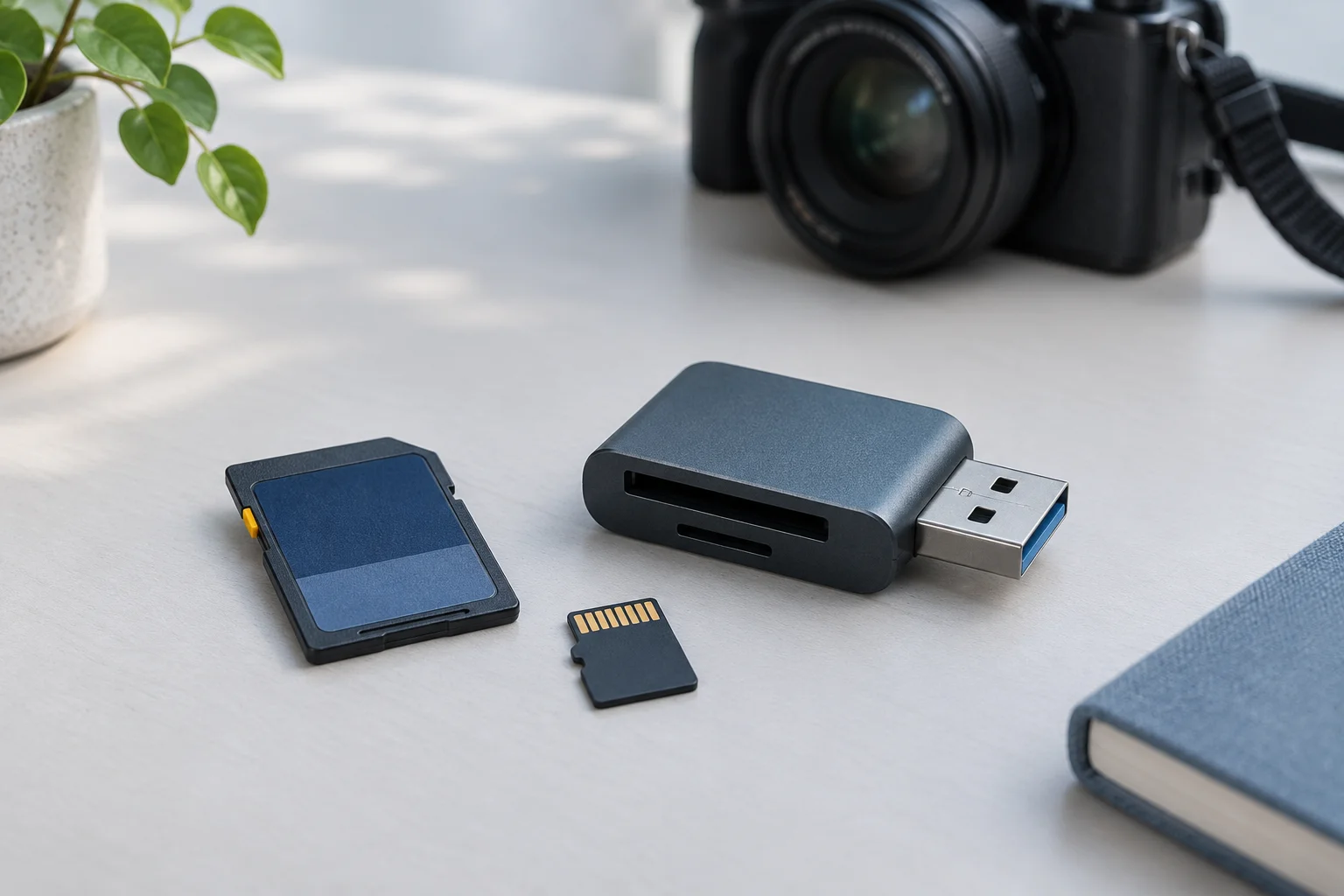
Connect the card using a reader that supports its exact media type. Identify the device before opening it. If the card is stable and the expected files are visible, copy them to a new folder on another physical device.
Verify those copies before changing the card or its camera database. Open important photographs at their actual dimensions. Check videos beyond the opening frame: inspect duration, several points in the recording, audio where expected, and the end. A folder that lists every filename is not the same as a verified copy of the shoot.
If the computer can read everything but the camera cannot display it, investigate the camera’s compatibility or database behavior after protecting the files. A file edited on another device may not behave like an original camera recording. Avoid treating every playback error as proof that recovery software is needed.
Sony’s ILCE-7M4 database-recovery guidance describes a specific case where image-database problems affect playback and states that the operation does not delete recorded images. It also requires adequate battery power. That is a model-specific maintenance procedure, not a general instruction to rebuild databases on every card reporting an error.
Second branch: the device is readable, but files are missing
Windows may identify the card while failing to show a normal file listing or offering to format it. Cancel the prompt. Formatting prepares the card for use; it is not a prerequisite for retrieving the files that were on it.
Record the reported capacity and volume state. A missing drive letter is not the same observation as a device that cannot provide data. Recovery software may be able to examine readable storage without a normal mounted volume, but that must be established for the actual device.
If you proceed, select the identified source or a suitable acquisition image, and recover candidates to another physical device. Keep the source unchanged. XRecovery’s Windows workflow can scan readable SD and other supported disk media for remaining file data. It does not repair card hardware, and a recognized device does not guarantee usable photographs.
When exported photographs are available, check their full contents. Use the camera photo verification guide to distinguish a complete JPEG from a small preview or a damaged image. Preserve partial candidates rather than overwriting them during another attempt.
Third branch: the computer cannot read the card reliably
Do one controlled compatibility check if there are no physical warning signs: verify the reader supports the card, check the cable and port, and consider a known-good reader. Do not initialize a device or format it to make it appear in a file browser.
If the card remains unavailable, repeatedly disconnects, or provides unstable capacity information, ordinary recovery scanning may not be an appropriate next step. Record the observations and seek an assessment. The next question is whether useful data can be acquired, not which scan setting will produce the most reassuring progress bar.
A card with no usable disk access also cannot be made readable by selecting a different photo extension. File-type filtering matters only after the recovery application can read the source.
Keep maintenance separate from recovery
| Proposed action | When to consider it |
|---|---|
| Copy files already readable | Before changing the card or database |
| Recovery scan of readable storage | When needed files are missing and the source is suitable for scanning |
| Camera database maintenance | After preserving files and checking the exact model’s procedure |
| Format or full-capacity write test | Only after recovery decisions are complete and needed copies are safe |
If you already accepted a format prompt, record which device performed it and which option was selected. Do not repeat the operation. Cameras do not all offer the same formatting behavior: Canon’s EOS R5 manual, for example, illustrates a low-level-format option for its SD card. Continue with the camera-format assessment, keeping an unknown option explicitly unknown.
Close the case with a file list
Record the photographs that were copied intact, recovered and verified, retained only as partial substitutes, or not found. Keep the original card or acquisition image while further assessment remains worthwhile. Only after the important files are protected should you decide whether the card can be tested for reuse or should be retired.