
A quick format and a full format can both leave a drive looking empty, but they affect old data differently. Quick formatting replaces file-system structures without the same whole-volume zeroing performed by the documented Windows full-format behavior. Neither label alone tells you whether a particular old file survives: the exact operation and later writes matter.
A useful distinction, with a defined scope
Microsoft’s format command reference describes the quick option as removing the file table and root directory without a sector-by-sector bad-area scan. Its format behavior note explains the zero-writing behavior introduced in Windows Vista for full formats.
Those statements concern Windows formatting. Do not extend them to every older operating system, manufacturer utility, secure-erase command or third-party disk tool. An interrupted operation also requires its own assessment; a progress percentage is not a file-level map of changed sectors.
| Question | Quick-formatted HDD | HDD after a completed zero-writing full format |
|---|---|---|
| Does Explorer show the old directory? | Usually a new file system is shown | A new file system is shown |
| Could old content remain outside replaced structures? | It may, depending on later changes | Prior content in the zeroed area is gone |
| Is an old filename proof of complete content? | No | No |
| Most useful next step | Protect the source and inspect surviving data | Seek independent copies of overwritten content |
The table describes the mechanism, not a measured recovery rate or a guarantee for an individual disk.
Why metadata and content can disagree
A file needs enough information to identify its bytes and enough surviving bytes to contain useful content. Formatting can remove directory information while leaving some file data; later writing can destroy content while a recognizable historical record remains elsewhere. This explains why a scan may find generated filenames, old names with damaged contents, duplicates or a mixture.
Feature-based searching can identify some common content when directory information is insufficient. It cannot recreate overwritten bytes, and a recognizable header does not ensure that all fragments of a large file are present in the right order. Evaluate recovered content rather than counting scan hits as successful files.
Apply the distinction after an accident
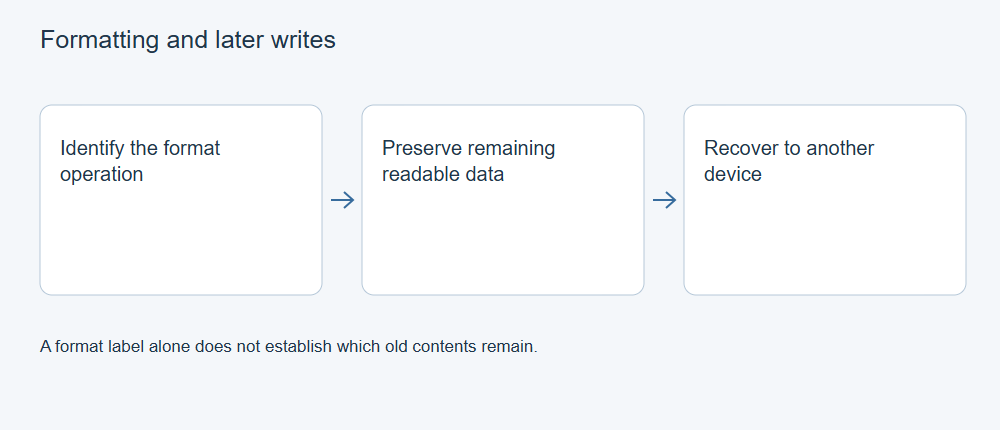
Do not format again, create test files or install recovery software onto the affected HDD. Record the tool, operation, completion state, old and new file systems, and anything saved afterward. If the source is stable and its content may remain, scan from a separate Windows environment and export to another physical device.
XRecovery supports formatted-file recovery from readable sources, file-record scanning and common file-signature searching. These functions locate remaining content; they do not reverse an overwrite. Preview supported files, export a representative sample and inspect the actual copies before recovering a large batch.
If a full zeroing operation completed, prioritize backups, application exports, other computers and previously shared copies. Repeating increasingly long scans cannot reconstruct the original information from a sector that now contains different bytes.
Evaluate formatted-drive recovery results
A real quick-versus-full test needs the same Windows build, formatting utility, HDD, file inventory and connection, plus verified pre-loss originals. The useful result is which exported files match those originals and which do not. A controlled overwritten sample supplies an important negative result.
SSDs add delete notifications and controller management, so the HDD distinction should not be reused as an SSD recovery promise.