
If your priority is getting files back, compare tools that can export them to another drive. Restoring the original partition is a separate goal and may change disk structures. XRecovery fits the file-export route for supported readable lost partitions and RAW volumes.
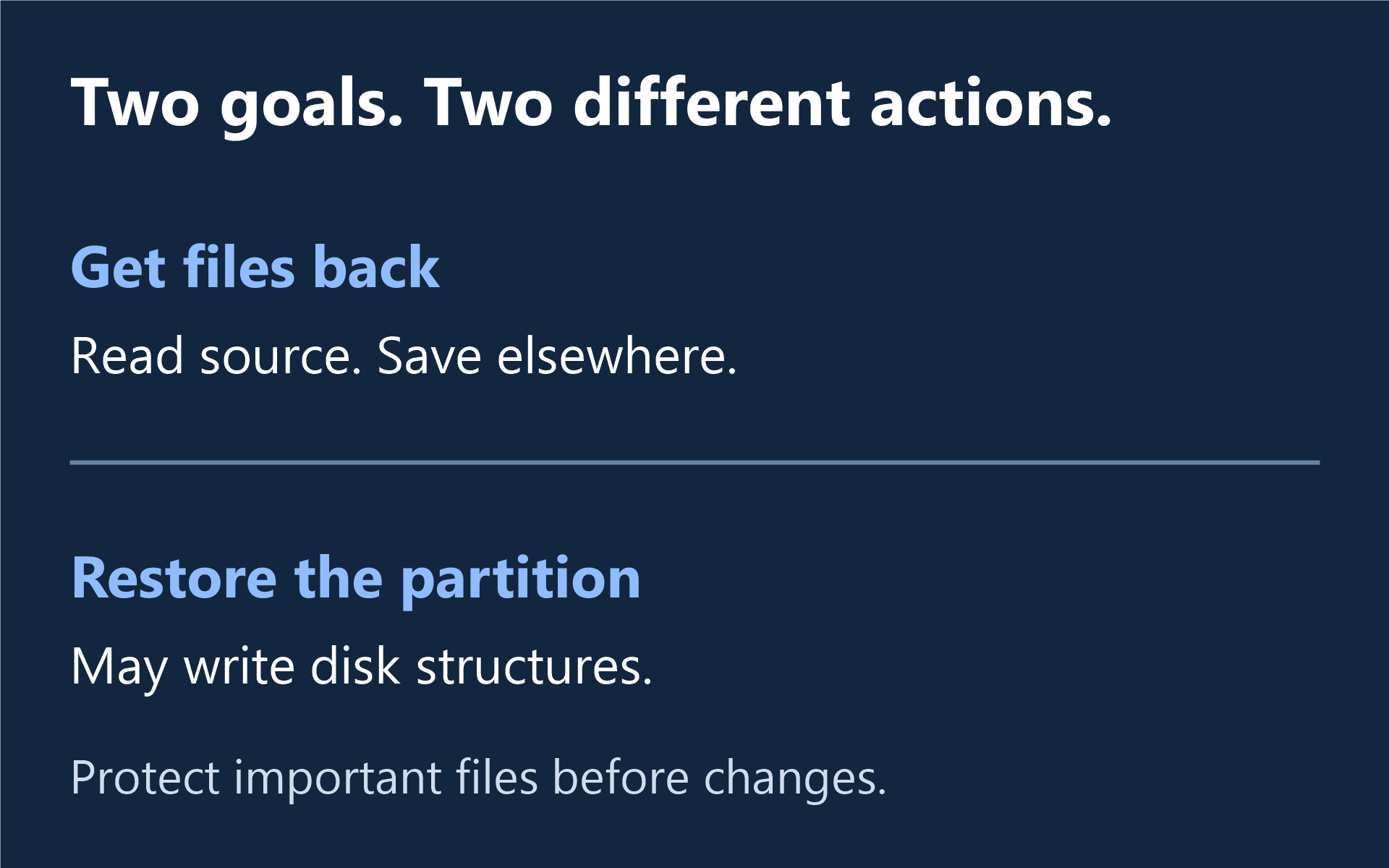
File export or partition repair?
| Question | File export | Partition repair |
|---|---|---|
| Intended result | Selected files saved elsewhere. | The original volume or partition layout is accessible again. |
| Where changes happen | Recovered output is saved to a separate destination. | Some operations write partition or boot information to the source. |
| What to verify | The required exported files open correctly. | The detected layout is correct and the intended structure is restored. |
| XRecovery’s role here | Find, preview and export files from supported readable sources. | Not the partition-table repair workflow described in this guide. |
What should you do before changing the disk?
Record whether the problem followed partition deletion, initialization, resizing or formatting. Identify the correct physical disk, check readability and preserve existing backups or images. Do not create a replacement partition or format merely to make a volume appear in Explorer.
TestDisk’s official partition guide separates examining found partitions from the Write action that saves the selected layout. Finding a plausible partition is not, by itself, a reason to write it. If the layout is uncertain, resolve that before changing the source.
How XRecovery fits the export route
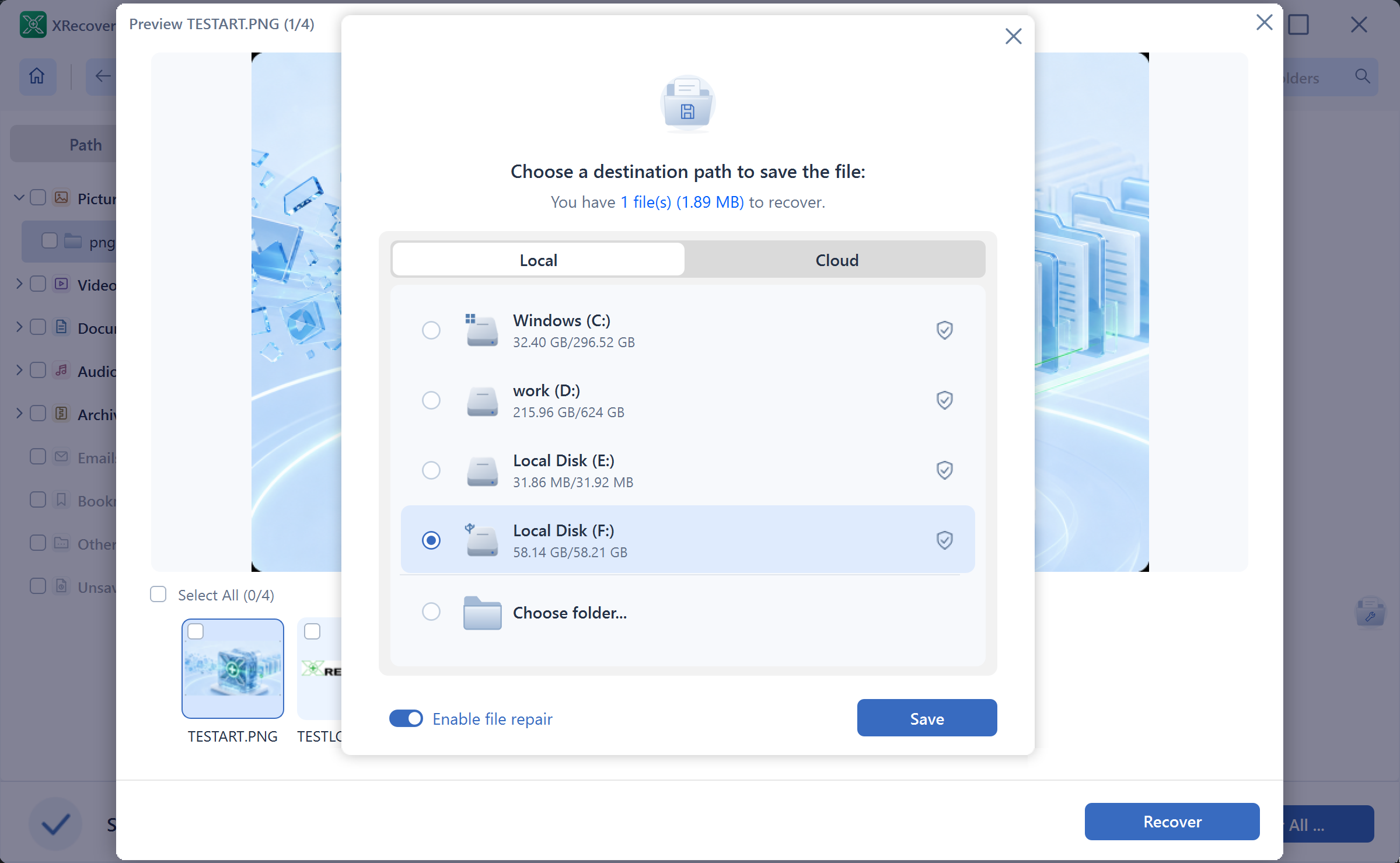
Scan the readable disk or a supported image, then use path/type views, search, filters and supported previews to identify the files you need. XRecovery can create IMG images and scan IMG, RAW and DD images when an image-based approach suits the case. An image’s value still depends on the data it actually contains.
Inspect the files before deciding what to save. XRecovery scanning and supported original-file preview are free; recovery and repair share a cumulative 2 GB allowance.
Windows 7 SP1 or later. Need the 32-bit installer?
What should you compare before paying?
Check source and file-system support, result navigation, preview and export terms. Allow enough separate storage for the files and any source image. Open the required exported files rather than relying only on names or a detected partition boundary.
When usable results exceed the remaining free balance, Compare monthly and annual plans. Paid recovery has no capacity quota while the license is valid. Follow the Windows recovery walkthrough for operation, or the hard drive recovery guide for other drive symptoms.
This guide is published by the XRecovery team. If reads become unstable or you cannot identify the correct layout, seek help before more scans or source changes.