
For missing files on a stable, readable SSD, start with a scan and inspect what remains. XRecovery supports SSD file recovery on Windows, with search, filters and supported previews. No scan can recreate bytes the device no longer returns, so choose around the files and access you have, rather than an SSD-specific marketing claim.
What should you check before choosing SSD software?
| Check | Why it matters |
|---|---|
| Stable detection and expected capacity | A disappearing or incorrectly identified device needs assessment before repeated scans. |
| Connection and access | NVMe, SATA and external enclosures describe different access paths; confirm the device can actually be read. |
| File-system support | Match the software to the source’s file system and the task. |
| Encryption credentials | For supported BitLocker recovery, have a valid password or recovery key. |
| Separate output storage | Keep exports and new installations away from the affected source. |
Check your important SSD files with XRecovery’s free scan and supported previews. Recovery and repair share a cumulative 2 GB allowance.
Windows 7 SP1 or later. Need the 32-bit installer?
Does TRIM mean every deleted file is gone?
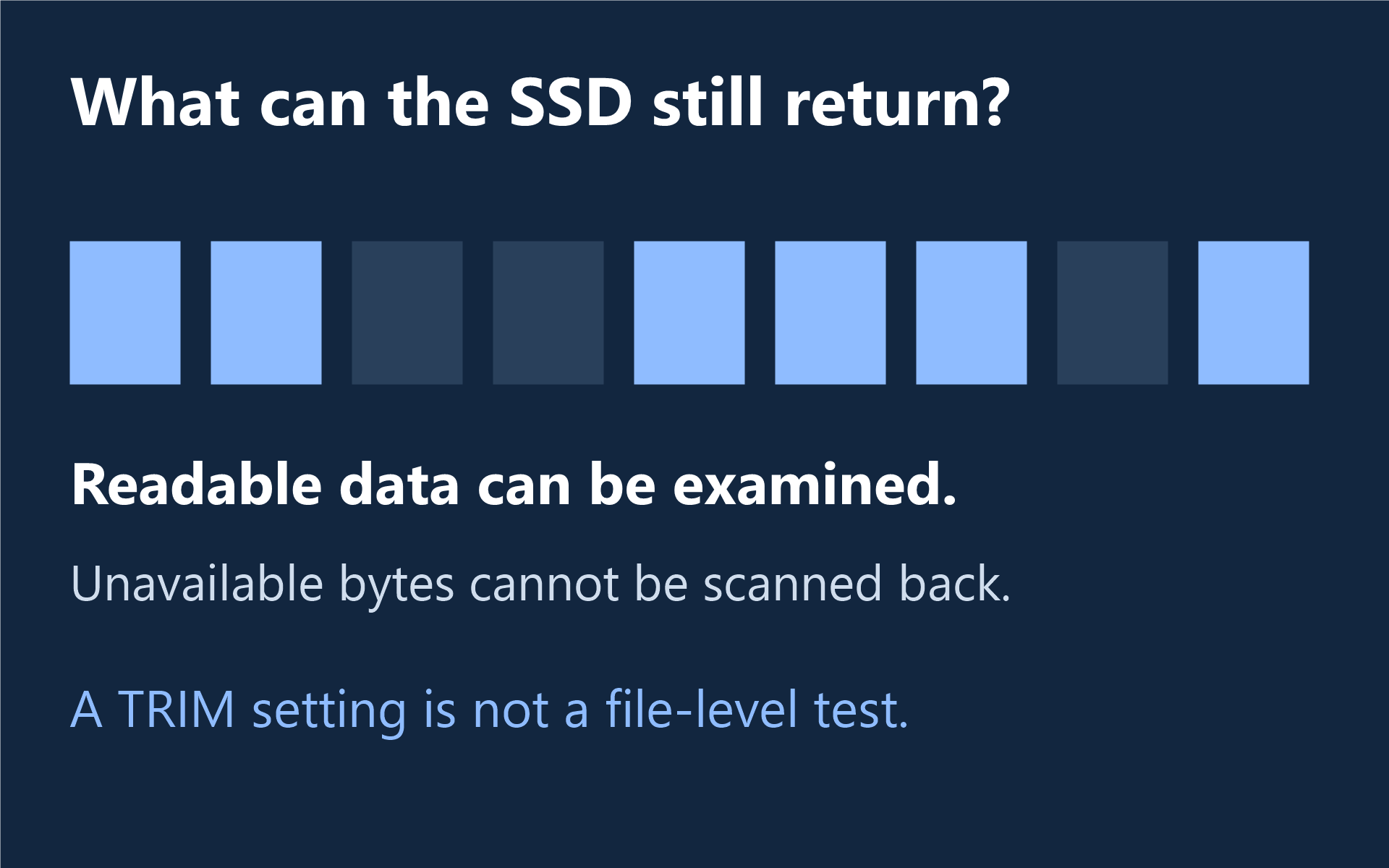
Microsoft’s file-system command documentation describes delete notifications, also called TRIM or UNMAP, which tell underlying storage that clusters have been freed. The operating-system setting alone is not a test of whether an individual file remains readable.
Neither “a premium scan defeats TRIM” nor “every deleted SSD file is always gone” is a useful promise. The device, connection and readable data determine the next step. Changing a setting after the loss does not restore unavailable bytes; do not run optimization, erase or firmware procedures as recovery shortcuts.
Use the results to decide what comes next
XRecovery lets you browse paths or file types, search and filter candidates, then preview supported content. For supported BitLocker storage, unlock access with your valid credentials. If an image is your source, XRecovery can scan IMG, RAW, DD and listed virtual-disk image types.
Save important files to a different device and open them in the appropriate application. Check required document content, full-size photos or the complete recording. A name and expected file size help you find a candidate but do not establish its integrity.
When does an upgrade help?
A paid XRecovery license is useful when checked, usable files exceed the remaining free allowance. Paid recovery has no capacity quota during the valid term. Compare monthly and annual plans, and use the SSD recovery guide for source-specific routes.
This guide is published by the XRecovery team. If the SSD is unstable or cannot be read, use the software-or-service guide before further attempts.