
XRECOVERY 4.0 FOR WINDOWS
Data recovery software for Windows.
Find lost photos, videos, documents and other files on readable drives and memory cards. Scan, review supported previews and choose what to recover.
Version 4.0 is coming soon. Current installers: 3.1.6.
Windows 7 and later · Free scanning & supported previews
Review before you recover. · Concept animation
XRecovery 4.0
START WITH YOUR SITUATION
Lost files take different paths. Start with the storage you can read.
A missing file, a formatted card or a lost partition can leave recoverable data behind. The device’s condition and the data that remains determine what can be found.
Deleted files
Look for file data that remains after accidental deletion or emptying the Recycle Bin.
Formatted storage
Scan readable storage after formatting. Results depend on whether the original data remains.
Missing partitions
Find files in lost partitions and save them to another device. XRecovery does not rebuild the original partition table.
A drive showing RAW
Try to locate files on a readable device whose file system is no longer recognized.
Not sure what to try first?
Start with guidance for your situation.
Check what deletion means for your files.
Understand the format event before scanning.
Check readability and choose the next step.
Before you scan: stop using the affected storage where possible. XRecovery needs access to a device it can enumerate and read. It does not repair hardware or recover data that has been overwritten.
LOOK CLOSER
Find files. Make an informed choice.
Use file-system information and file-signature searches to look for lost data. Browse the results and preview supported files before choosing what to save.
Photos, videos, documents, audio and archives are all part of the recovery workflow. Recognition, preview and recovery each depend on the file’s format and condition.
THE FILES THAT MATTER
Photos
JPEG · PNG · TIFF
Documents
PDF · Office files
Video & audio
Media files
Archives
ZIP · RAR · and more
File categories are examples, not a guarantee that every file or encoding can be recovered or previewed.
Pause and continue
Pause the current scan and continue when you are ready.
Save scan results
Save results to load later. A saved result is not a backup of your files; keep the original drive or image available.
Work from a disk image
Create a raw .img copy and scan from a supported disk image.
NAS & Linux connections
Connect to compatible devices over SSH with the required permissions. Requires Windows 10 or later on a 64-bit system.
Recognized RAID arrays
Scan arrays the software can identify and read. Support depends on the array and its condition.
BitLocker-protected storage
Attempt recovery when you have valid unlock credentials and the device remains readable.
FROM FINDING TO SAVING
Three steps. One careful process.
Start with a readable source, check the files you find and save them somewhere safe.
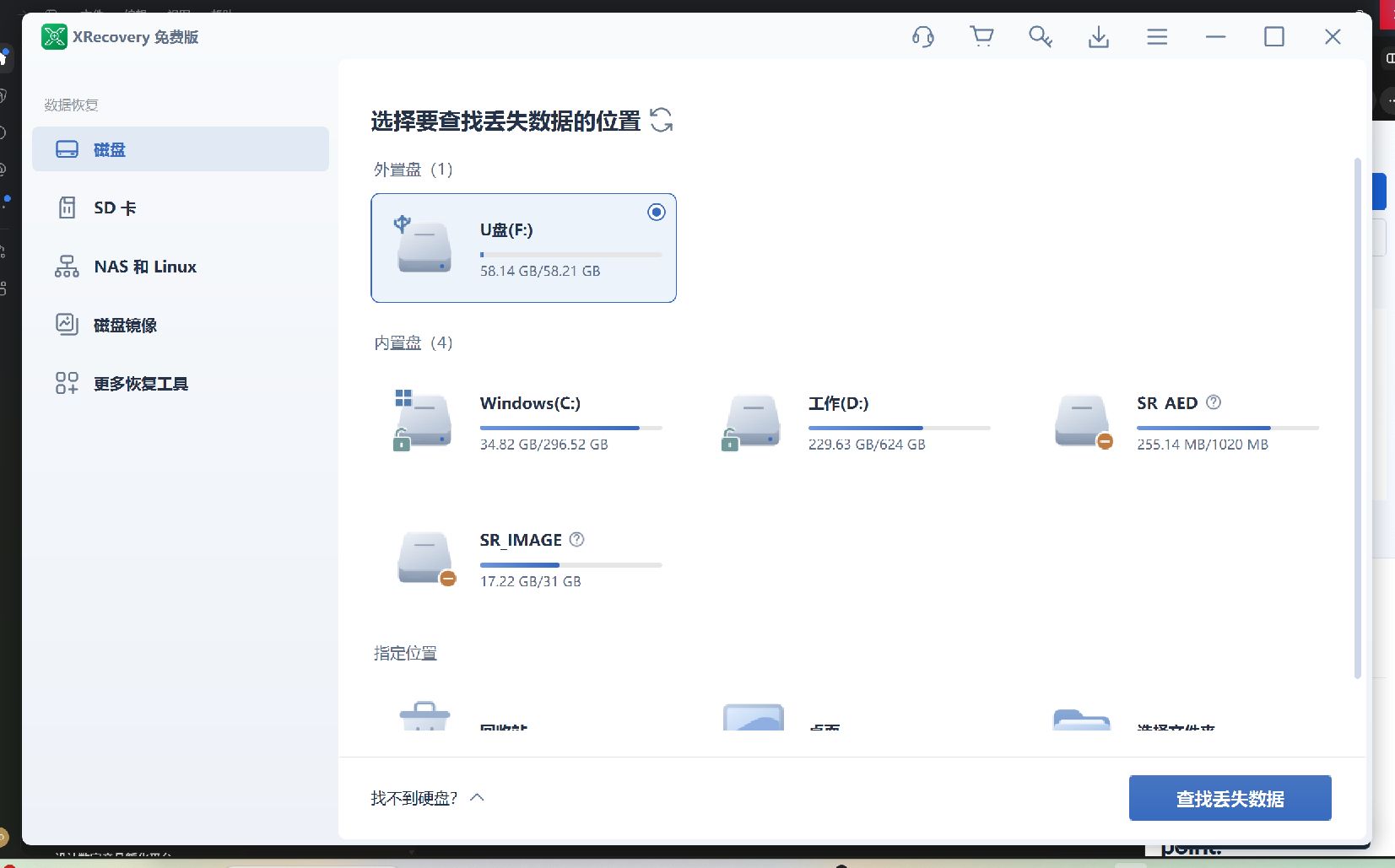
01
Choose your source.
Connect the affected storage and select a readable disk, partition or supported image to scan.
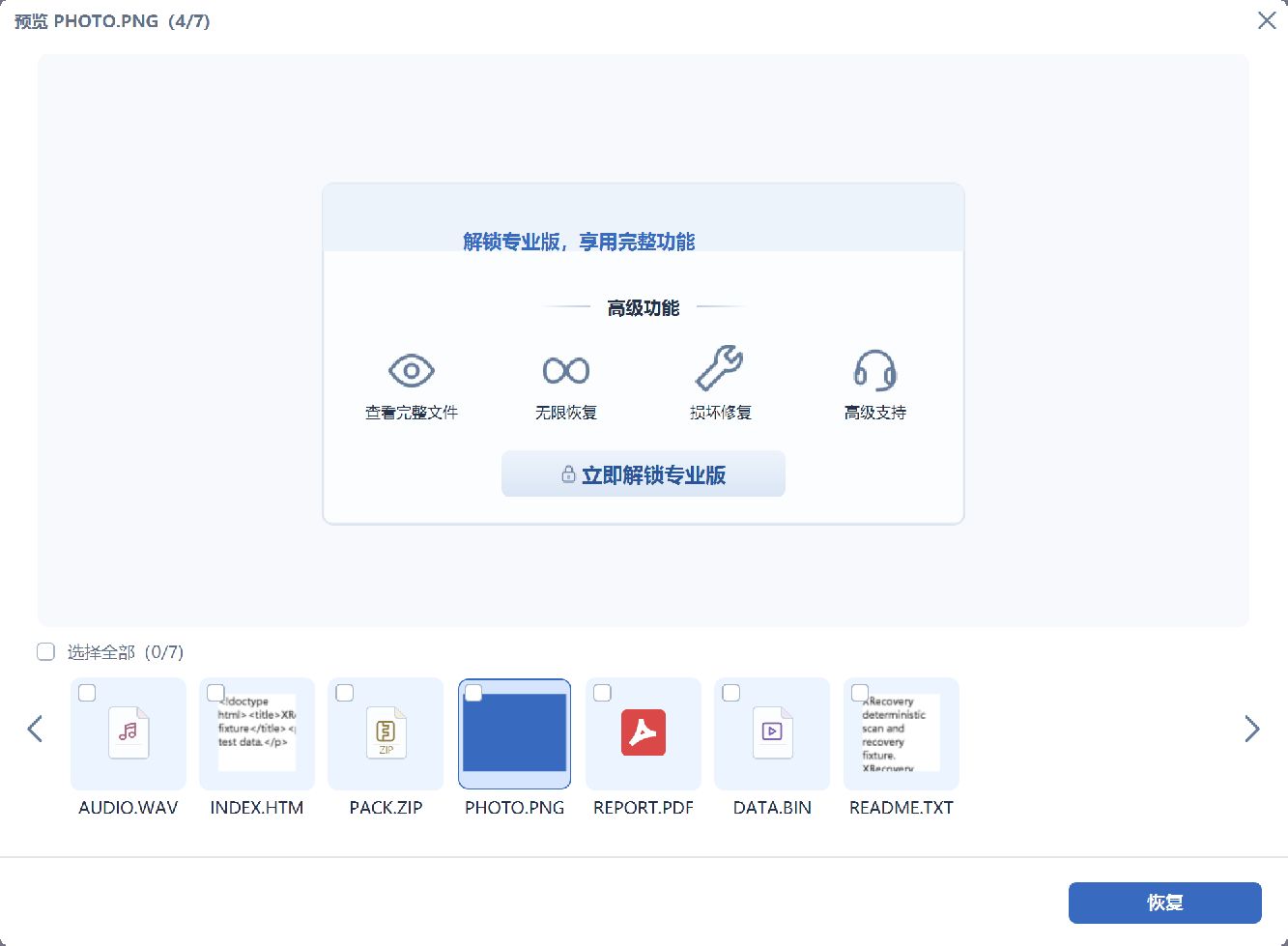
02
Review what’s found.
Explore the scan results. Preview supported files and select the ones you want to save.
Choose where to save
Save to a different storage device.
03
Recover, then check.
Save the selected files to a different storage device. Open the recovered files and check their contents.
CHECK YOUR SETUP
Your storage. Your files. Clear support boundaries.
XRecovery runs on Windows. Reading a file system from another platform does not mean the software runs on that platform.
Storage you can connect.
Internal & external HDDs and SSDs
Readable local disks and partitions. Recovery depends on the remaining data, including the effects of SSD TRIM.
USB flash drives
Scan USB drives that XRecovery can detect and read directly as storage.
SD, microSD & camera cards
Connect as readable storage through a compatible adapter or card reader.
Windows 7 and later
NAS/Linux remote recovery: Windows 10+ on a 64-bit system.
File systems you can work with.
Core supported file systems
- NTFS
- FAT12 / 16 / 32
- exFAT
- HFS+
- ReFS
Ext4 & Btrfs: conditional support
Ext4 and Btrfs support is limited to certain scan methods. Local file-system deep scanning is not available for these formats in XRecovery 4.0.
What about a RAW drive?
RAW describes an unrecognized file-system state. A readable device can be scanned, but original file names and folders may not survive. Scanning does not repair the file system.
APFS, Ext2, Ext3 and ZFS are outside XRecovery 4.0’s supported recovery options.
START FREE. CHOOSE WHEN YOU NEED MORE.
Same product. A term that fits your needs.
Scan and preview supported files for free. Choose a license when you need more recovery capacity.
Free
Start exploring your files.
$0
No paid license needed
- Free scanning and supported previews
- Recover up to 2 GB in total
- Free allowance does not reset
ONE MONTH
Monthly
A month to work through your recovery.
1-month license · one machine
- No recovery-capacity limit during the term
- Same paid features as annual
- Free upgrades during the term
ONE YEAR
Annual
Keep XRecovery available for the year.
1-year license · one machine
- No recovery-capacity limit during the term
- Same paid features as monthly
- Free upgrades during the term
Manual renewal. No automatic charge.
A license does not change the technical recovery limits or guarantee that lost data can be recovered.
A FEW THINGS TO KNOW
Questions before you start?
Find more product instructions in the Help Center, or contact us about your situation.
Can I recover files for free?
Yes. Scanning and supported previews are free. The free edition can recover up to 2 GB in total; this allowance does not reset. A paid license removes the recovery-capacity limit during its term.
Which version of Windows do I need?
XRecovery 4.0 supports Windows 7 and later. NAS and Linux remote recovery require Windows 10 or later on a 64-bit system, an SSH connection and the appropriate access permissions.
Does a preview guarantee that a file will recover?
No. A preview helps you inspect supported file types, but does not guarantee a complete recovered file. After recovery, open the saved files and check their contents.
Can XRecovery restore overwritten files or repair hardware?
It cannot restore data that has been overwritten or securely erased, or repair physical hardware damage. The source must be readable. SSD TRIM and other storage operations may remove data before recovery is attempted.
Does it recover files from a phone or camera?
A removable memory card can be scanned when connected as a readable disk, for example through a card reader. Phone internal storage and connections that expose only media objects are not included in the local disk recovery scope.
Do monthly and annual licenses have different features?
They have the same paid features and cover one machine per license. Choose one month or one year. Renewal is manual, with no automatic charge.
Where should I save recovered files?
Choose a different storage device or safe destination, rather than writing recovered files back to the affected source. Keep the source available until you have checked the saved files.
XRECOVERY 4.0 FOR WINDOWS
Start by seeing what’s there.
Scan your readable storage and explore supported previews.
Version 4.0 is coming soon. Current installers: 3.1.6.