
GoPro cloud sync failed is not one error, and that is the part that costs people footage. The same on-screen symptom — a camera that says it is synced, an app showing no pending items — can mean three completely different things: the transfer died partway and never resumed, the phone’s operating system killed the app mid-upload, or the cloud accepted part of the batch and discarded the rest without an error. Only one of those is visible in the app, and none is detected by the progress indicator. The safe rule is short: a wireless upload is not evidence, and the card stays authoritative until you have counted files at the other end.
What follows is the mechanism behind each failure, a verification procedure that takes a few minutes, and the point at which the card can genuinely be reused.
The Assumption That Causes the Loss
The dangerous belief is not “cloud uploads sometimes fail.” Everyone accepts that. The dangerous belief is that the app would tell you.
Auto Upload is a queue with a status, and the app displays the queue’s opinion of itself. A file shown as uploaded has been handed to the network stack and acknowledged by the client. That is not the same statement as “the server holds a complete, playable copy,” and the gap between those two statements is where cameras get formatted and footage disappears.
The second half of the assumption concerns the card. Operators reasonably think that once the upload is done, the card is a redundant copy they can clear. That holds only when the cloud copy is complete and equivalent, and equivalence has to be checked rather than assumed, because the cloud version of a GoPro shoot is frequently not the same object as the card.
There is also a habit that makes this worse before it happens: treating a camera-to-cloud sync as an alternative to a card copy rather than an addition to one, as compared in backup GoPro without a computer and in the drone footage backup workflow.
Failure Point One: The Transfer Died Before It Finished
A GoPro session is not one file. A long recording is written as a series of chapters of roughly 4 GB each, and a day of shooting can produce dozens. Each chapter transfers individually, over Wi-Fi, with the camera on battery.
That is fragile for four reasons.
- The camera is on battery. A GoPro uploading for hours drains faster than it charges over most USB sources. A power-down mid-transfer leaves the batch partially uploaded, and depending on the pipeline, the remaining queue may be marked as handled rather than pending.
- Wi-Fi drops. Interference, range, and the camera’s own thermal throttling interrupt a session. Some pipelines resume cleanly from the interruption point; others skip ahead to the next file, quietly leaving the interrupted one incomplete.
- Large files take a long time. A single 4 GB chapter over a real-world link is minutes at best, and the last chapter of a session is the one most likely to be cut off — and the one the shot was usually for.
The symptom to look for is a file that appears in the cloud with an implausibly short duration, or one whose duration matches but whose tail is missing. Both indicate a truncated transfer rather than a camera fault. This is also why a chaptered shoot should be verified chapter by chapter, and the file series itself is explained in GoPro chapters explained.
Failure Point Two: The Phone Killed the App
This failure produces the most confident wrong answers, because the app genuinely believes it is working when it dies.
Both iOS and Android suspend or terminate backgrounded apps under memory pressure, on a low-battery policy, or after a period of inactivity. An upload queued from the phone is a background activity by definition, and the app has no way to warn you when it is stopped, because it is not running.
- The queue state can be written optimistically. Some apps mark an item as queued and persist that state before the transfer completes. When the app is killed, the entry may still read as handled when the file never left the device.
- Camera-to-phone and phone-to-cloud are separate steps. The first can finish while the second has not started, and the app’s summary often reflects the first while reporting the second as done.
- Android battery optimization is aggressive. Some manufacturers terminate background network activity from third-party apps within minutes of the screen turning off, which can prevent a multi-hour upload from ever completing.
- The phone runs out of space. A phone holding a local cache of uploaded footage can fill its own storage and fail the write, and the failure surfaces as an upload error rather than a storage error.
Keep the app in the foreground during large transfers, keep the phone on a charger, and never treat a background upload as a completed backup.
Failure Point Three: The Cloud Silently Discarded Files

The third failure leaves no local error at all, which is why it catches careful users.
Cloud storage has quotas, and quota enforcement is frequently deferred. A pipeline can accept an upload request, queue the file, and only attempt to write it when a background worker gets to it. If the account is over its allowance at that moment — or a plan lapsed, a payment method failed, or a promotional subscription expired — the write fails on the server side. Whether the client ever learns about it depends entirely on the implementation, and often it does not.
Two related server-side drops are worth knowing. Files above a size limit may be silently transcoded, truncated, or skipped. And low-resolution LRV review files and THM thumbnail files sitting alongside camera footage are almost never uploaded, which is normally harmless but means the cloud copy is never a complete mirror of the card.
If your account has a hard storage ceiling, check capacity before a batch rather than after. A sync that runs out of room at 90 percent of a shoot produces a library that looks nearly complete and is missing exactly the tail of the session.
What the Cloud Copy Is Not
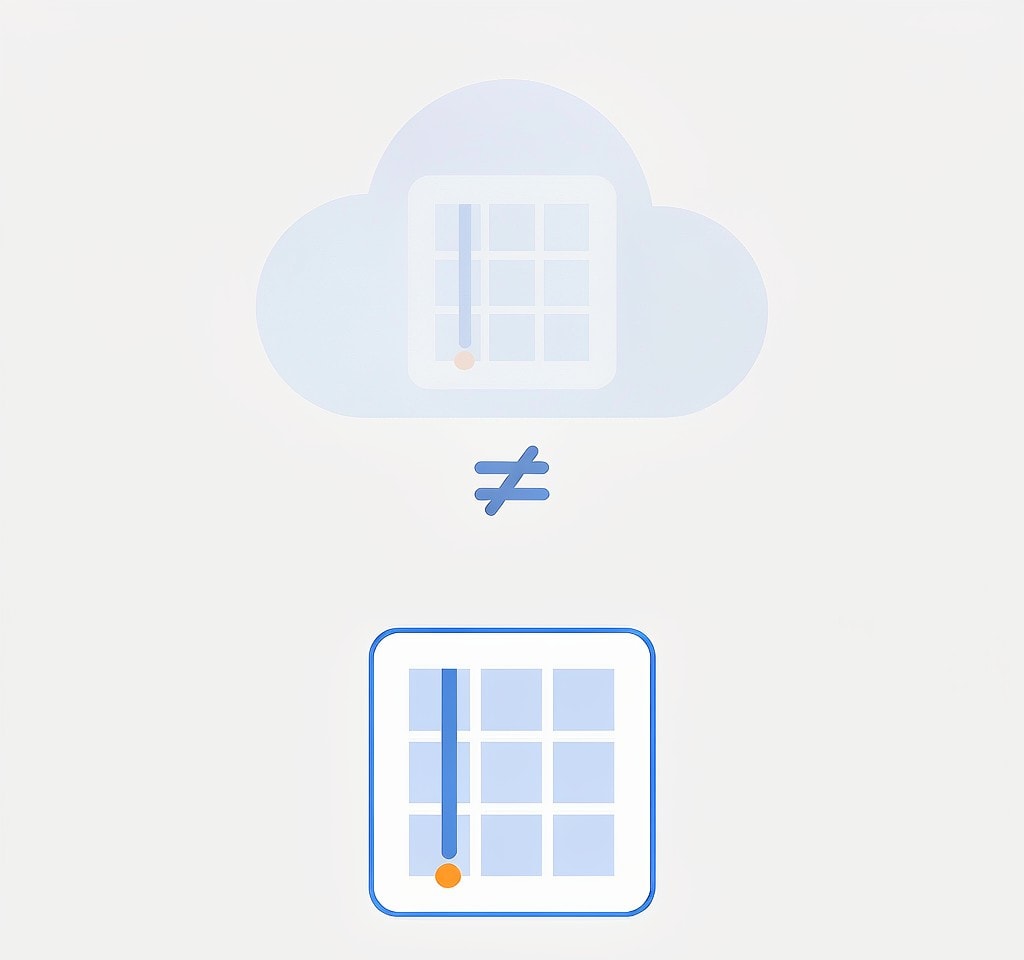
Even a fully successful upload is not a byte-for-byte archive.
| What is on the card | What typically arrives in the cloud |
|---|---|
| Chaptered clips, one file per segment | Often stitched into a single continuous clip |
Low-resolution LRV review files | Usually omitted |
THM thumbnail files | Usually omitted |
| Embedded telemetry and gyro streams | Usually preserved, but can be dropped by transcoding |
| Original bitrate and codec | Preserved in most pipelines, reduced in some |
| A complete local file set you own | A service-managed copy governed by an account |
The chapter merge is the one with operational consequences. A cloud library presenting a 40-minute continuous clip instead of twelve numbered chapters is easier to watch and harder to deliver, because many post-production pipelines and archive specifications expect the original file series. If your deliverable depends on those segments, the card is the only place the original structure exists.
How to Verify an Upload Actually Completed
Verification does not have to be slow. It has to be separate from the app that did the uploading.
- Count at the source. Note how many clips the card holds and how many chapters each long recording produced.
- Count at the destination. Compare the item count in the cloud library against your note.
- Check the last item of every long recording. Open the final chapter or the final minute of a merged clip. The tail is where truncation shows.
- Compare durations. The cloud duration should match the local file within a second or two. A clip reading 12 seconds instead of 4 minutes is a truncated transfer.
- Play past the midpoint. A file with a broken index may open and stall, and scrubbing past the middle forces a seek that exposes a partial file.
Two habits make this cheap: verify immediately after the upload finishes, while the card is still in hand, and delete nothing from the card until the verification passes. The same logic applies after any recovery operation, where a file that opens is not automatically a file whose data is entirely present, as described in verify recovered video files.
When the Local Card Is Safe to Reuse
The card can be reformatted when all four of these are true:
- The upload has been counted at the destination, not merely marked complete in the app.
- Every long recording’s final chapter has been opened and plays to its end.
- At least one other copy exists that is not the same cloud library — a drive, an SSD, or a second location.
- Nothing in the batch is still in flight.
That is a stricter standard than most operators use, deliberately so. The moment of formatting is the moment an upload error becomes permanent, because the card is the only copy in the original structure and the only copy you control.
If a sync failed and footage is missing from the card as well — because the card was cleared before verification, or because a chapter file was never written — the remaining options depend on what the medium has seen since. A card formatted in-camera and not reused is usually recoverable, because camera formatting is a quick format that rewrites metadata without touching the footage. The scenarios are covered in GoPro Hero recovery, and the urgent sequence for a cloud failure discovered late is laid out in cloud upload failed emergency.
When the card is detected and mounts but files are missing, and you are on Windows, a purpose-built recovery tool such as XRecovery (xappset.com) can scan SD, microSD, and other memory cards for deleted or formatted photos and videos. As with any recovery tool, stop writing to the card first and always save recovered files to a different drive. No tool can bring back an overwritten file, and no tool can retrieve a clip the cloud never received.
Frequently Asked Questions
The app says everything is uploaded. Isn’t that enough?
No. The app reports its own queue state, updated before the server confirms a completed, playable copy. Count the items at the destination and open the final chapter of each long recording before you treat an upload as a backup.
Why does my GoPro upload stop when I close the app?
Background uploads depend on the operating system keeping the app alive, and both iOS and Android suspend background activity under memory or battery pressure. On Android, aggressive battery optimization can stop a transfer within minutes of the screen locking.