
If you just recovered a deleted video from an SD card and the clip refuses to open, do not delete it and do not format anything. A file that comes back at its full original size but will not play is usually fixable, not lost. Stop recording to the card, copy the recovered clip to your computer, and work only on that copy. This guide explains why recovered MP4 and MOV files break and how to repair corrupted video files with free tools such as Untrunc, ffmpeg, and VLC.
Recovered Doesn’t Mean Playable: Two Separate Problems
Deletion and corruption are different failures. Deletion means the camera removed the directory entry while the actual bytes stayed on the card until something overwrote them. Corruption means the video is present, but its internal structure is damaged. That is why “recovered successfully” can be misleading: a scanner can reconstruct a 4 GB MP4 byte for byte, and it will still be unplayable if the original recording was never finished. Most “video won’t play after recovery” cases belong to the second bucket, where the data is complete and only the index is missing. For the deleted-file side of the problem, see our camera video recovery guide; this article covers repair.
Why a Video Can Be Complete Yet Unplayable: ftyp, mdat, and moov
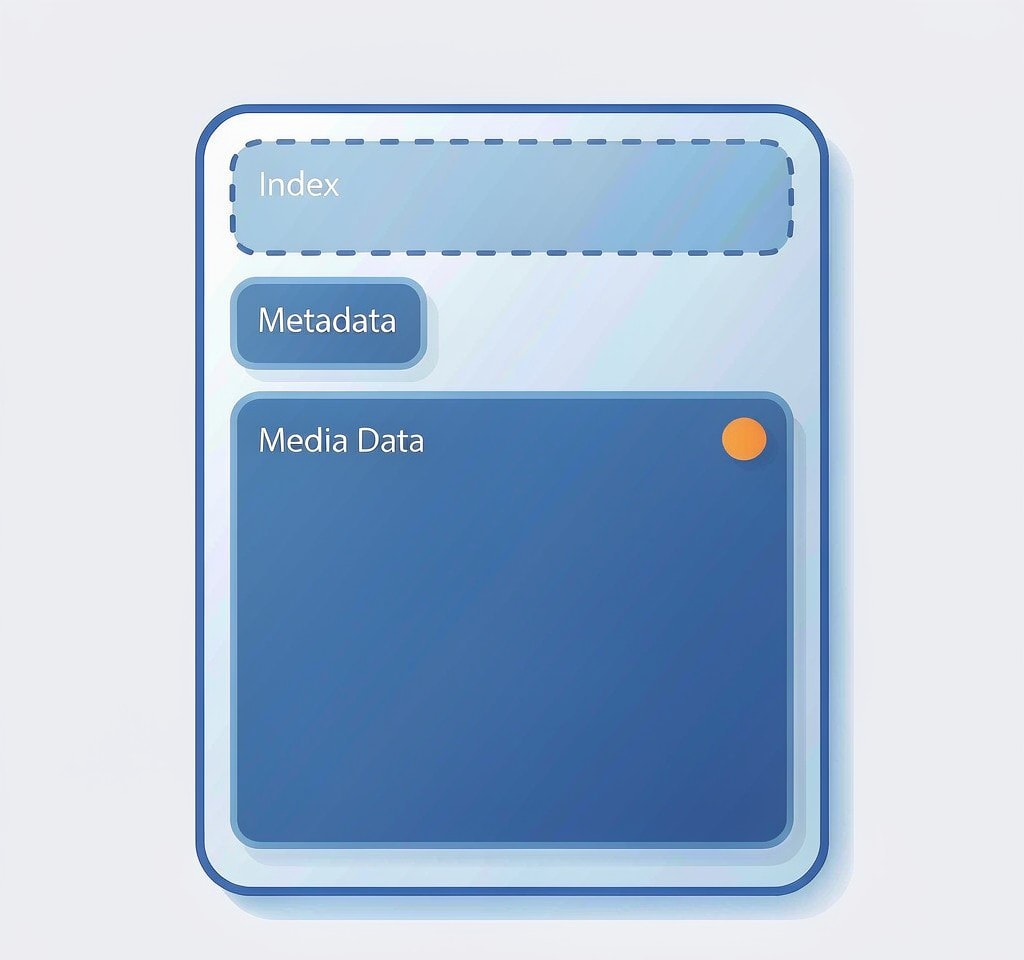
MP4 and MOV are containers, not codecs. Inside the file, encoded audio and video are packed into atoms. Three matter here:
- ftyp sits at the start and identifies the container. This is the signature that recovery tools scan for.
- mdat holds the encoded audio and video samples, the bulk of the file’s size.
- moov is the index: codec configuration, track layouts, timestamps, and the byte offsets that tell a player where every frame starts and how long it lasts.
Consumer cameras, action cameras, and drones generally do not write moov while recording. They buffer samples into mdat and write the index only when recording stops cleanly. If the battery dies or the card is pulled mid-recording, that final write never happens, leaving a large mdat full of intact footage and no usable moov.
Here is the counterintuitive part: a huge file that will not open is the strongest evidence that the footage is fine. If mdat were empty, the file would be tiny. A player looks for moov first, finds nothing usable, and reports a damaged file even though every frame is sitting in mdat. GoPro and other fragmented writers behave similarly, and the same repair principle applies.
Quick Wins Before You Repair Anything
- Play the copy with VLC or MPV. Both tolerate damaged containers better than most players and may open a clip that QuickTime rejects. Scrub through to confirm what survives.
- Repower the camera or drone with the card inside. Many devices try to finalize an interrupted clip on boot. A GoPro may show a recovery prompt; accept it and let the device finish before ejecting. DJI aircraft often retry interrupted clips on the next power-up.
- Check proxy files. GoPro .LRV and .THM sidecars are low-resolution copies of the main clip and may still cover the moment if the full-res file is beyond repair. For details, see the GoPro recovery guide and the DJI drone recovery guide.
- Remux before giving up. Sometimes moov exists but is damaged, and copying the streams into a fresh container is enough (steps below).
Repair a Corrupted Video With a Reference File (the Untrunc Method)
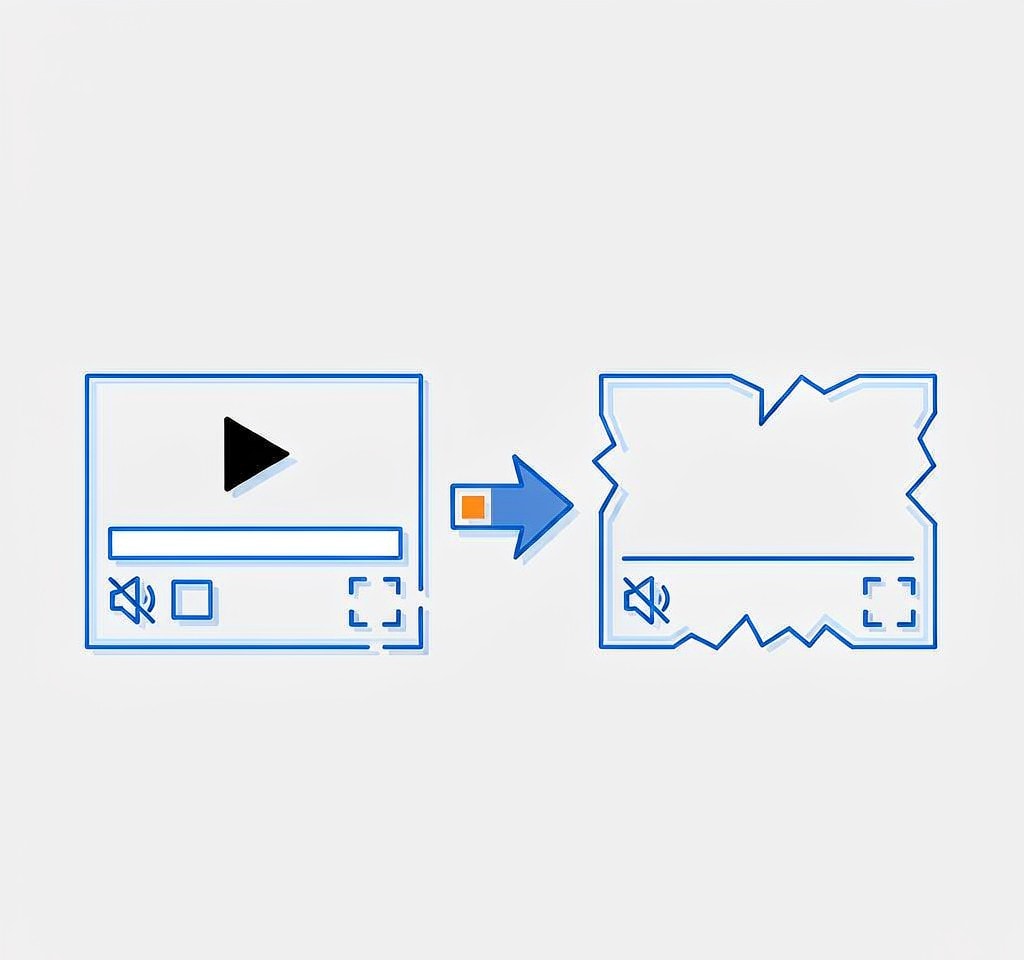
The cleanest fix for a missing moov atom is rebuilding it from a working file recorded by the same camera at the same settings. Untrunc is the free open-source tool built around this reference-file method: two clips from the same device and mode share codec configuration and track layout, so the reference moov is a near-perfect template for the broken clip.
- Get a reference file. Record a 5-10 second clip with the same camera, at the same resolution, frame rate, and codec you used for the lost footage. Put it in the same folder as the broken file.
- Install the tools. Untrunc relies on ffmpeg, so install ffmpeg first, then download Untrunc. The compiled Windows build needs no installer.
- Run the repair from a terminal in that folder:
“bash untrunc reference.MP4 broken.MP4 “
Untrunc reads the reference atoms, locates the sample data in the broken file, and writes a new file with a reconstructed index, usually broken_fixed.MP4. A successful rebuild plays normally, with correct duration and sound. The method fails when the reference does not match the clip: repairing a 4K 60fps file with a 1080p 30fps reference will not work. Re-record an exact match and retry.
Repair With ffmpeg or VLC: Remux Instead of Rebuild
If moov survived but is damaged at the edges, you usually do not need to rebuild anything. Remuxing copies the existing streams into a new container without re-encoding a single frame:
“bash ffmpeg -i broken.MP4 -c copy -movflags faststart fixed.MP4 “
-c copy skips re-encoding, making this fast and lossless; -movflags faststart moves the index to the front, which also helps players that cannot read tail-indexed files. If ffmpeg complains about timestamps, regenerate them:
“bash ffmpeg -fflags +genpts -i broken.MP4 -c copy fixed.MP4 “
When even a remux fails, a full re-encode is the last resort. It is slow and lossy but can squeeze out a playable file:
“bash ffmpeg -i broken.MP4 -c:v libx264 -crf 20 -c:a aac fixed.MP4 “
The VLC equivalent uses Media > Convert/Save: add the broken file, pick an MP4 profile, and choose an output location. VLC remuxes while converting and rescues clips it will not open directly. No remux restores frames that were never written, so the footage ends where recording actually stopped.
When a Video Is Truncated or Fragmented: Honest Limits
Some files cannot be fixed, and knowing when to stop saves hours.
- Truncated mdat. If the camera died while writing, the last seconds never reached the card. A rebuilt index makes the earlier footage playable, but the missing tail is gone permanently.
- Fragmentation gone wrong. If a deleted MP4 was recovered with its samples reassembled out of order, the file plays as static or freezes. No moov rebuild fixes that, because the damage is inside mdat. Recover the file again with a tool that handles fragmented video.
- No matching reference. Untrunc needs a reference clip. If the camera is gone or the settings are unknown, only remux attempts and dedicated repair tools remain. Purpose-built utilities such as Stellar Repair for Video, or services like CleverFiles’ online video repair, try to reconstruct from the sample data itself rather than a reference template. Their trial versions let you test whether the file is repairable before you pay.
If the clip still will not play after every attempt, the original recovery was likely the weak link, so re-scan the card before concluding the footage is lost. On Windows, XRecovery (xappset.com) scans SD and microSD cards for deleted or formatted videos, and what decides the outcome is the card’s history rather than the tool: when the original data has not been overwritten, it comes back in full. A clip that returns but will not play is a structural problem rather than a lost-file problem, and the recovered portion can be re-encoded into a playable file using the procedures above. What nothing can undo is an overwrite, because once new files occupy those clusters the original bytes are gone. Stop writing to the card first and save recovered files to a different drive. For recovery software that does and does not handle fragmented video, see our best camera data recovery software comparison, and for the bigger picture, the camera data recovery overview.
How to Avoid Corrupt Files in the First Place
Nearly every corrupt clip in this article was caused by power or ejection, not bad luck:
- Format the card inside the camera before a long session instead of deleting files one by one. This yields a clean, contiguous layout and fewer fragmented recordings.
- Use genuine, fast cards. For high-bitrate 4K and HEVC, choose V30-or-higher cards from reputable brands; counterfeits corrupt recordings silently.
- Never wait for the low-battery warning. Power loss while the index is being written is the most common cause of a missing moov atom.
- Wait for the write light and eject through the OS before pulling the card.
Frequently Asked Questions
Can I repair a corrupted MP4 without a reference video?
Yes, but your options shrink. Run the ffmpeg and VLC remux commands first, since they need no reference; if those fail, dedicated repair tools reconstruct from the file’s own data, with less reliable results.
Why does my recovered video play but have no sound?
The moov atom stores audio track configuration alongside its offsets. If moov is rebuilt or remuxed incorrectly, the audio track can be dropped even though the AAC samples are present. Re-run the repair with a properly matched reference file, or remux again and confirm ffmpeg reports an audio stream.
Does repairing damage my original file?
Only if you repair the original. Always work on a copy; if an attempt produces a worse file, the untouched original is still available for the next try.
Why is my recovered MP4 much smaller than expected?
The recording was truncated while still in progress, so the missing minutes were never written. A remux or index rebuild makes the existing portion playable, but nothing restores data that never reached the card.
Will re-encoding reduce video quality?
Remuxing with -c copy does not re-encode and loses no quality. The libx264 re-encode fallback is lossy, so use it only when a remux fails.