
Nikon photo recovery works for the same reason every camera recovery does: deleting a shot or running the camera’s default format only clears the directory entry, while the actual NEF or JPEG bytes remain on the card until new data overwrites them. Nikon DSLRs and Z mirrorless bodies behave this way, and SD cards do not run TRIM, so freed space is not scrubbed automatically. If you deleted photos, formatted a card, or had a Nikon body refuse a card, stop using it now and scan through a card reader rather than the camera’s USB cable.
Recovering Photos From a Nikon Camera: First Principles
Whether the card came from a D-series DSLR, a Z mirrorless body, or a COOLPIX compact, the same priorities apply: no further writes, a card reader rather than a tethered camera, a scan that matches the file types you need, and recovered files saved to a different drive. Our camera photo recovery guide lays out that shared workflow. What follows covers NEF and NRW, the Z line’s mixed card formats, and the card errors Nikon bodies report.
Nikon File Formats: NEF vs NRW
| Format | Typical bodies | Notes |
|---|---|---|
| NEF | Nikon DSLRs, the Z mirrorless line, and the COOLPIX A | The standard container since the D1 era; holds sensor data, shooting settings, and an embedded preview |
| NRW | Selected COOLPIX compacts and the Nikon 1 series | A compressed TIFF-based RAW used on consumer-oriented bodies |
Both NEF and NRW are TIFF-based containers, so signature-based scanning treats them separately from JPEG and video. The practical difference for recovery is metadata: NEF files carry extensive camera settings and an embedded JPEG preview that the camera uses for instant review, and modern bodies embed a large one.
That embedded preview is a genuinely useful recovery tool. If you recover a NEF that your RAW editor refuses to open, display the embedded preview first: a clean preview tells you the file is intact and your editor lacks the decoding path, while a broken preview points to a damaged recovery. Nikon’s free NX Studio reads NEF and NRW natively and is the fastest way to verify a recovered frame. For the deeper mechanics of fragmented RAW and partial overwrite, see our RAW photo recovery guide.
Step-by-Step Recovery Workflow for a Nikon Card
- Remove the card and leave it idle. Do not reformat, reshoot, or run “repair this drive” prompts, since every write shrinks the odds.
- Scan through a quality card reader. Nikon numbers stills with a DSC_ prefix (DSC_1234.NEF, or _DSC_1234.NEF in Adobe RGB), which makes recovered results easy to spot after a scan.
- Run a deep, signature-based scan rather than a quick scan when photos were formatted or the directory is damaged.
- Preview recovered frames and verify a sample in NX Studio before copying the whole set.
- Save to a different drive. A 64 GB card typically takes 15 to 30 minutes to deep-scan; larger cards take longer.
Z-Series Card Slots: SD, XQD, and CFexpress
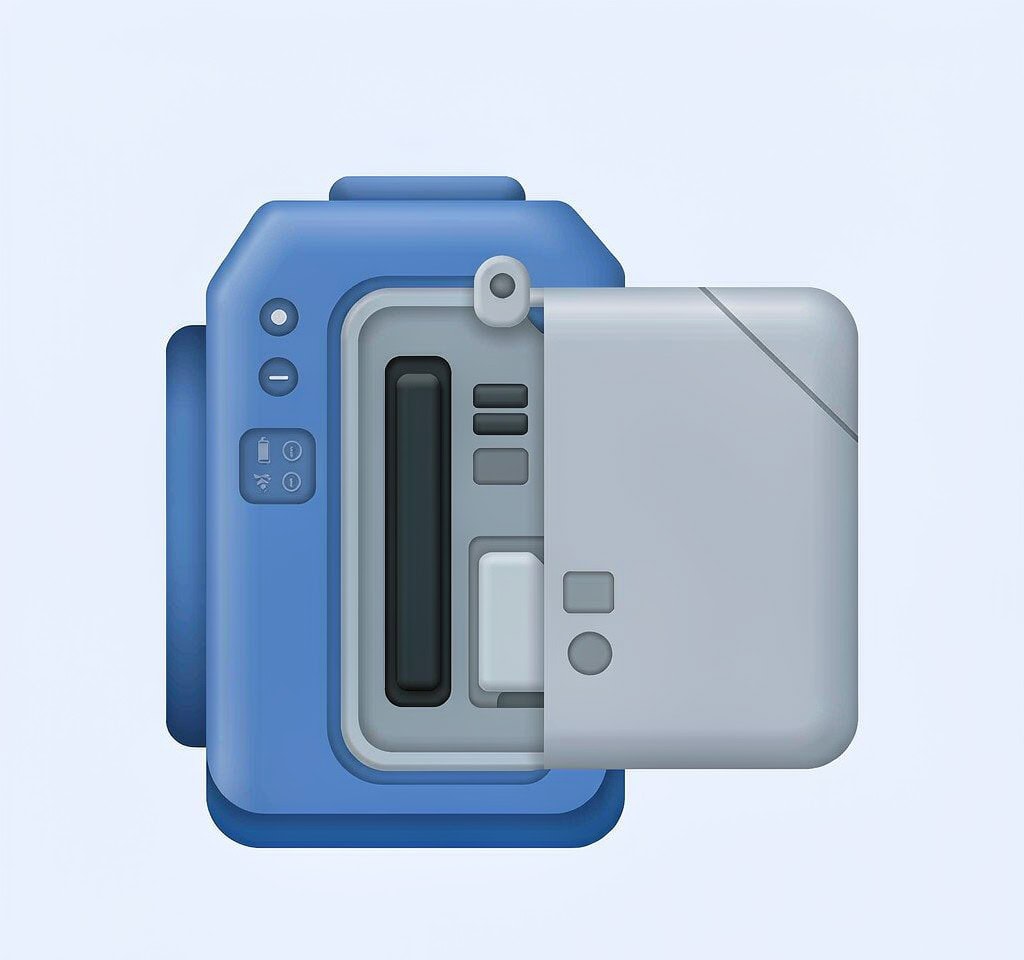
The Z line mixes card hardware more than any other Nikon lineup: entry bodies use one SD slot, while fast bodies pair SD with XQD or CFexpress, or use two fast slots. Check your manual for the layout, because the hardware matters for recovery: XQD and CFexpress are not SD, need their own reader or an adapter, and an SD reader will not see them at all.
The other Z-series difference is capacity and file system. SDXC, XQD, and CFexpress cards are formatted as exFAT, and fast-slot cards now reach well past 512 GB. A signature-based deep scan reads the entire volume, so it runs far longer than on a 32 or 64 GB card, and a fast card interface does not speed up carving, which reads every sector. A quick in-camera format of an exFAT card still leaves photo clusters in place in most cases.
If your Z body has two slots, mirroring cards during a shoot is the best habit you can adopt: when one card fails, the second holds a full copy. Nikon’s dual-slot backup options are covered in our guide to preventing camera data loss.
Nikon Video: MOV Files That Won’t Play

Nikon DSLRs and Z bodies record video in MOV containers, using H.264 on most models and heavier codecs such as HEVC on the Z8 and Z9. When the battery dies or the card is pulled during recording, the clip never receives the closing index, so it recovers at full size but will not play. The footage is usually intact; the index needs rebuilding. Our guide to repairing corrupted video files covers the reference-clip and remux methods for recovered Nikon MOV files.
Nikon Card Errors and Firmware Notes
A Nikon body that suddenly reports that a card cannot be used is showing a file system problem, not proof that photos are gone. It can happen after the card was pulled mid-write, after a card was formatted in a different device, or when the directory structure is damaged. Nikon asks to format the card in this state; decline until you have scanned it on a computer, because confirming the format erases the directory entries a recovery scan depends on.
If no device or software sees the card at all, the flash controller or the card itself has likely failed, and a data recovery lab is the realistic option. For the full symptom-by-symptom treatment of unreadable and “needs formatting” cards, see our corrupted SD card recovery guide.
When Recovery Software Makes Sense for a Nikon Card
Free carving tools handle Nikon JPEGs well, but NEF and NRW support varies by product, and so does HEVC video support on newer Z cameras. No vendor should be assumed to cover every format, so check the supported-format list for NEF, NRW, and your video codec before you rely on a scan.
If you are on Windows and the card is still readable by a computer, a purpose-built recovery tool such as XRecovery (xappset.com) can scan SD, microSD, and other memory cards for deleted or formatted photos and videos. As with any recovery tool, stop writing to the card first and save recovered files to a different drive.
Frequently Asked Questions
A recovered NEF file won’t open in my RAW editor. Is the recovery bad?
Not necessarily. Check the embedded preview first, or open the file in NX Studio. If the preview renders cleanly, the file is intact and the problem is your editor’s support, not the scan.
Is NRW recovered the same way as NEF?
The approach is the same, but the containers differ, so confirm your tool lists NRW. Nikon 1 and COOLPIX cards recover well by signature scan because the file headers stay intact even when directory entries are gone.
My Nikon says “This card cannot be used.” Should I format it?
Not yet. That message usually means directory or file system damage, and formatting removes the entries a scan could use. Decline the prompt and scan the card on a computer first.
I always record to both card slots. Is recovery still needed?
If one card failed but the other holds a mirrored copy, you already have your files; just copy them off the good card. Mirroring is prevention, not recovery, which is why dual-slot backup habits matter most.