“Not detected” can describe several different states: no physical disk, a disk without a drive letter, a RAW volume, an unallocated disk, or a drive that connects and disappears. Find the detection boundary before formatting or changing the source.
Check the connection once
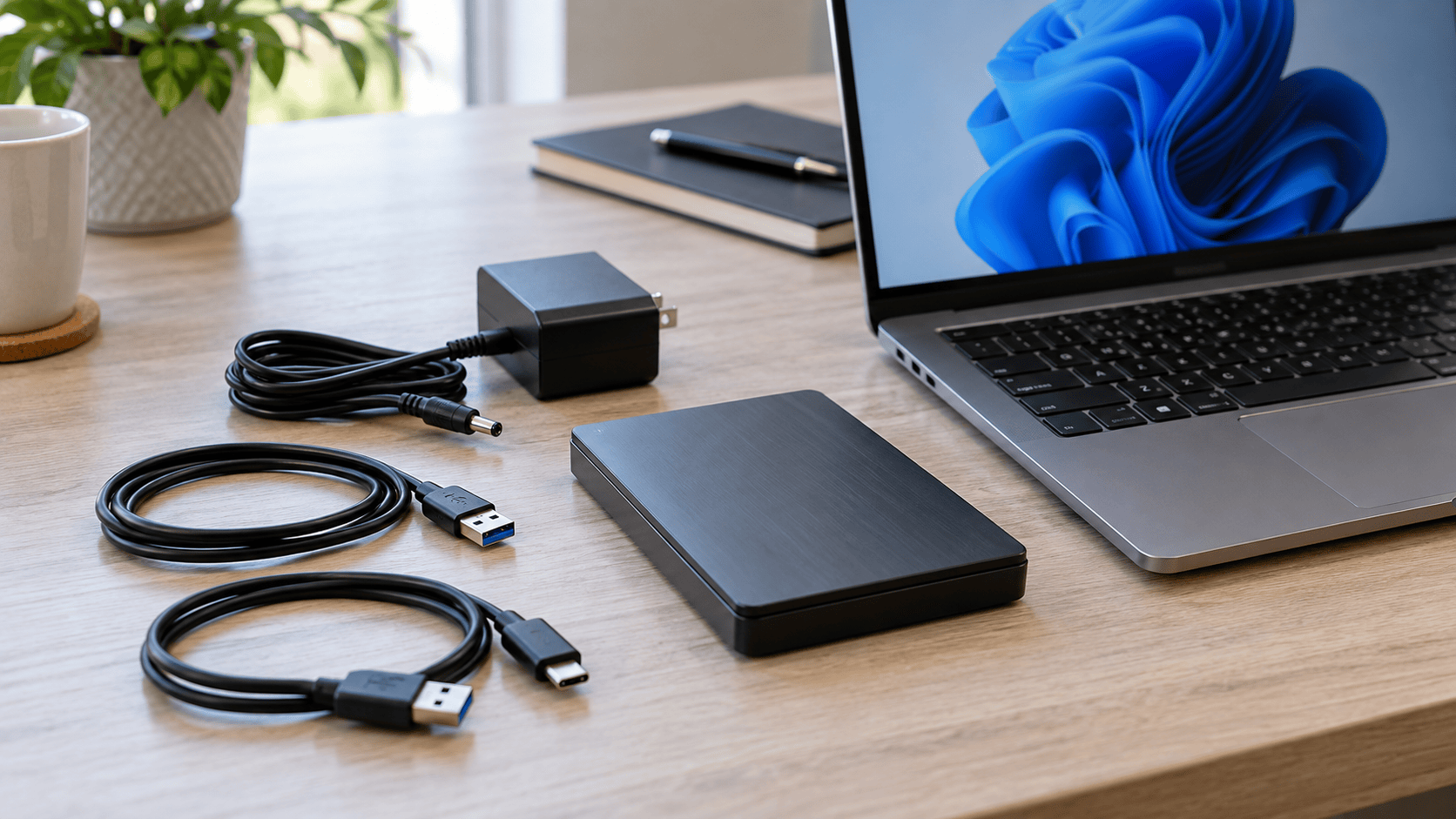
Use one known-good USB cable and port. If the enclosure requires separate power, verify its adapter. Test the drive on one other Windows computer when that can rule out a host problem without repeated cycling. Avoid hubs during diagnosis unless the drive needs a known-good powered hub.
Stop if the HDD clicks, scrapes, repeatedly spins up, becomes unusually hot, or stalls the computer. Those are not drive-letter problems.
Observe Windows in layers
Check Device Manager and Disk Management. If Disk Management shows a physical disk with the expected capacity, note whether it has a partition, file system, and drive letter. Do not initialize a disk that contains needed data. Do not format a RAW volume merely to make File Explorer recognize it.
A healthy volume without a letter may need a mount correction after its data state is understood. A RAW or unallocated volume calls for recovery before repair. A disk showing “No Media,” zero capacity, an implausible size, or unstable detection may have an enclosure, interface, controller, or internal mechanical problem.
Rule out the enclosure carefully
For a removable SATA drive in a USB enclosure, a known-good compatible adapter can distinguish enclosure failure from disk failure. Do not open a sealed hard drive mechanism. Removing a disk from an enclosure may also affect warranty, encryption, or vendor-specific bridges, so retain the original components and document changes.
When software can scan
XRecovery 3.1.6 runs on Windows and can scan disks, partitions, and external devices that Windows exposes as stable sources. If Windows does not present a physical disk, ordinary recovery software has nothing to address.
When the device is stable and shows a plausible capacity, select the correct source and scan it before running repair commands. Quick scan is followed automatically by deep scan. Recover files to a separate physical device and validate them before changing the HDD.
If detection remains unstable, the data is encrypted, or the drive has mechanical symptoms, preserve the device and seek professional evaluation. Repeated attempts can consume the remaining readable time without producing a safer copy.