
A safe camera firmware update comes down to three preparations and one narrow window of risk. That window lasts tens of seconds, and it is the only routine maintenance task on a camera that can turn a working body into a paperweight. Almost every failed update traces back to the same avoidable conditions: a battery that was not full, a card the camera did not trust, or a firmware file that was not what it claimed to be.
Get those right and the update is routine. Knowing what happens at each stage also tells you how much danger you are in if it stops partway.
The three things to do before you touch the update
Power, and enough of it. The most common cause of a dead camera is a battery that gave out mid-flash. Charge to full, or better, use an AC adapter or a dummy battery if the body supports one. A cell that reports 60 percent under light load can sag below the cutoff under sustained write current.
A card the camera already trusts. Use a genuine card, format it in the camera you are about to update, and put nothing else on it. Do not use the card you shot yesterday’s job on, because some bodies reformat the update card as part of the process.
Your current version number and a settings backup. Write the version down before you start, and use the body’s save-settings-to-card function if it has one. The version is the first question any support line asks, and you cannot judge success without it.
| Preparation | Minimum standard | Why it matters |
|---|---|---|
| Power | Full charge, or AC adapter / dummy battery | Voltage sag during flash is the leading cause of a brick |
| Card | Genuine, formatted in this camera, empty | A body refuses or mishandles cards it does not trust |
| File | Official download, exact filename, at the card root | Bootloaders match the filename exactly and verify a checksum |
| Time | A quiet 15 minutes | Nobody should be pulling the battery to see if it worked |
Why the flashing step is unlike every other write
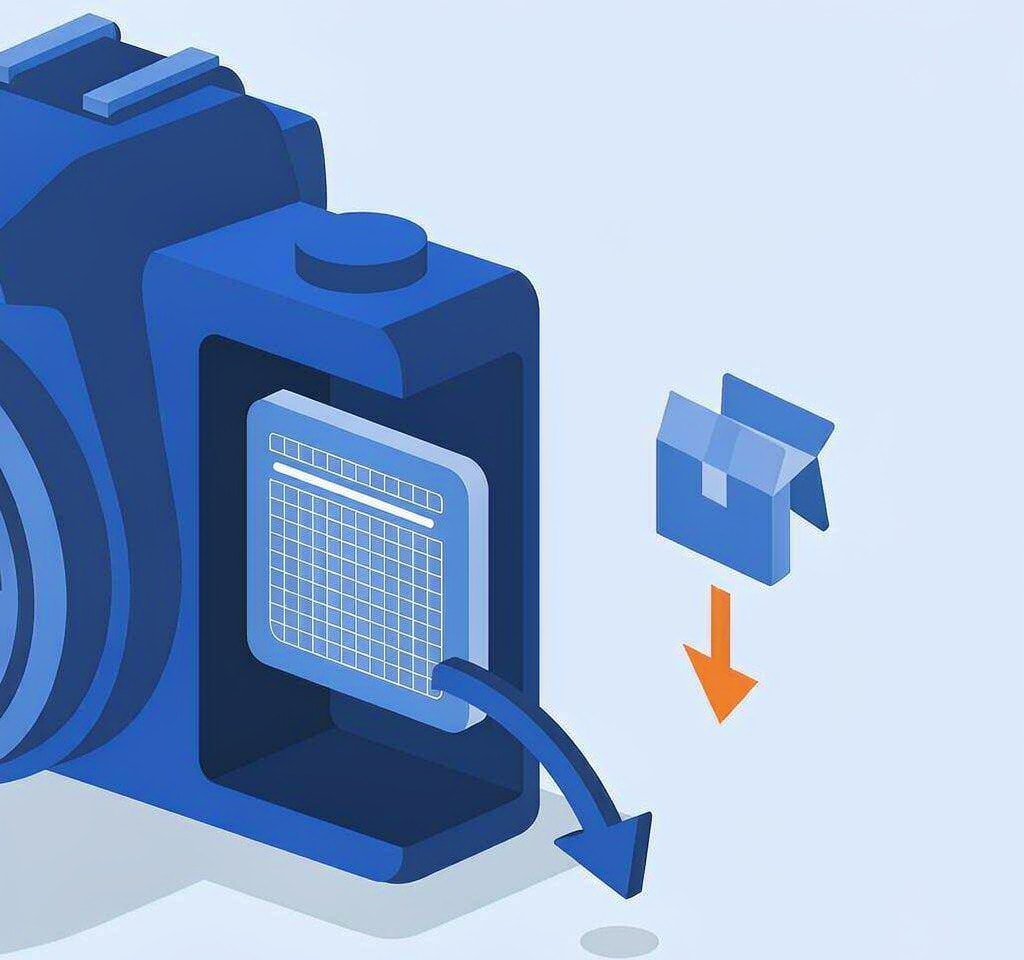
Everything else the camera does writes to the memory card. A firmware update writes to the camera’s internal non-volatile memory, and the process is destructive by design: the old firmware region must be erased before the new image can be programmed. Erase happens in blocks, and an erased block holds no valid instructions at all.
That is the window. During erase and program, the camera has no complete firmware image in storage, only the bootloader. That is a small piece of code in a separate and usually protected region, and it exists precisely so that a human can retry. Everything before the window, including reading and verifying the file, is reversible.
The counterintuitive consequence is that a camera which dies at 5 percent is in less danger than one that dies at 95 percent. The early percentage usually tracks file reading and validation, where the original firmware is untouched. The destructive work is concentrated near the end of the progress bar.
The second surprise concerns your data rather than your camera. An update almost never damages the photos on your card, because it targets internal storage. The data risk arrives on the first boot afterward, when some bodies rebuild the card’s directory structure and present a card that looks empty while the files are still physically present. That is the photos that disappear from a card after an update scenario, and recognizing it is the difference between a recovery and a needless format.
Grading an interrupted update
| Interrupted during | State of the camera | Realistic outcome |
|---|---|---|
| Copying the file to the card | Nothing on the camera has changed | No risk; redo the copy |
| Reading and verifying the file | Old firmware intact | The camera boots normally on the old version |
| Erasing the old firmware region | No valid image in the main region | Often recoverable with a card-based re-flash |
| Programming the new image | Bootloader valid, image incomplete | Usually recoverable; retry from a clean card |
| Updating the bootloader itself | No boot code left | Service center; the camera cannot read a card |
The distinction that matters is whether the bootloader survived. Because it can still read a card, it can still accept a fresh image. When someone reports a camera that was “bricked by an update” and later recovered, this is what happened. When the bootloader is genuinely gone, no card-based method will help.
Preparing the card so the camera accepts the file
Most “the camera will not update” reports are file placement problems. The bootloader is looking for an exact match.
- Format the card in the camera, which gives the body the file system it expects. The explanation of the file systems cameras use covers why a card formatted by Windows can behave differently.
- Copy the file rather than renaming it. Filenames are matched exactly, capitalization included.
- Put it at the root of the card, not inside a folder.
- Remove other files, because an older firmware file left from a previous attempt can make the camera refuse both.
- Verify the download size against the vendor’s published byte count, and use slot one on a two-slot body.
If the update stops partway: the recovery ladder
- Wait. Some bodies sit on a blank screen for minutes while verifying. Pulling the battery during a pause converts a recoverable update into an unrecoverable one.
- Power off, remove the battery, wait thirty seconds, then power on. A surprising number of failed updates simply need a clean restart on the new image.
- Reformat the card elsewhere, copy a fresh download, and repeat the procedure exactly.
- Try a different card, in case the camera aborted because of the media rather than the firmware.
- Use the vendor’s recovery mode. Some bodies accept an alternate filename or a button combination at power-on. This is the step most people miss, and it is the one that most often revives a dark screen.
- Send it in if the body will not enter any mode that reads a card.
Two warnings about the middle of that ladder. Patched firmware from an unofficial source occasionally revives a dead body, and it also voids the warranty and can leave the camera unable to accept official firmware afterward. Downgrading deserves the same skepticism: most consumer cameras accept only an equal or higher version number, so a body already on the current release will ignore an older file with nothing more informative than a generic failure. The real decision point is before the update, not after.
When the card is not recognized after a successful update

A card that worked this morning and is invisible this afternoon is usually not a card failure. Updates change how a body handles large volumes and folder counts, and a camera that has just rebuilt its directory may report a card as unrecognized or offer to format it.
Decline the format. Move the card to a reader and look at it with a computer. If the folders and files are there, the camera is the problem and the card must not be formatted. Then follow the recovery steps for a card that stopped showing files, which begin with imaging the card before anything writes to it.
If recovery becomes necessary, the boundaries apply as always. If you are on Windows and the card is still detected by a computer, a purpose-built tool such as XRecovery (xappset.com) can scan SD, microSD, and other memory cards for deleted or formatted photos and videos. Data that has not been overwritten comes back in full, a recovered clip that will not play can usually be made playable by re-encoding it, and data that has already been overwritten cannot be brought back by any tool. Stop writing to the card first, and save recovered files to a different drive.
Whatever you decide about updating, make sure the shoot that matters is already off the camera. A backup routine that keeps two independent copies is what makes a firmware decision reversible in the way that counts. The firmware faults that show up as card corruption are one of the few cases where updating promptly is clearly worth the ten minutes.
Frequently Asked Questions
Can a failed firmware update be fixed at home?
Often, yes. If the camera still powers on and can read a card, the bootloader survived and a clean retry from a freshly formatted card usually completes. If the body will not enter any mode that reads a card, only the manufacturer’s service hardware can restore it.
Will a firmware update delete my photos?
No. The update writes to the camera’s internal storage, not the card. The data risk comes afterward, when some bodies rebuild the card’s index on first boot and show an empty card while the files are still on it. Decline any format prompt and recover from the card.
Is a 60 percent battery enough for an update?
No. The flash phase draws more current than normal shooting, and a cell that reads 60 percent at idle can sag below the cutoff under continuous write load. Charge to full or use an AC adapter, and treat anything less as a reason to postpone.
Should I update firmware if my camera works fine?
Only if the release notes address something you have experienced, or fix a fault that could cost you data. A body that is stable in the middle of a busy season is a reasonable thing to leave alone until there is time to handle a failure.