
Most lost drone footage is not lost in the air. It is lost in the ninety seconds before takeoff, when the aircraft powers up, the app shows a green status, and nobody checks that the card is actually the destination. A usable drone pre flight checklist therefore has to cover storage as carefully as it covers props and battery, with a concrete consequence attached to every item rather than a general reminder to be careful.
The single highest-value item is number six: confirming where the footage will be written. On several popular aircraft the default destination is internal storage rather than the microSD card, and a firmware update or factory reset can change that setting without an obvious warning. Pilots have flown entire missions onto internal storage while watching a card that never received a byte.
The 90-Second Sequence, Item by Item
Run these in order while the aircraft initializes. Each row states what goes wrong when the check is skipped.
| # | Check | Time | Consequence if skipped |
|---|---|---|---|
| 1 | Free space against planned flight time | 10 s | Recording stops mid-mission, or the card enters overwrite mode and eats the first files |
| 2 | Card fully seated and latched in the slot | 5 s | “Card not inserted” errors in flight; on a hard landing a proud card can eject and lose data |
| 3 | Write-protect tab on the adapter or card | 5 s | Recording refuses to start, or the aircraft reports the card as read-only |
| 4 | Card is on the aircraft’s verified compatibility list | 10 s | Cards that are fast but unsupported can fail to initialize or drop off the bus under load |
| 5 | File system and firmware support the card capacity | 10 s | A 256 GB card on older firmware may be seen as unsupported or misreported as full |
| 6 | Recording destination is set to the card | 10 s | The whole mission lands in internal storage and the card stays empty |
| 7 | Card formatted in the aircraft, not in a computer | 10 s | Directory structure or cluster size the aircraft does not expect; intermittent write errors |
| 8 | Fill behavior: stop recording or overwrite the oldest | 5 s | The first minutes of a long mission are silently erased to make room for the last minutes |
| 9 | Battery voltage and reserve for landing | 10 s | Voltage sag under load shuts the aircraft down mid-write and truncates the active file |
| 10 | Previous flight already offloaded and verified | 15 s | The card is the only copy of two missions instead of one |
The total is under two minutes. Items 1, 6, and 8 are where the real exposure lives; the rest is cheap insurance.
The Three Checks That Prevent Most Lost Flights
Item 1: free space, calculated rather than eyeballed. At 4K60 and roughly 100 Mbps, an hour of footage is about 45 GB, so a 25-minute flight needs roughly 19 GB of headroom. A card showing 23 percent free on a 128 GB model has about 29 GB left: enough for one flight, not four.
Item 6: destination. Read the destination line in the camera settings rather than assuming. The trap produces the most confusing support cases, because the flight goes perfectly, the app reports that recording started, and the card is untouched. If footage went to internal storage, extracting footage from internal storage explains how to retrieve it before it is overwritten.
Item 8: fill behavior. Some aircraft stop recording when the card is full; others overwrite the oldest files and keep going. With overwrite behavior, a card that fills at minute forty of a sixty-minute mission produces no error — just a recording missing its first twenty minutes. Where supported, dual storage turns this into an engineering problem rather than a control problem; see the drone dual storage guide.
Format the Card in the Aircraft, Not in Windows
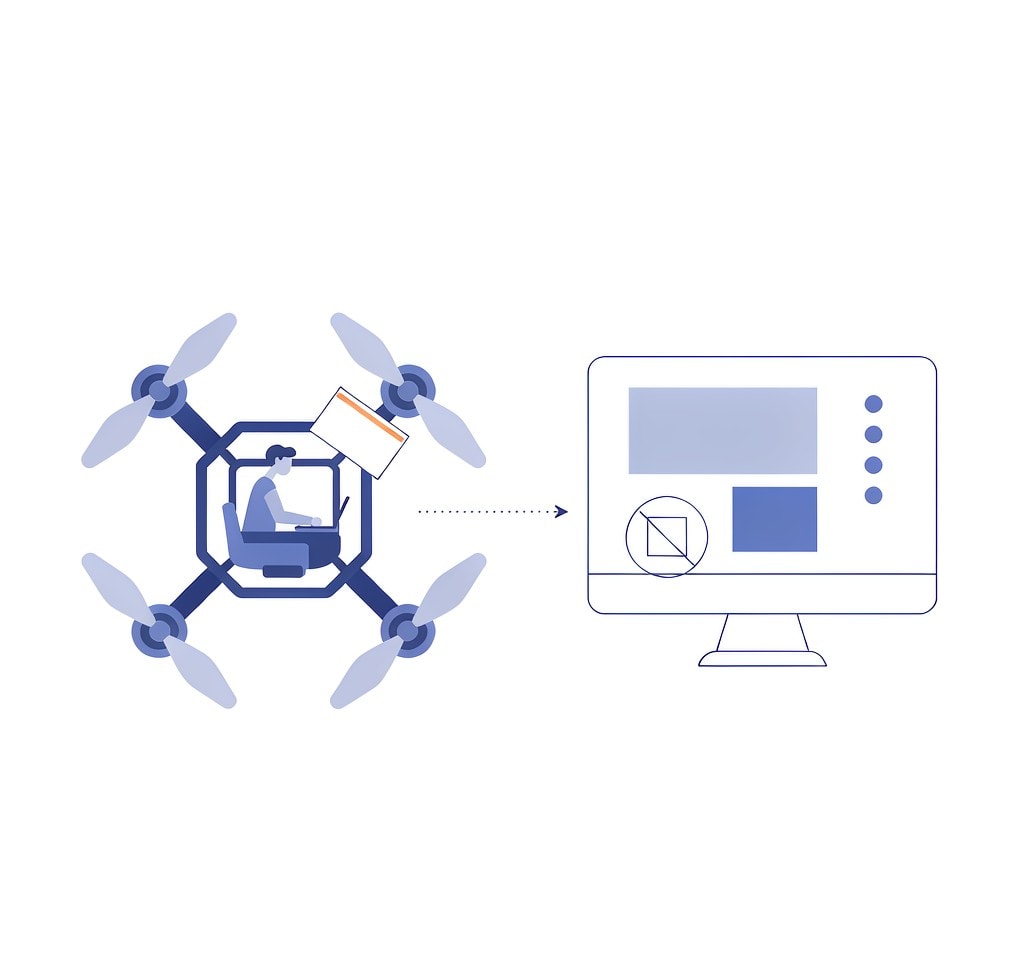
The counterintuitive recommendation is to format the card in the aircraft and leave Windows out of it.
An aircraft formats a card to its own expectations: it creates the DCIM structure it looks for, chooses the allocation unit size its write path is tuned for, and may set up a hidden volume its firmware uses. Windows picks its own defaults, including a larger cluster size, and a card formatted with 128 KB clusters can behave differently in an aircraft expecting 32 KB units — not as a clean failure, but as intermittent write errors at high bitrate.
The second reason matters more: in-aircraft formatting is a quick format, which does not erase data. It writes a fresh file system over the directory entries and leaves the contents in place, which is why an accidentally formatted card is normally recoverable — microSD cards have no TRIM command to reclaim those bytes. See in-camera versus computer formatting.
Never format a card that holds the only copy of anything: format first, then fly, and only after the previous flight is offloaded and verified.
Choosing a Card the Aircraft Actually Accepts
The fastest card is not automatically the right card. Aircraft firmware maintains a supported-card list because the write path is sensitive to how a specific controller behaves under a continuous high-bitrate stream, not just to its rated speed class.
| Card class | Sustained write | Suitable for | Notes |
|---|---|---|---|
| UHS-I U3 / V30 | 30 MB/s | 1080p and 4K at moderate bitrates | The practical floor for modern camera drones |
| UHS-II V60 | 60 MB/s | 4K60 and 5.4K at higher bitrates | Not all aircraft have UHS-II wiring; the extra speed may go unused |
| UHS-II V90 | 90 MB/s | 5.4K, ProRes, high frame-rate slow motion | Unsupported V90 cards sometimes fail to initialize in aircraft |
Two precautions follow. Buy from the manufacturer or a major retailer rather than a marketplace listing, because capacity-faked cards regularly end up in drones — see the guide to counterfeit microSD cards. And use the aircraft maker’s published compatibility list rather than a general recommendation, since it is model- and firmware-specific. Card health testing catches a marginal card on the ground.
Battery, Temperature, and the Writes You Cannot See
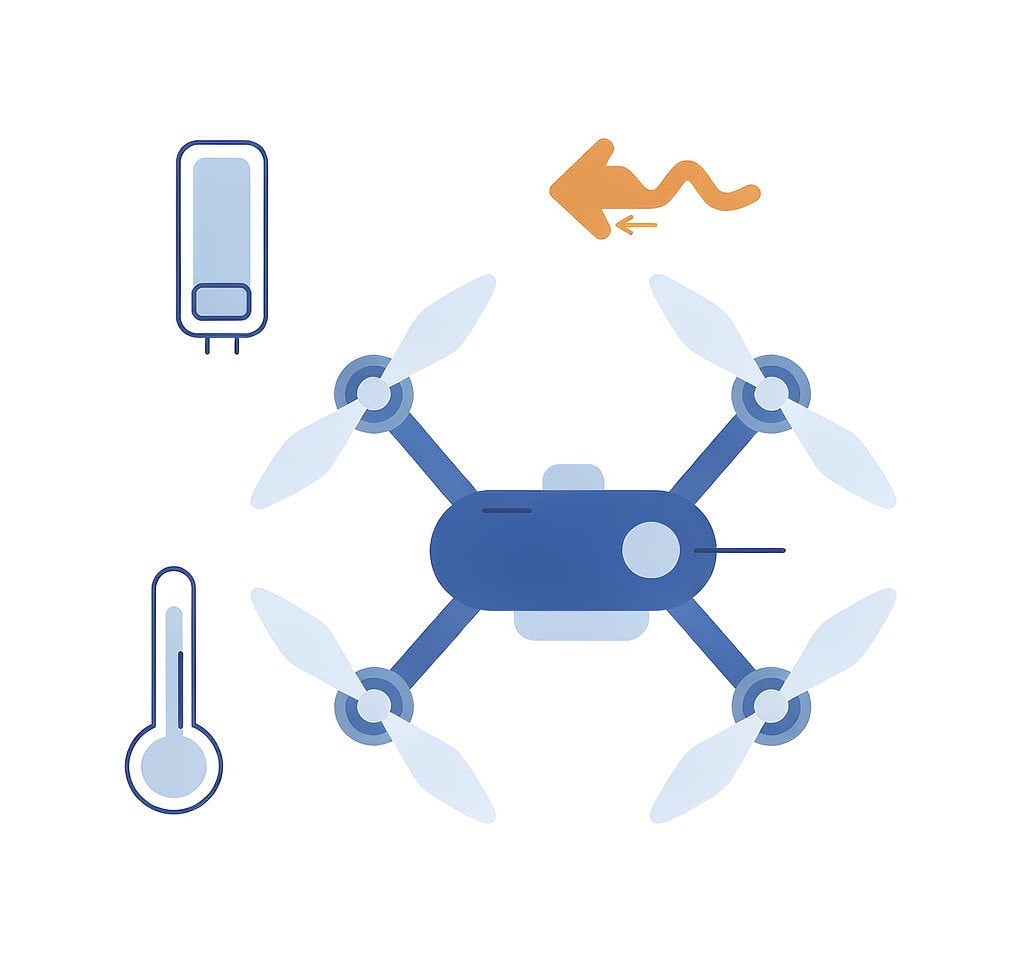
Storage failures in flight are often power failures wearing a storage costume.
Voltage sag is the mechanism. A LiPo pack reporting 3.8 V per cell at rest can dip below its cutoff threshold under the draw of a hard climb. If the aircraft shuts down mid-write, the active file loses its index and becomes unplayable even though its data is present. See battery voltage sag stopping recordings; the storage implication is to plan around landing with reserve rather than around reaching the low-battery warning.
Temperature compounds it. Cold reduces usable battery capacity and slows card initialization, so a pack that behaves well at 20 degrees Celsius can sag unexpectedly at zero, and both problems are worse on the first flight of the day. See drone batteries in cold weather.
A card is also not a passive component. High-bitrate recording heats it, and a card already warm from a previous flight on a hot day can misbehave in ways it will not reproduce on a bench. If a card fails in the air and tests clean on the ground, temperature is a plausible explanation.
What to Do If You Skipped a Check and Lost Footage
- Land and stop using the card. Any further recording overwrites the fragments you want back.
- Check internal storage before concluding anything is missing. On aircraft with both destinations, footage frequently turns up there.
- Confirm what is actually missing. A full card that entered overwrite mode produces missing files, not damaged ones, and the two need different handling.
- Do not accept a “card not recognized” dialog by formatting. That dialog is usually a file-system symptom, not a marker of missing data.
- Recover before you fly again. Start with the drone storage recovery guide and finish by verifying, because a file that opens is not automatically a file that is complete; the checks in verifying recovered drone footage catch truncated clips before a client does.
If you are on Windows and the card is still detected by a computer, a purpose-built recovery tool such as XRecovery (xappset.com) can scan SD, microSD, and other memory cards for deleted or formatted photos and videos. As with any recovery tool, stop writing to the card first and always save recovered files to a different drive.
Frequently Asked Questions
What should I check on a drone card before every flight?
Free space against the planned flight time, that the card is latched in its slot, that the write-protect tab is off, that the card is on the aircraft’s verified list, and — most importantly — that the recording destination is set to the card rather than internal storage. The full sequence takes under two minutes.
Why is my drone recording to internal storage instead of the card?
Because the destination setting was changed, or reset by a firmware update or factory reset. Check the settings line that names the storage location before each mission.
Does a full SD card stop a drone recording?
It depends on the aircraft. Some stop and show a warning; others overwrite the oldest files and continue. The second behavior means the beginning of a long mission can disappear without any error message, so plan capacity with a large margin.