
当连接外置硬盘时,通常会看到视觉提示或听到声音,表明Windows已检测到设备。但这次却毫无反应。打开文件资源管理器后,你发现外置硬盘不见了。
导致此问题的原因多种多样,从硬件故障到系统错误皆有可能。现阶段难以判断问题的严重程度。 无需担忧——当电脑无法识别外置硬盘时,有多种经实践验证的解决方案可供选择。
 为何外置硬盘无法显示?
 为何外置硬盘无法显示?
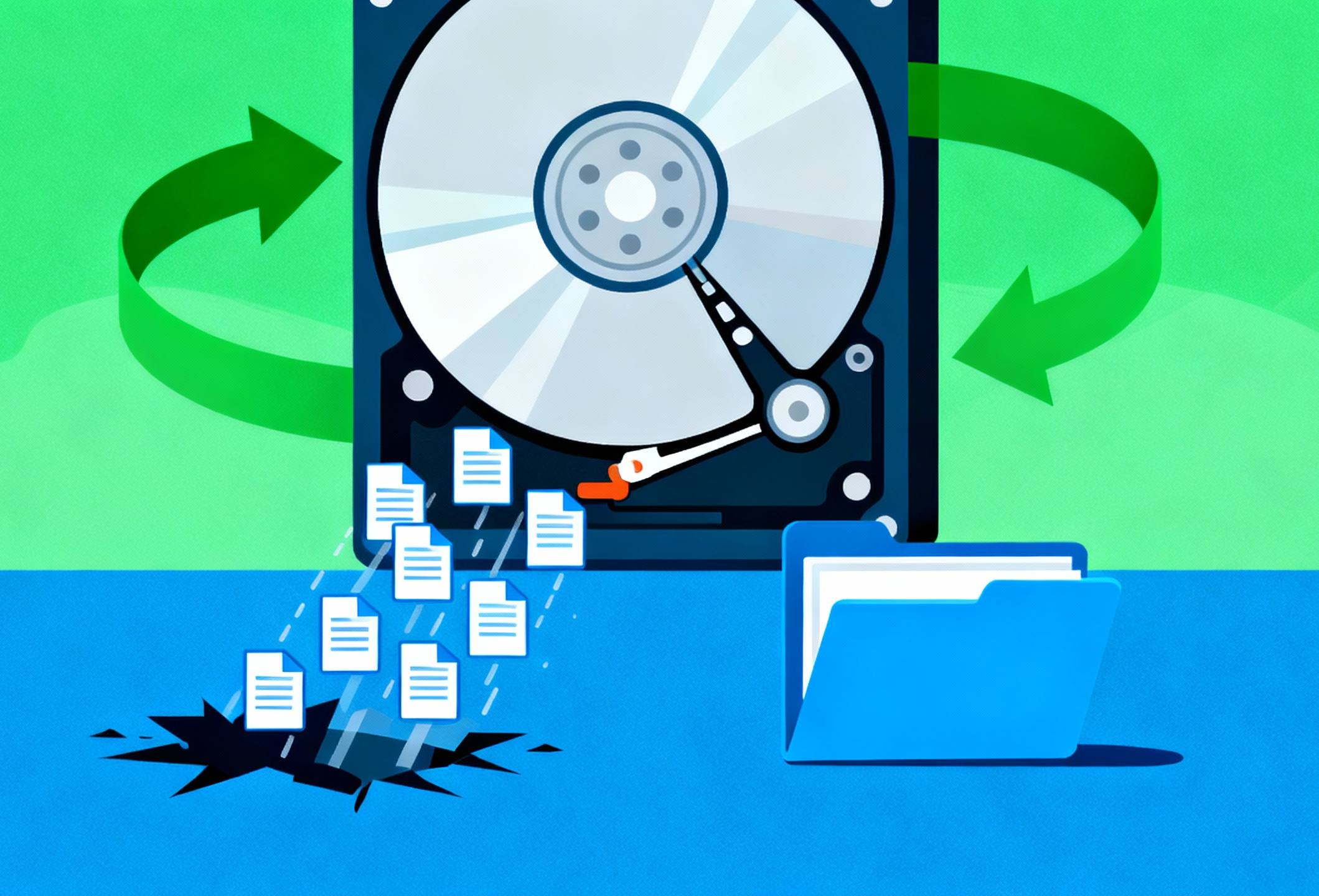
若外置硬盘未出现在Windows系统中,根本原因通常属于以下两类:物理性问题 或逻辑性问题 。
- 💽物理性问题 与硬件相关,可能包括针脚弯曲、外壳损坏、磁头撞击或机械粘滞。
- 👾逻辑问题 属于软件相关故障,常见于文件系统损坏、驱动器号丢失、格式不兼容或分区丢失。
如何识别问题类型
 如何识别问题类型
通常可根据Windows响应及系统工具显示信息,合理判断问题属于物理性或逻辑性。
- 若驱动器未出现在设备管理器 或磁盘管理 中,或显示异常容量,则很可能是物理故障 。
- 若驱动器在设备管理器和磁盘管理中均可见但无法访问,则可能是逻辑/软件问题 。

修复外置硬盘的方法 1: 检查物理连接

在进行软件故障排除前,请确保硬盘本身连接正确且通电。
- 尝试更换USB接口(建议使用USB 3.0接口)。
- 在另一台电脑上测试硬盘。
- 更换数据线——USB线缆故障较为常见。
- 若硬盘需外接电源,请确认电源线已插好。
修复外置硬盘方法二:
检查设备管理器
若Windows在硬件层面检测到外置硬盘,它应出现在设备管理器中。
- 右键点击开始菜单→选择→设备管理器 。
- 展开→磁盘驱动器 或→USB控制器 。
- 查找带有警告图标(!)的设备。
- 右键点击并选择→更新驱动程序 或→卸载设备 ,然后重启。

修复外置硬盘方法三:
检查磁盘管理
Windows可能检测到驱动器但无法分配盘符或识别文件系统。
- 右键点击开始菜单→选择磁盘管理 。
- 找到外置硬盘(可能标记为“未分配”)。
- 若显示“未初始化”,右键点击→初始化磁盘 。
- 若分区损坏,可能需要先恢复数据。

修复外置硬盘的方法4:
更新或重新安装USB驱动程序
过时或损坏的驱动程序常导致USB设备无法识别。
- 打开设备管理器 。
- 展开通用串行总线控制器 。
- 右键点击→卸载设备 。
- 重启电脑以自动重新安装驱动程序。
- 相关文章

修复外置硬盘的方法5:
分配驱动器号
若外置硬盘显示但无驱动器号,Windows将无法访问。
- 打开磁盘管理.
- 右键点击外置硬盘分区。
- 选择更改驱动器号和路径.
- 添加或更改驱动器号。
修复外置硬盘的方法 6:
格式化或修复驱动器(如有必要)
若驱动器被识别但无法读取,可能是文件系统损坏所致。
- 右键点击驱动器 →格式化 (警告:将清除数据)。
- 运行CHKDSK修复:
chkdsk /f X: - 使用diskpart清理并重置驱动器(高级操作):
When you connect an external hard drive, you usually see a visual cue or hear a sound indicating that Windows has detected the device. This time, however, nothing happens. Opening File Explorer, you realize that the external drive is missing.
Several factors can cause this, ranging from hardware failures to system errors. At this stage, it’s difficult to determine the severity of the problem. Don’t worry — there are multiple proven solutions to fix the issue when your computer doesn’t recognize an external hard drive.
Why Isn’t My External Hard Drive Showing Up?
If an external hard drive doesn’t appear in Windows, the underlying problem usually falls into one of two categories: physical or logical.
- 💽 Physical problems are hardware-related and can include bent pins, damaged casing, head crashes, or mechanical stiction.
- 👾 Logical issues are software-related and often involve corrupted file systems, missing drive letters, incompatible formats, or lost partitions.
How to Identify the Problem Type
You can often make an educated guess about whether the issue is physical or logical based on how Windows responds and what you see in system tools.
- If the drive doesn’t appear in Device Manager or Disk Management, or reports an impossible size, it’s likely a physical problem.
- If the drive is visible in both Device Manager and Disk Management but cannot be accessed, it’s probably a logical/software problem.
The Way Of Fix an External Drive 1: Check the Physical Connection
Before moving to software troubleshooting, ensure that the drive itself is properly connected and powered.
- Try a different USB port (preferably a USB 3.0 port).
- Test the drive on another PC.
- Use a different cable—faulty USB cables are common.
- If the drive has external power, make sure it is plugged in.
The Way Of Fix an External Drive 2:
Check Device Manager
If Windows detects the external drive at a hardware level, it should appear inside Device Manager.
- Right-click Start → select Device Manager.
- Expand Disk drives or USB controllers.
- Look for devices marked with a warning icon (!).
- Right-click and select Update driver or Uninstall device then restart.
The Way Of Fix an External Drive 3:
Check Disk Management
Windows may detect a drive but fail to assign a letter or recognize the file system.
- Right-click Start → Select Disk Management.
- Find the external drive (may be labeled “Unallocated”).
- If “Not Initialized”, right-click → Initialize Disk.
- If partition is corrupted, you may need to recover data first.
The Way Of Fix an External Drive 4:
Update or Reinstall USB Drivers
Outdated or corrupted drivers frequently cause unrecognized USB devices.
- Open Device Manager.
- Expand Universal Serial Bus controllers.
- Right-click → Uninstall device.
- Restart your PC to reinstall drivers automatically.
- Related Articles
The Way Of Fix an External Drive 5:
Assign a Drive Letter
If your external drive appears but has no letter, Windows cannot access it.
- Open Disk Management.
- Right-click the external drive partition.
- Choose Change Drive Letter and Paths.
- Add or change the letter.
The Way Of Fix an External Drive 6:
Format or Repair the Drive (If Needed)
If the drive is recognized but unreadable, filesystem damage may be the cause.
- Right-click drive → Format (Warning: wipes data).
- Run CHKDSK repair:
chkdsk /f X: - Use diskpart to clean and reset the drive (advanced).
The Way Of Fix an External Drive 7:
Data Recovery Options
If Windows detects the physical drive but not the partition, you may still recover files.
- Use professional recovery software.
- Recover data before formatting.
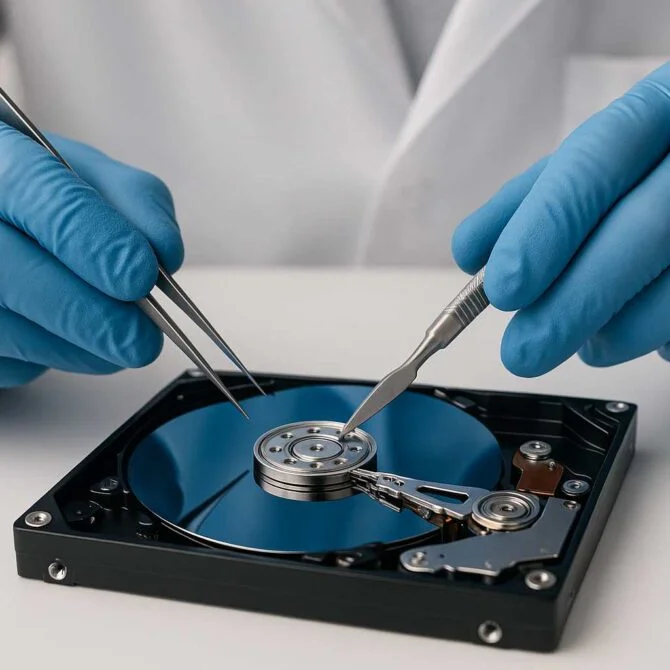
- For clicking or failing drives, seek hardware recovery specialists.(such as PITS)