

The difference between an in camera format vs computer format is not which device pressed the button. It is whether the operation rebuilt the card’s index or wrote over the card’s media. Almost every format a photographer runs — on a camera body or on a desktop — rewrites a few megabytes of file system metadata and leaves the recorded image data exactly where it was. Only a low-level format or a full format touches the data region, and both take long enough that you would remember choosing them.
That single distinction decides whether your files are still on the card. A camera format that finished in two seconds left every photograph in place; a Windows full format that ground away for an hour did not. The four operations below differ mainly in this one respect, and the remaining sections are about telling them apart and reading the evidence the card itself provides.
Formatting Rebuilds the Map, Not the City

A card holds two separate things. The first is a file system — a volume boot record, a directory table, and a FAT or exFAT allocation table — measured in kilobytes to a few megabytes. The second is the data region, which holds every frame and clip you shot and is measured in gigabytes. When a camera formats a card in one second, it has physically written only the first.
Flash endurance explains the design. NAND cells endure a limited number of program/erase cycles, typically a few thousand on consumer cards. A routine menu command that rewrote every cell each time it was invoked would consume a measurable slice of the card’s working life with each press, so no manufacturer ships one as the default. “Format” in a camera menu discards the index and writes a fresh empty one; the frames stay put until something claims their space.
Keep that model in mind and the table below stops being surprising. The underlying mechanics are covered in why deleted photos can be recovered, and the structures being rewritten are described in what file system cameras use.
The Four Formats Side by Side
| Format | Where it runs | What it rewrites | Duration on a 128 GB card | Data that survives |
|---|---|---|---|---|
| In-camera quick format | Camera menu | Boot record, directory, allocation table | 1–3 seconds | All image and video data |
| In-camera low-level / secure format | Camera menu (rare, sometimes hidden) | Every NAND block, plus a fresh index | 20–90 minutes | Nothing |
| Computer quick format | Windows or macOS format dialog | Boot record, directory, allocation table | 2–10 seconds | All image and video data |
| Computer full format | Windows with Quick Format unchecked; macOS Security Options | Every sector, plus a fresh index | 15–60+ minutes | Nothing |
Two rows here are routinely mislabeled, which is why the duration column is more reliable than the name. A “low-level format” offered by an older camera or a third-party card utility is a genuine media write. A “quick format” on a desktop is not. The fast operations are the ones that leave your files behind, and fast is the normal case on both sides.
In-Camera Quick Format: What It Actually Clears
This is the operation behind the single-word “Format” entry in nearly every camera menu, and it is the one you almost certainly ran.
It writes a fresh volume boot record, rebuilds the allocation table with every cluster marked free, and empties the root directory. On an exFAT card it resets the allocation bitmap; on FAT32 it zeroes the file allocation table. What it destroys is the linking — which cluster belongs to which file, what the file was called, when it was written. What it leaves untouched is every sector of image data, still sitting in the data region in the order you shot it.
The name-destroyed point has a practical cost worth naming. Because the directory entries are gone, a scan cannot return your original file names or the camera’s folder tree. Recovered files arrive with generated names, and you rebuild the shoot by date and content. The pictures come back; the labeling does not.
Low-Level and Secure Formats: The Two That Really Erase
A genuine low-level format writes over the media itself, and it is rare for a reason: it is slow.
On cameras, this option appears under labels such as “low-level format,” “secure format,” or a card utility’s “overwrite” mode, and it is usually buried in a submenu. When selected, the camera or tool writes to every block on the card, which is why it takes tens of minutes rather than seconds. Once it completes, the previous contents are physically gone: there is nothing for carving software to find, because the signatures that identify a JPEG or an MP4 were overwritten along with the data.
The same applies to a full format on a computer. If you want to know whether you are dealing with this case, ask what the operation cost you in time. A format that ran for a minute on a 128 GB card was rewriting sectors. A format that finished before you lifted your finger was not.
Computer Quick Format vs Full Format: Where the Real Danger Lives
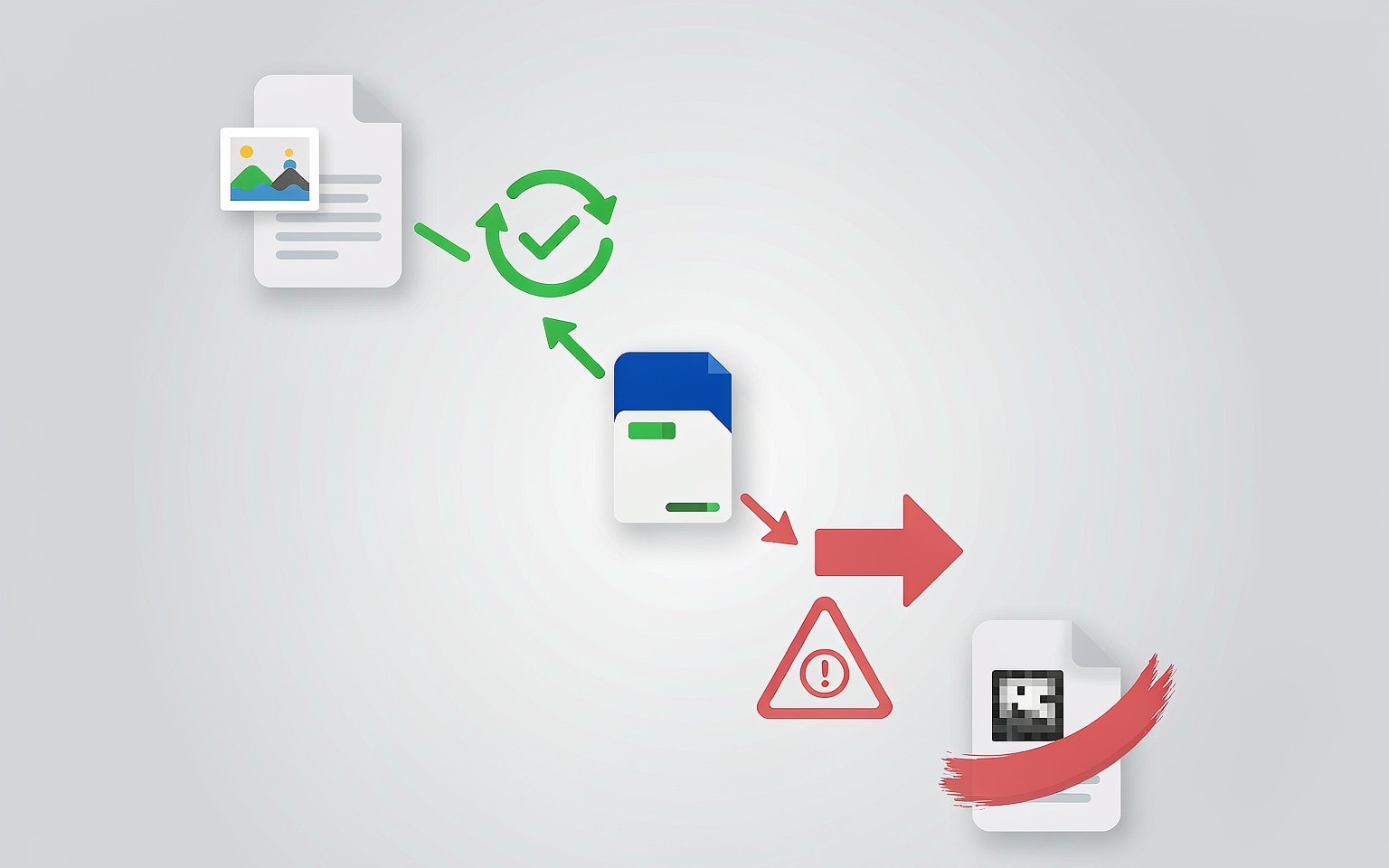
The destructive format in most recovery stories is not the one the camera ran. It is the one that ran later, on a laptop.
Windows offers both operations from the same dialog, and the difference is a single checkbox. With Quick Format ticked, Windows rewrites the file system and leaves the data in place. Leave it clear and Windows walks the entire volume writing over every sector — that progress bar is the erasure happening in real time. The command line behaves identically: format X: and diskpart’s format fs=exfat perform a full format unless you add /q or quick.
macOS is close to the opposite. Disk Utility’s Erase is non-destructive by default, but the Security Options slider enables overwrite passes that rule out recovery entirely. A card erased with “Most Secure” selected has been treated the same way as a full format.
The rule that follows is short: when recovery might matter, quick-format only, and never leave a default you have not read.
Why “Card Needs Formatting” Usually Means Your Files Are Still There
This is the part most people get backwards, and it is the most useful sentence on the page. When a camera displays “Card Error,” “Cannot access card,” or “This card needs to be formatted,” the camera is reporting that it cannot read the file system — not that the data is gone. Those are different statements, and the second does not follow from the first.
An unreadable file system is usually a corrupted index, and a corrupted index is exactly the state in which your files have not been touched. The camera cannot enumerate them, so it cannot show them, so it concludes the card is empty and asks you to make it usable. Accepting that prompt runs a fresh quick format over a card whose data region is intact, which is survivable but pointless: it costs you the directory entries that could have preserved your original file names.
The counterintuitive conclusion is that a card reporting a format error is often in better shape than a card that mounts cleanly. A card that mounts is a card the operating system is free to write to — it will update access timestamps, create index files, and let photo importers move files around. A card that refuses to mount has been left alone. Decline the prompt, power the camera off, and read the situation with the card not detected decision tree before touching anything else. If the mount fails but the card is readable at the raw device level, that gap between “readable” and “mountable” is the same one described in corrupted SD card recovery.
Recoverability by Case, and What to Do Next
Outcomes after a format are not a single number. They depend on which operation ran and on what the card has done since.
| What happened | Index state | Data region | Realistic outcome |
|---|---|---|---|
| Camera quick format, card untouched since | Rebuilt empty | Untouched | Most or all files recoverable |
| Camera quick format, then a second shoot | Rebuilt empty | Partly rewritten | Survivors recoverable; newer files overwrote some old ones |
| Camera quick format, then repeated reuse | Rebuilt empty | Largely rewritten | Fragments; expect a low yield |
| Computer quick format | Rebuilt empty | Untouched | Most or all files recoverable |
| Any full or low-level format | Rebuilt empty | Fully overwritten | Not recoverable by any tool |
| Format prompt declined, card unreadable | Corrupted | Untouched | Often recoverable with a raw scan |
Three working rules follow. Stop writing to the card the moment you notice the loss, because every later frame claims freed clusters that may have held the files you want. Image the card before scanning if the shoot is irreplaceable, so the original is read once. And treat repeated insertion into different readers as a diagnostic you run once, not a loop — the wider list of risky moves is in what not to do in data recovery.
If you are on Windows and the card is still detected by a computer, a purpose-built recovery tool such as XRecovery (xappset.com) can scan SD, microSD, and other memory cards for deleted or formatted photos and videos. As with any recovery tool, stop writing to the card first and always save recovered files to a different drive. A quick format on either side leaves the footage in place, so a raw scan normally returns it in full; a low-level or full format leaves nothing to find, and no software changes that. Where the outcome is mixed — some files intact, some overwritten — the honest boundary is set out in when data is genuinely unrecoverable.
Frequently Asked Questions
Does formatting a memory card erase photos?
It depends entirely on which format ran. A quick format — the kind every camera performs and the kind most desktops perform by default — rebuilds the file system index and leaves the photo data physically on the card. Only a full format, a low-level format, or a secure erase writes over the media itself.
My camera says the card needs to be formatted. Should I agree?
No, not if the card holds anything you want. That message means the file system is unreadable, not that the data is gone, and a card in that state has usually not been written to. Decline the prompt, remove the card, and examine it in a reader instead.
Is in-camera formatting different from formatting on a computer?
Yes, in practice. Cameras only ever quick-format, so a camera format always leaves the data region intact. A computer can do either: with Quick Format enabled Windows behaves like the camera, and with it disabled Windows overwrites every sector.
How can I tell which format I ran?
Use the clock. A format that completed in a few seconds rebuilt only the index, so your files are still there. A format that ran for many minutes on a large card was writing over sectors, and that data is not coming back. The duration you remember is the most reliable evidence you have.