How to Perform Offline Activation of XRecovery

Table of Contents
    Add a header to begin generating the table of contents

    1.Preparation Before Installation

    1.1 Before starting the offline activation process, make sure you have two PC devices ready:         

    • Device 1: A computer with internet access.
    • Device 2: A computer without internet access, which is the machine where you will activate XRecovery.

    1.2 Make sure that the system time on Device 2 is set correctly.

    1.3 Prepare a USB flash drive to transfer the machine code and activation file.

    💡Tip: Each activation code can be used on a single device only.

    2.Step-by-Step Installation Guide

    2.1 Download the latest OfflineCert installer and confirm the system environment.

     2.2 Run the Setup Program

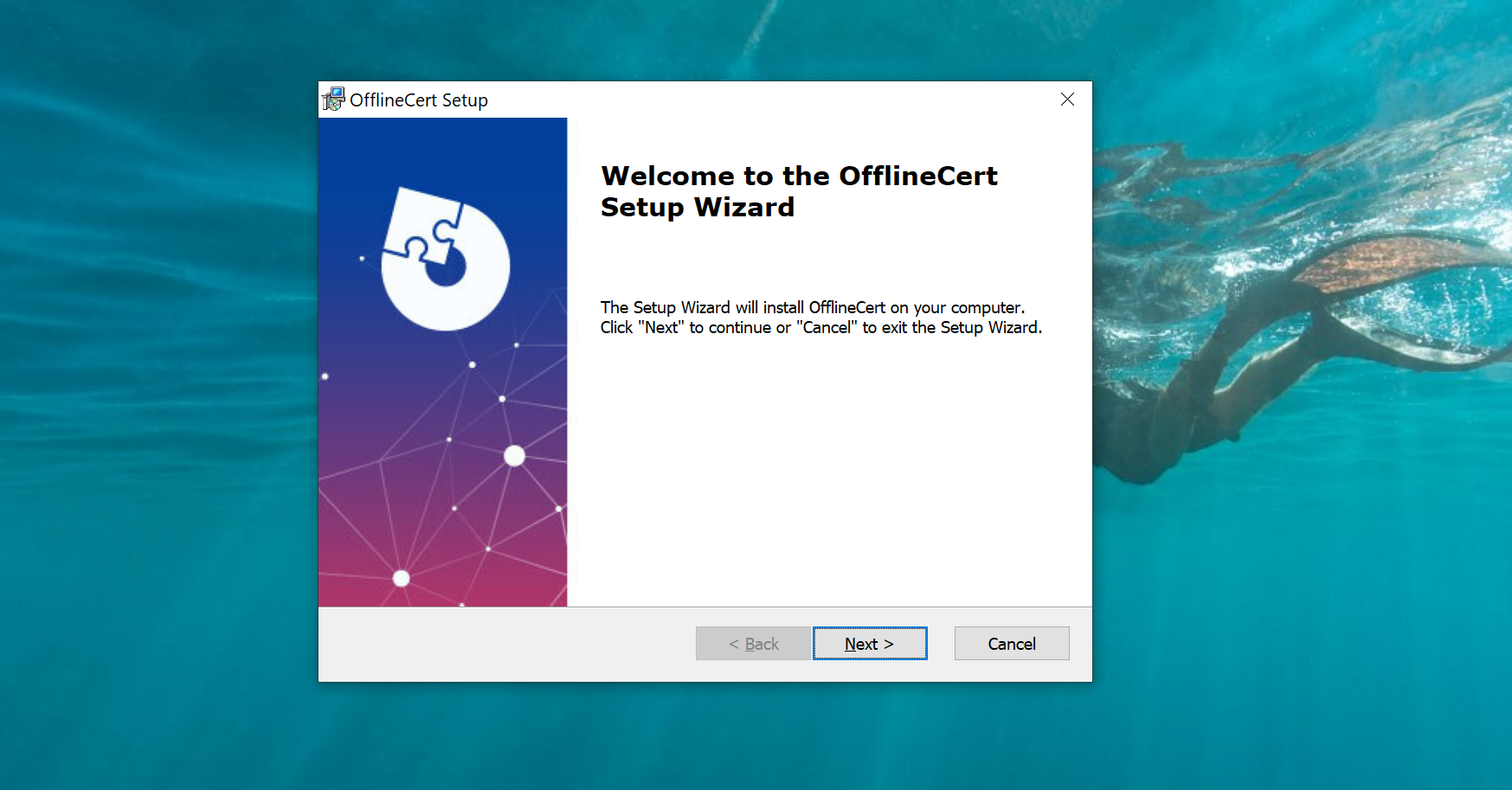
     2.2.1 Run the OfflineCert installer.

     2.2.2 Click Next to continue.

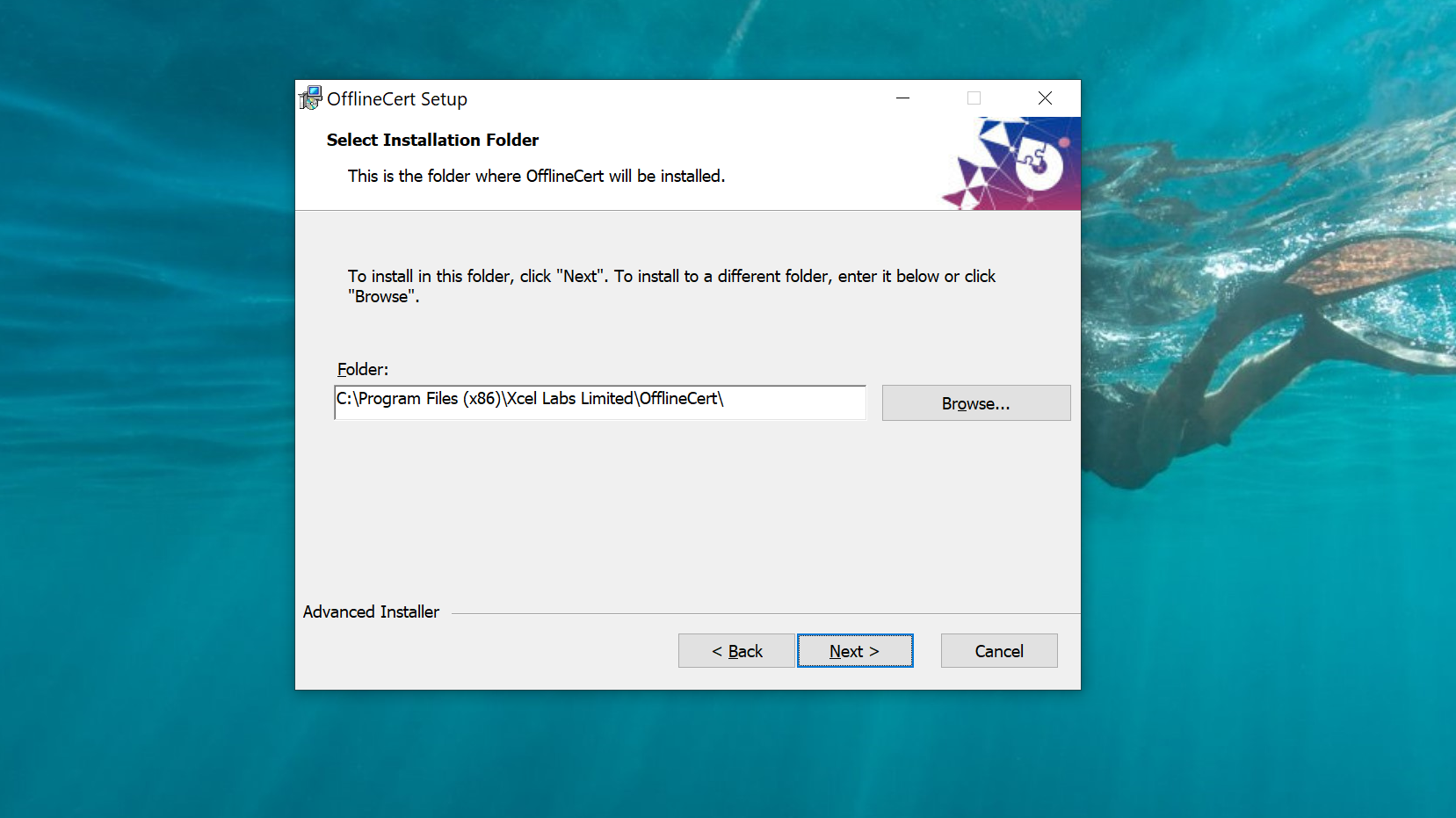
     2.2.3 Select the desired installation path.

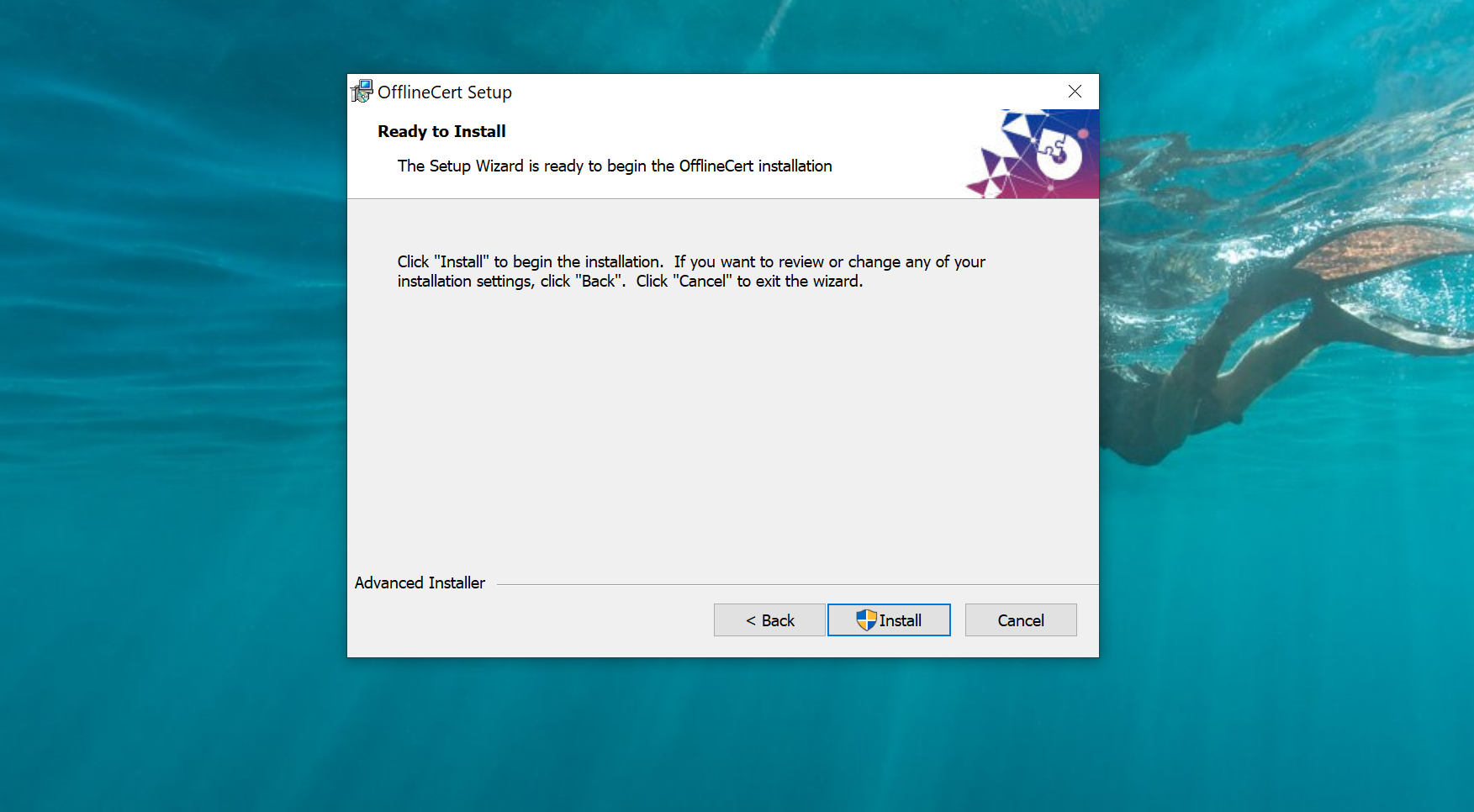
     2.2.4 Click Install to begin the installation.

     2.2.5 When the process is complete, click Finish to exit the setup.

    3.Offline Activation Process

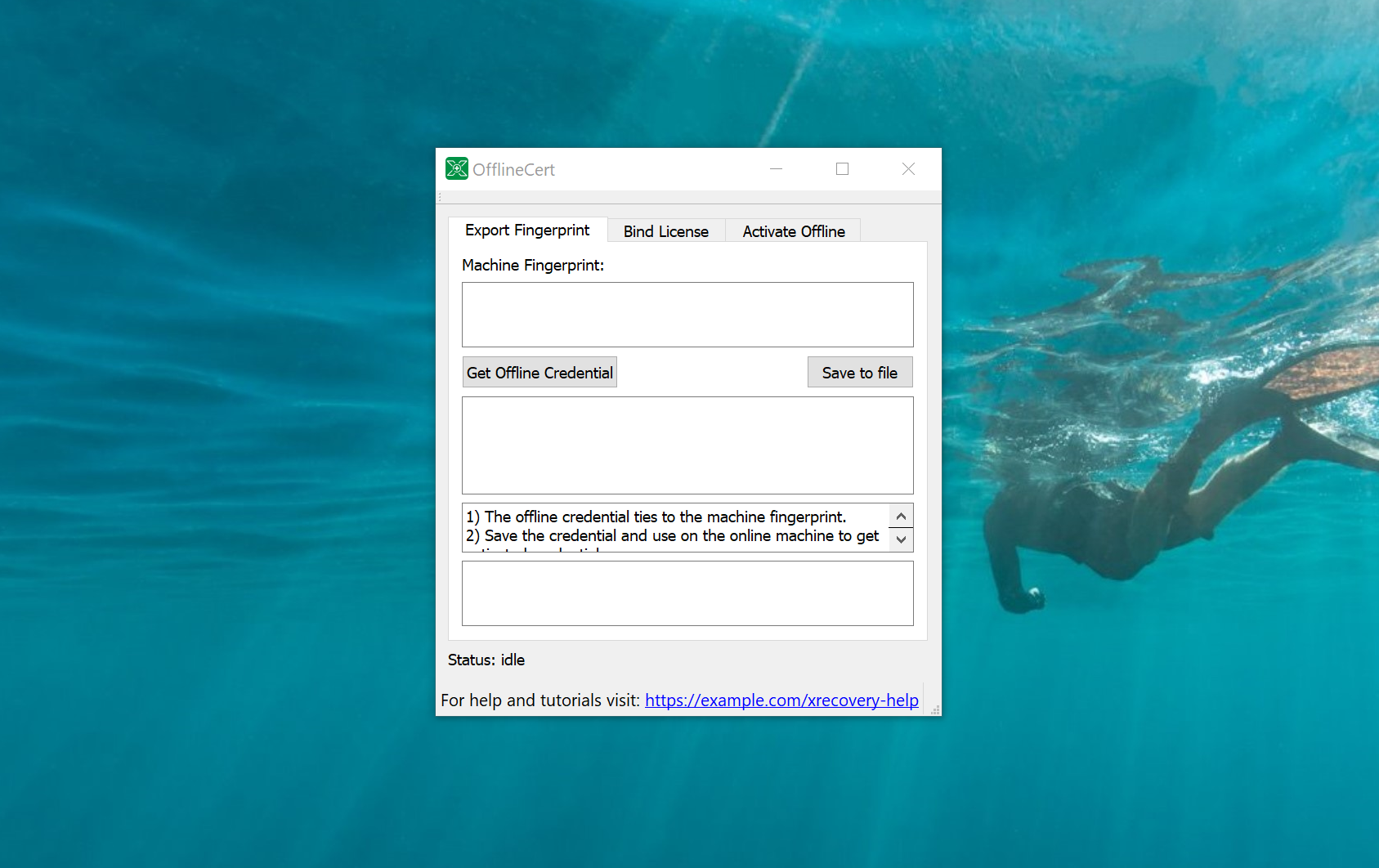
    Step 1:Launch the OfflineCert Tool.

    • Make sure the OfflineCert tool is installed on both devices.
    • If XRecovery has already been installed, you can locate the offline activation program by following the steps below.(This step applies only to XRecovery 3.1.6‑x64 and later versions

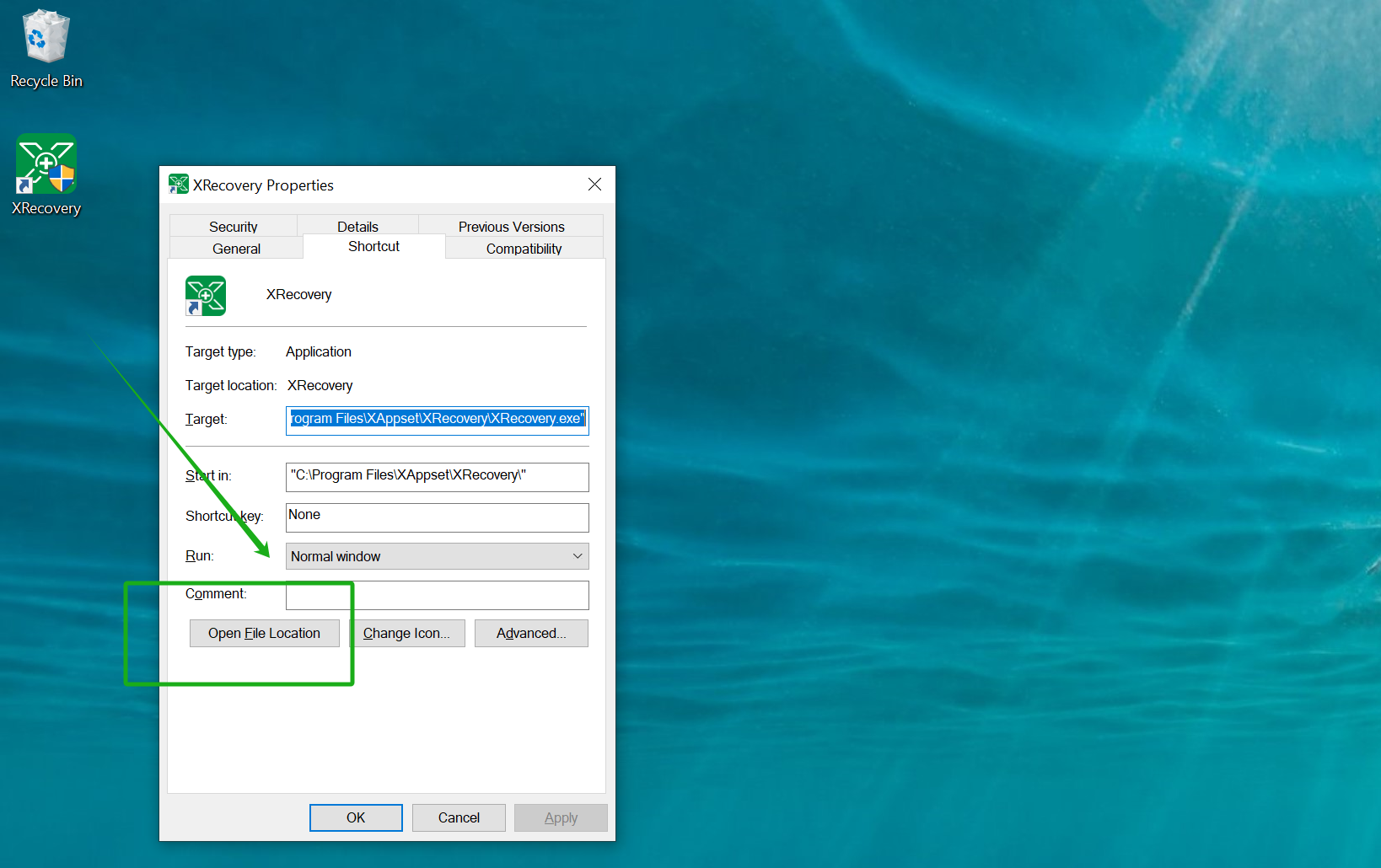
            Step 1: Right‑click the XRecovery program.

          Step 2: Select Properties from the context menu.

           Step 3: Click Open File Location.

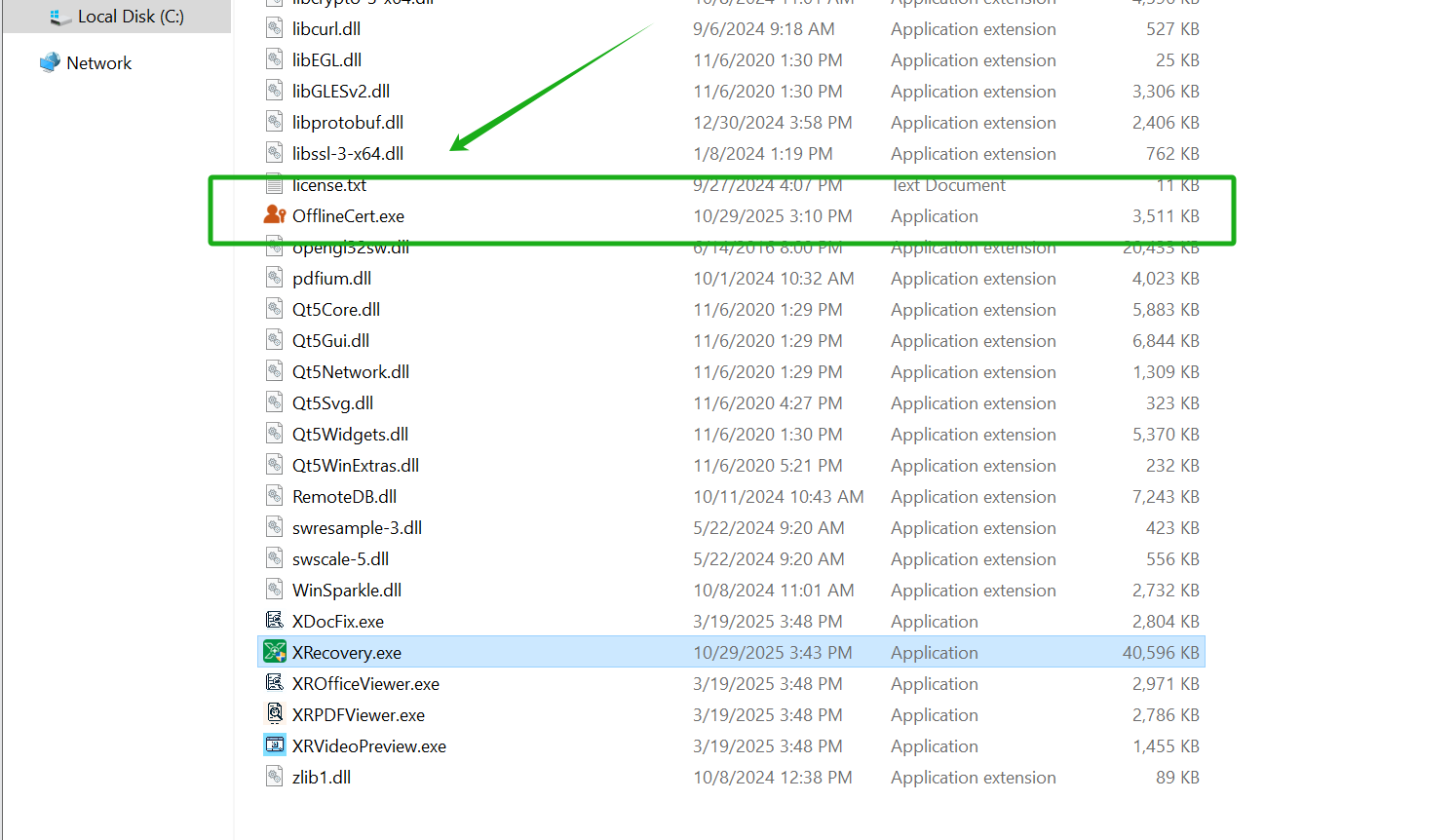
           Step 4: In the opened folder, locate the offline activation program.

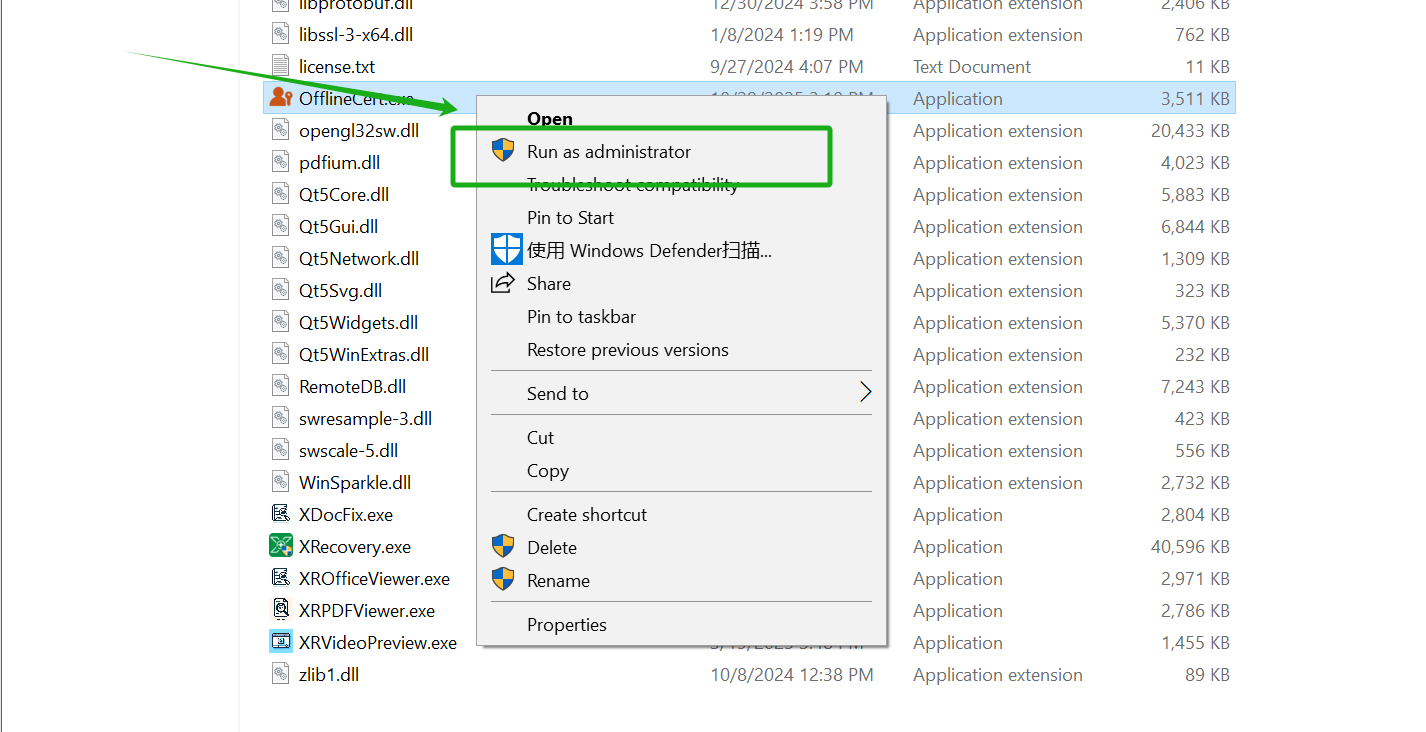
           Step 5: Right‑click on the program and run it as an administrator.

    💡When running the program for the first time, please run it as an administrator.

    Step 2: Obtain the Machine Code (on Device 2)

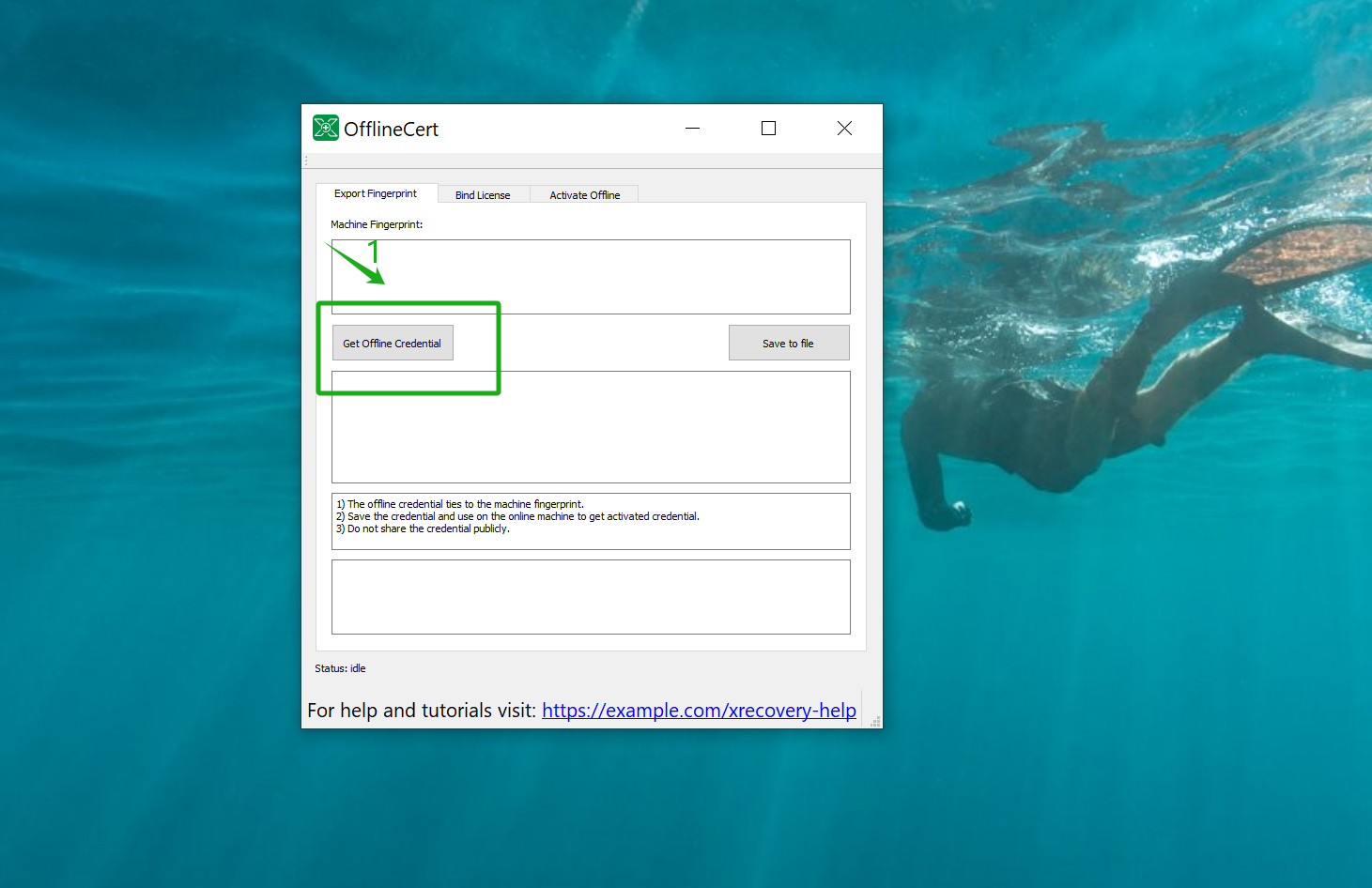
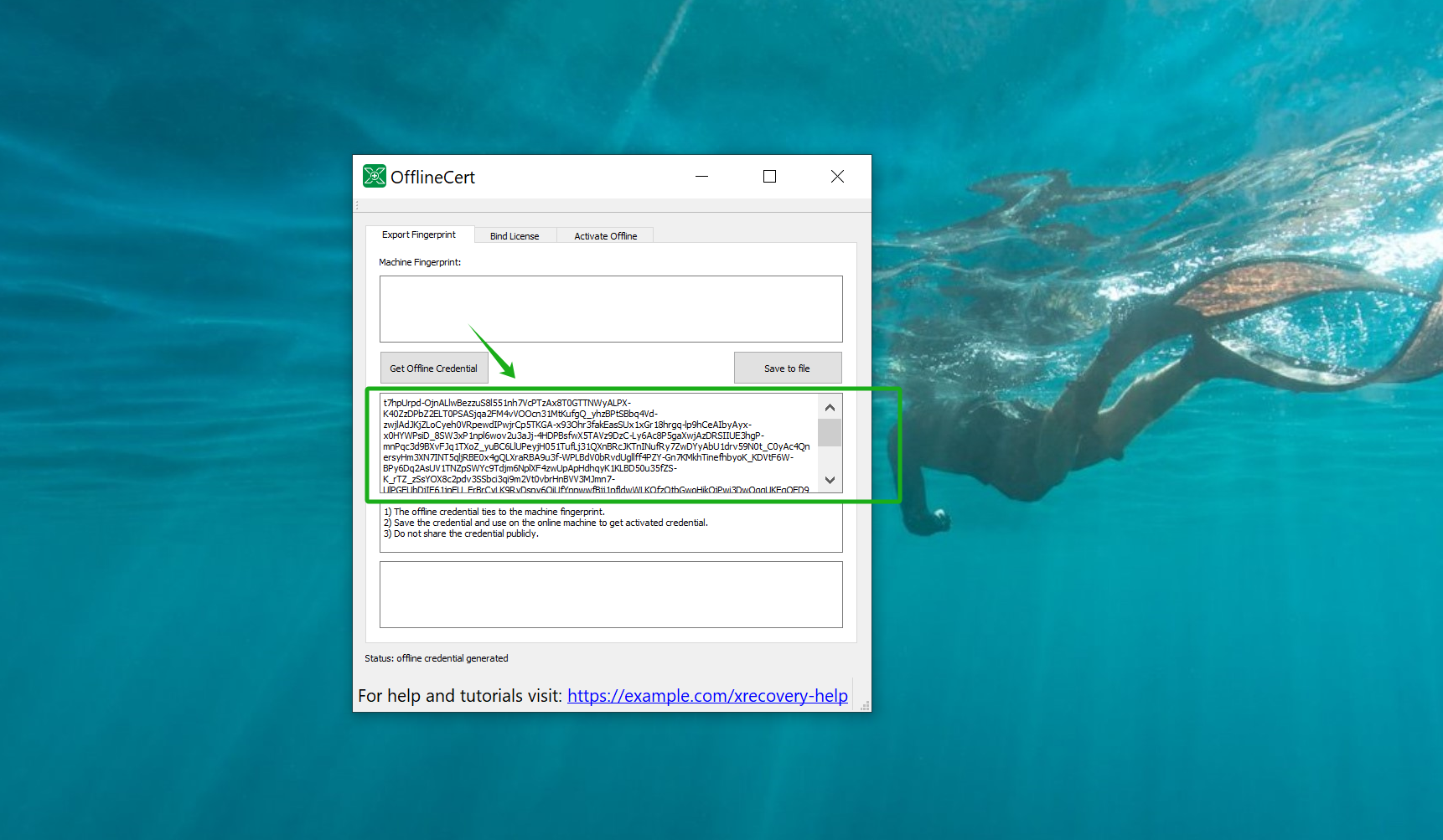
    • Click the “Get Offline Credential” button to obtain the machine code.
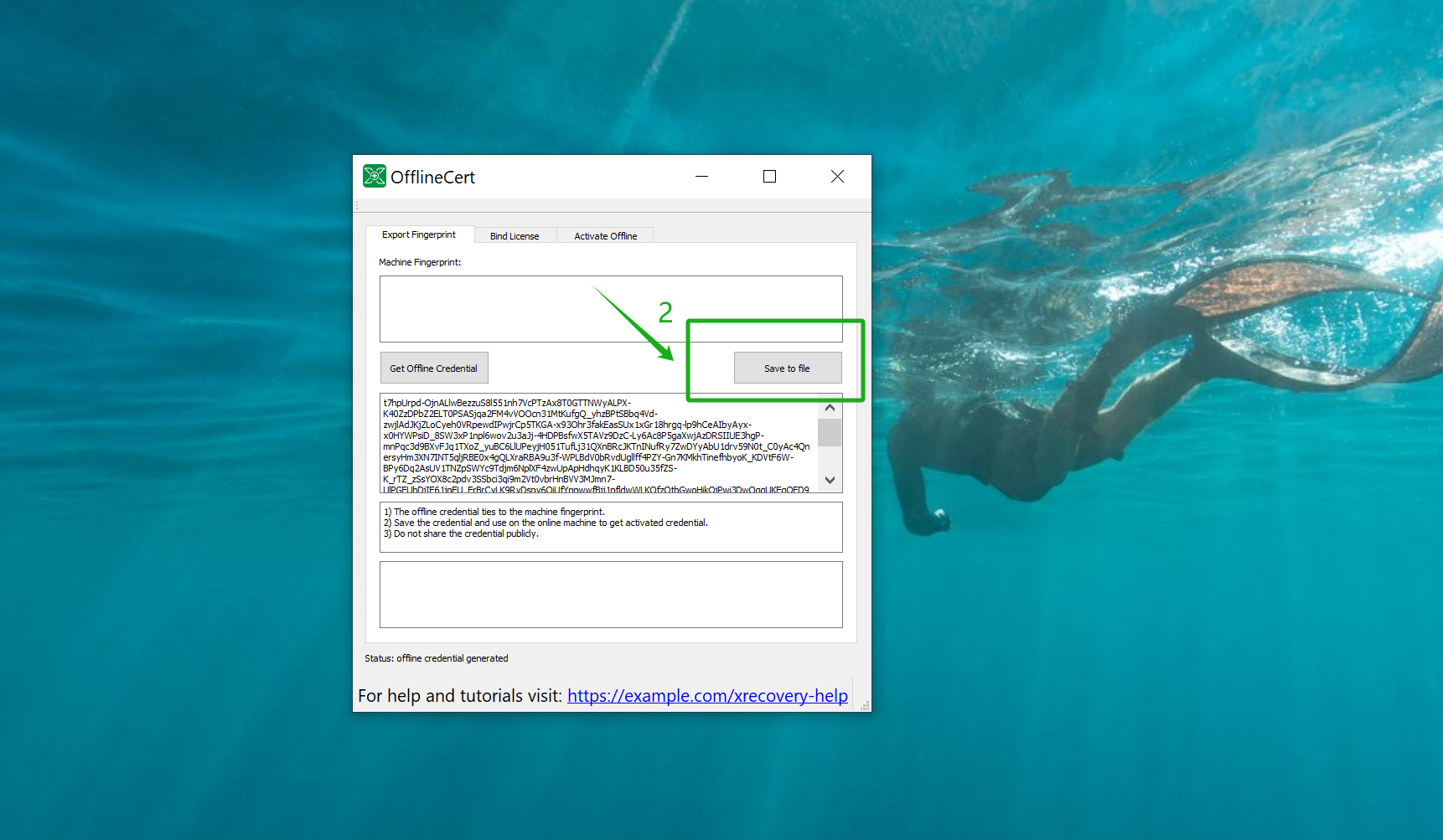
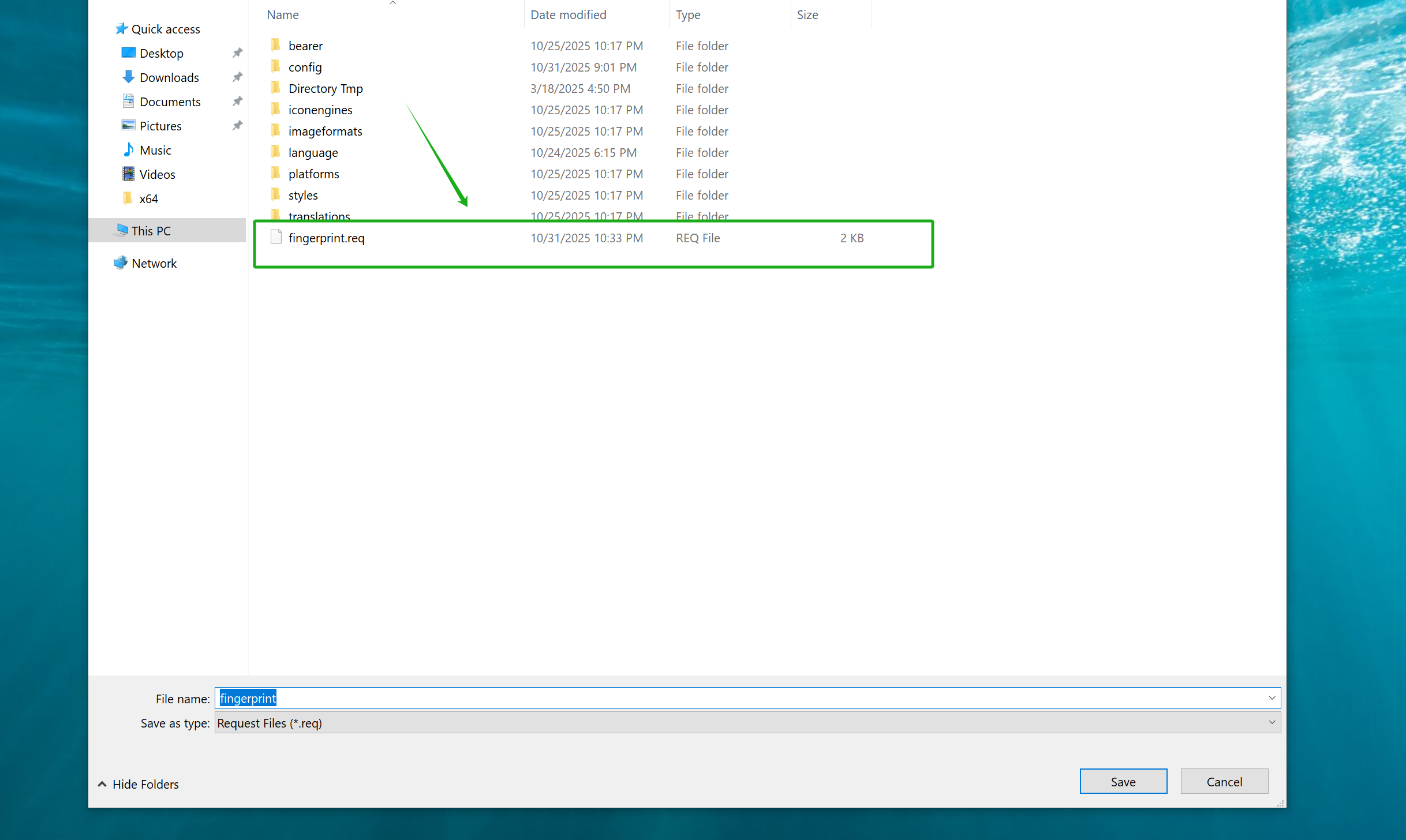
    • Click the “Save to File” button to generate a file named “fingerprint.req” and save the machine code locally on your computer.
    • Copy the file named “fingerprint.req” to the desired location.

    Step 3: Generate the Activation File (on Device 1)

    • Paste the file you just copied to Device 1.
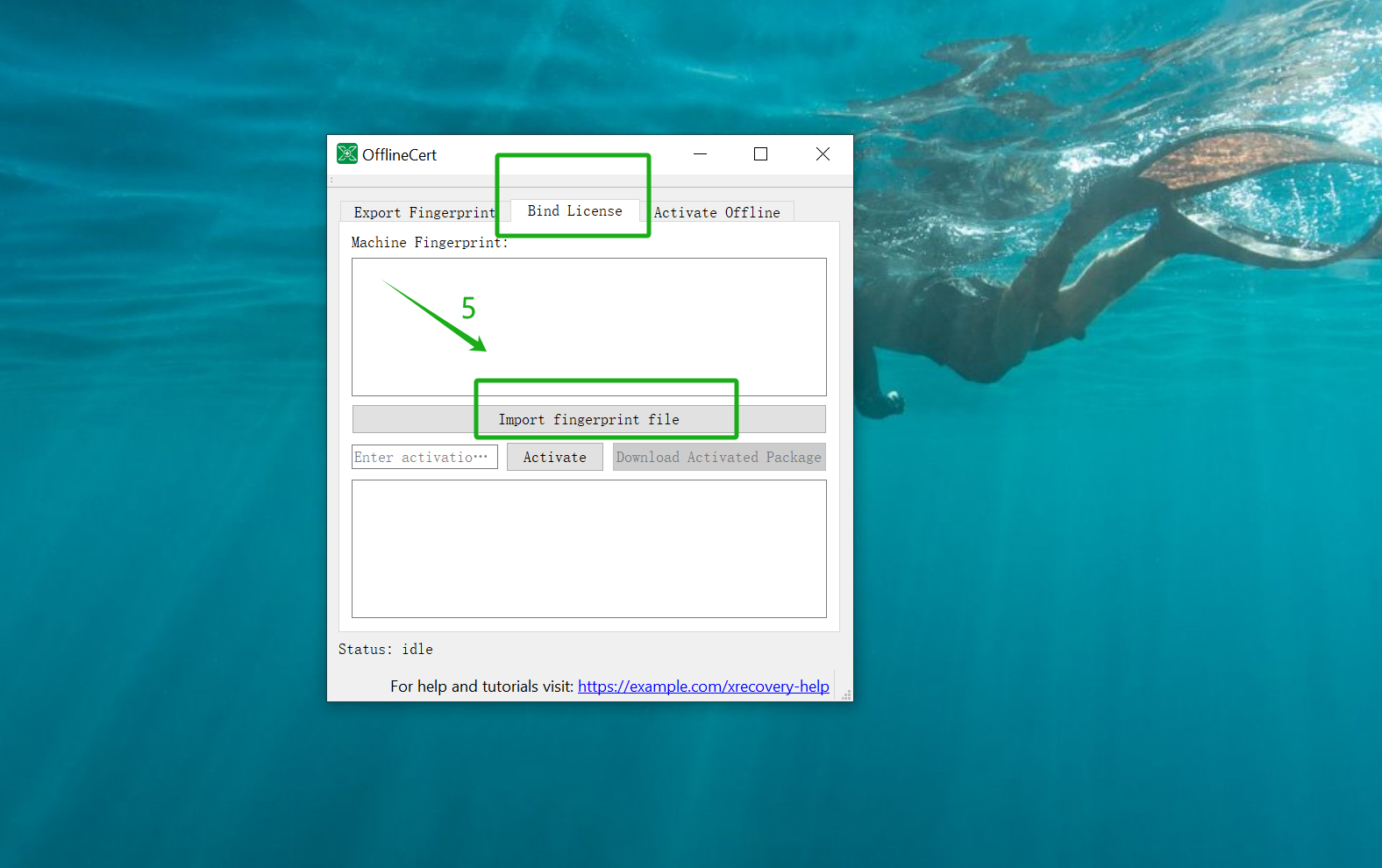
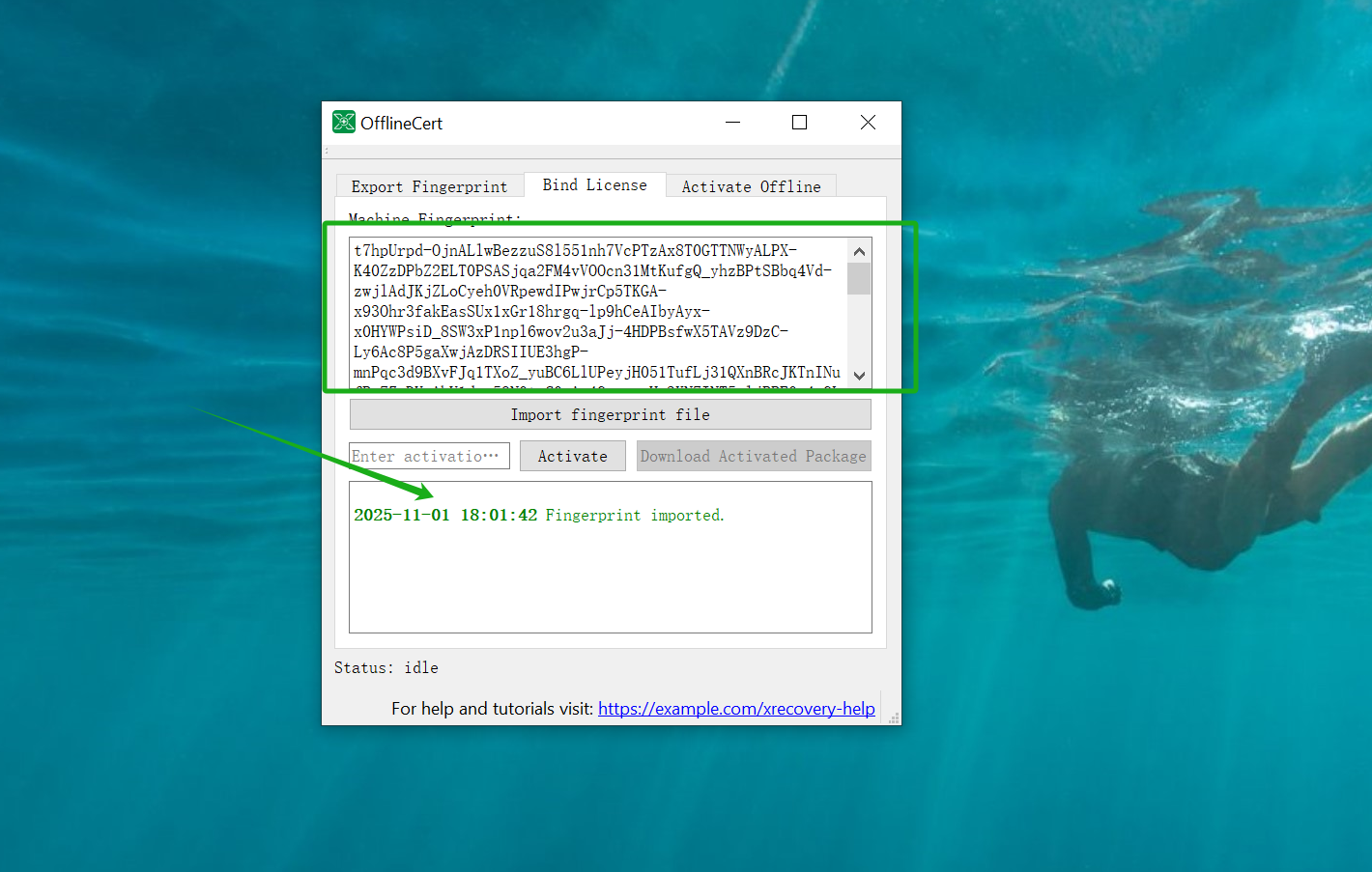
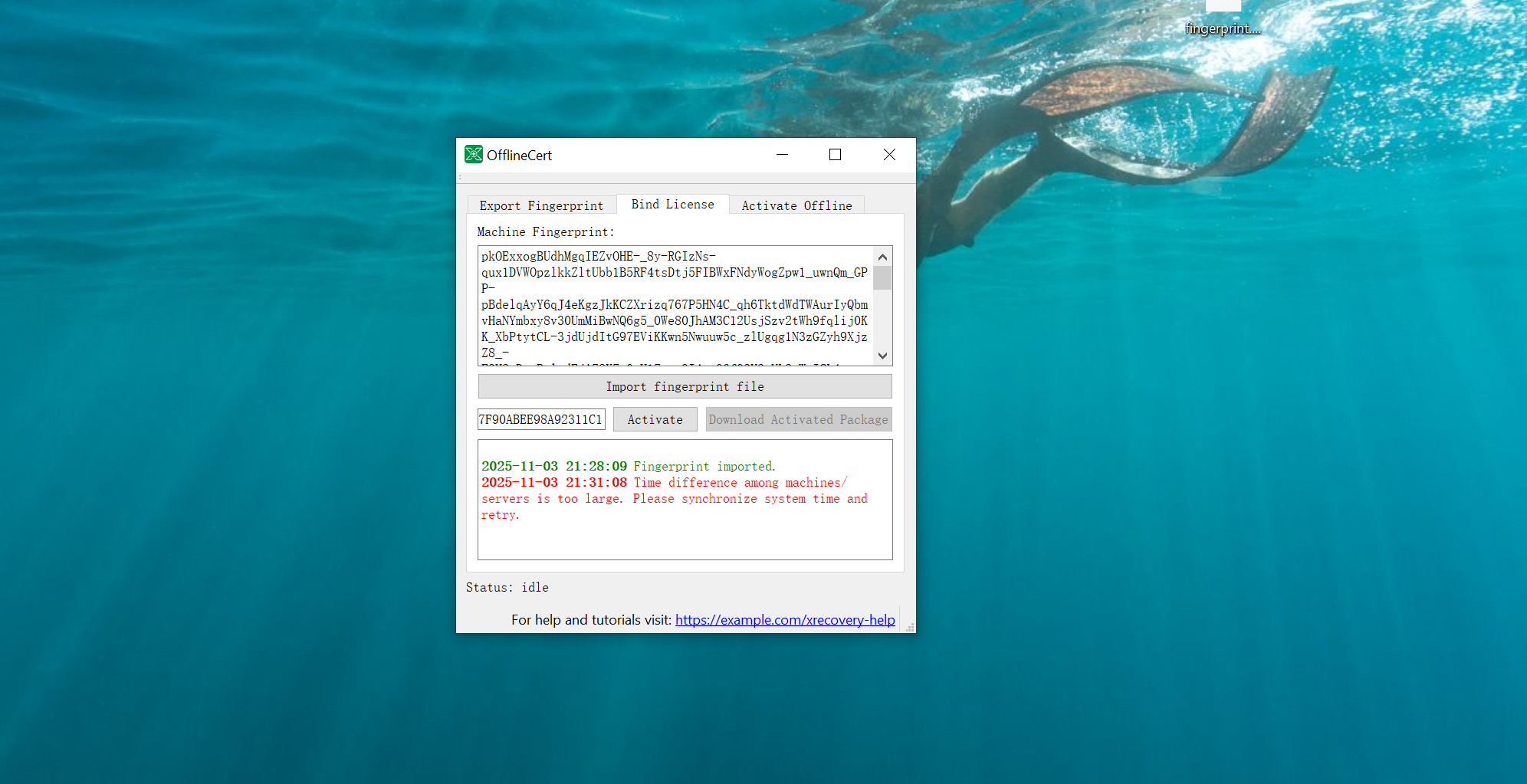
    • Click the “Import Fingerprint File” button to import the file “fingerprint.req” that you previously copied to Device 1.
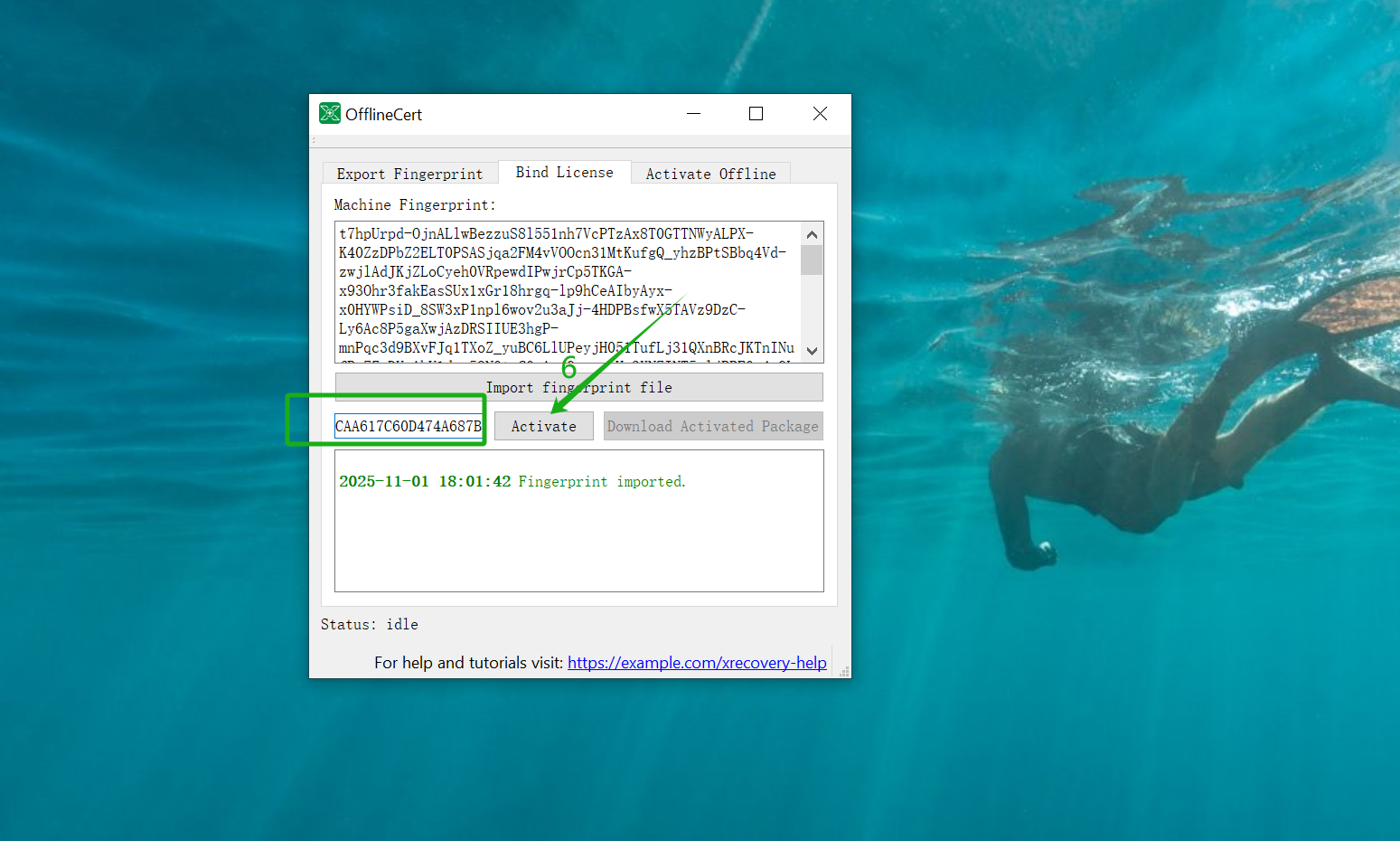
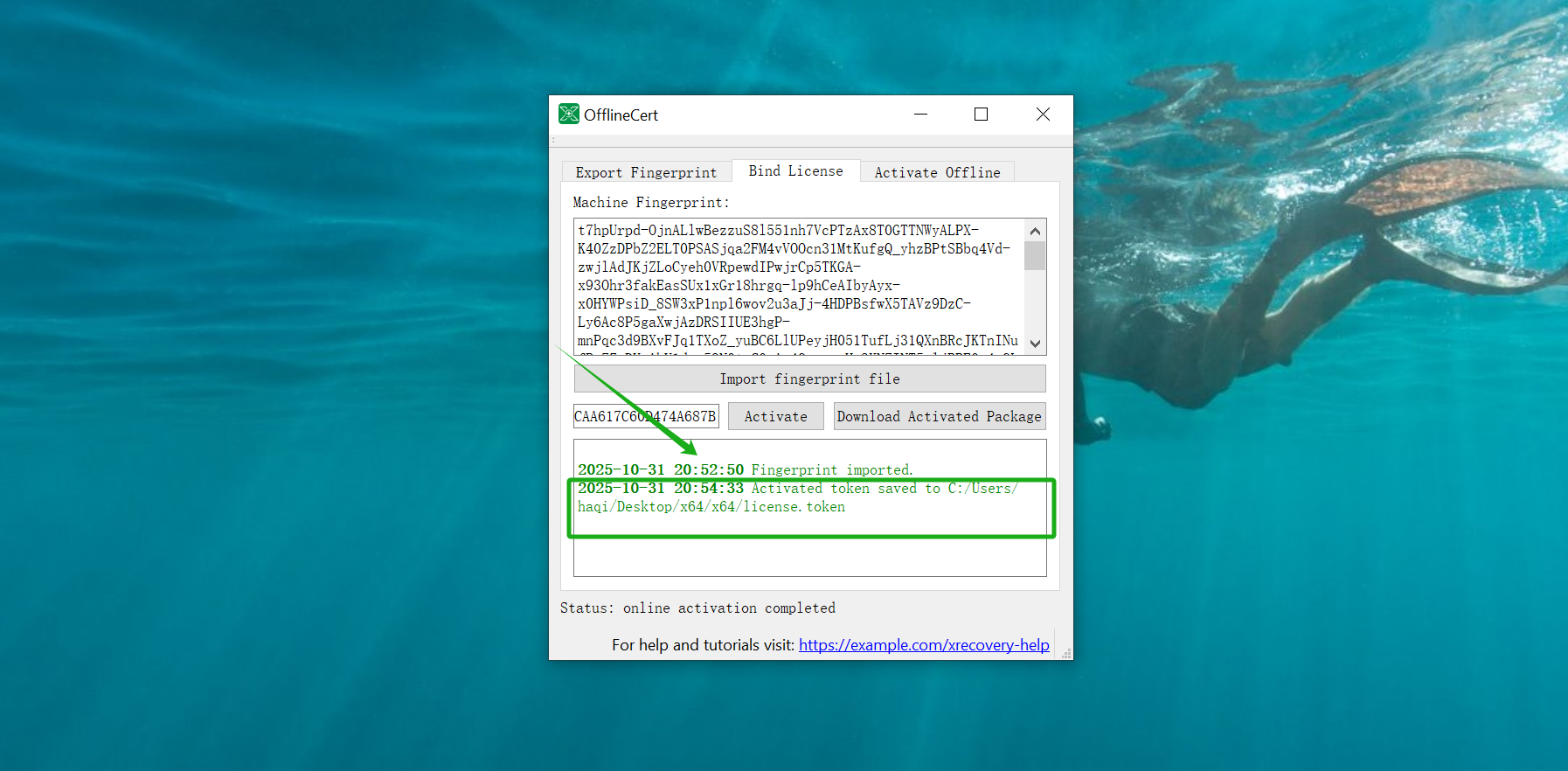
    • Input the activation code and click the “Activate” button to generate the offline activation file. After the process is completed, a file named “license.token” will be generated. Alternatively, you can click the “Download Activated Package“button to save this file.
    • Copy the file named “license.token“.

    💡Tip: Perform this step on Device 1.

    Step 4: XRecovery Offline Activation (on Device 2)

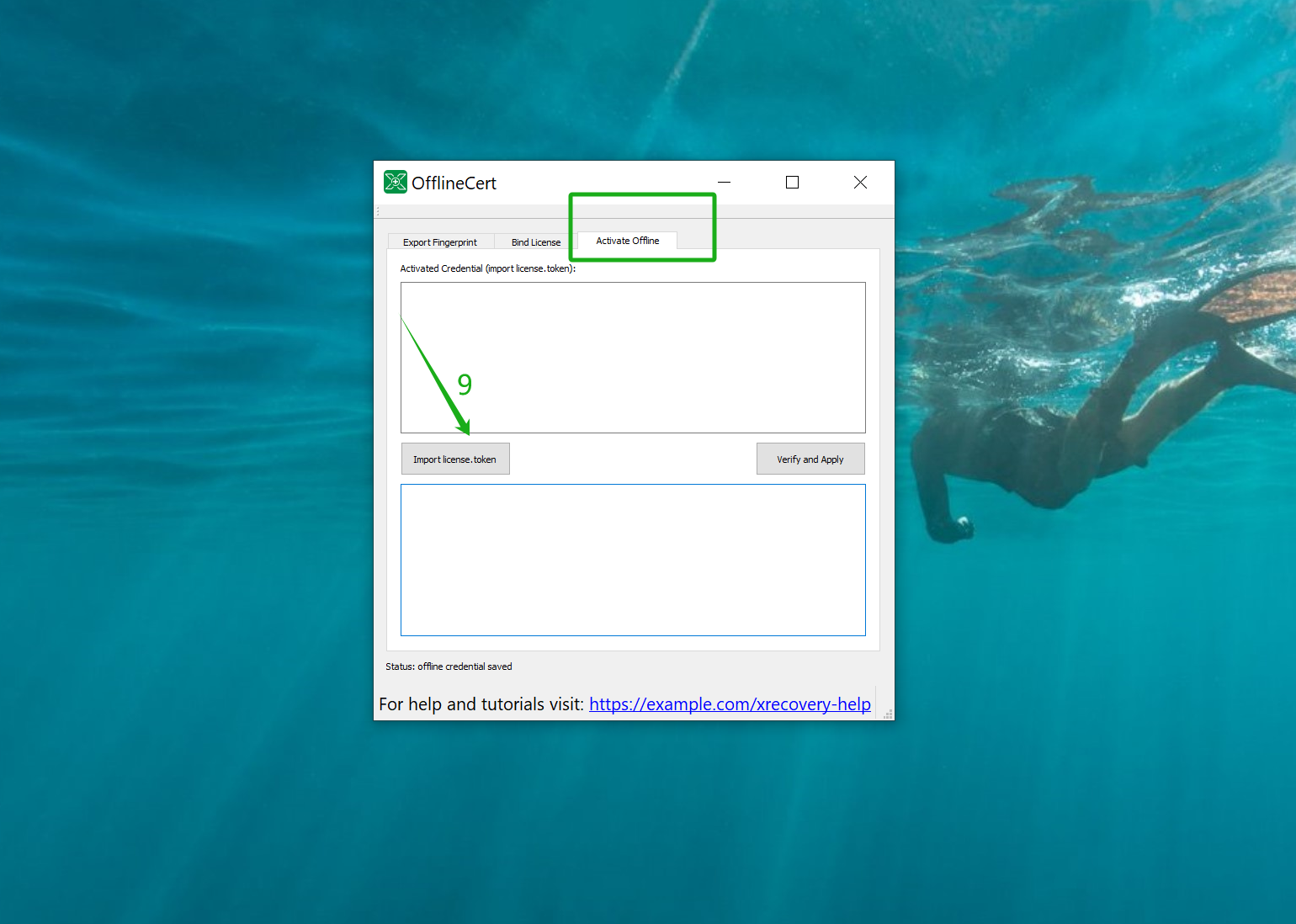
    • Paste the file named “license.token”  onto Device 2
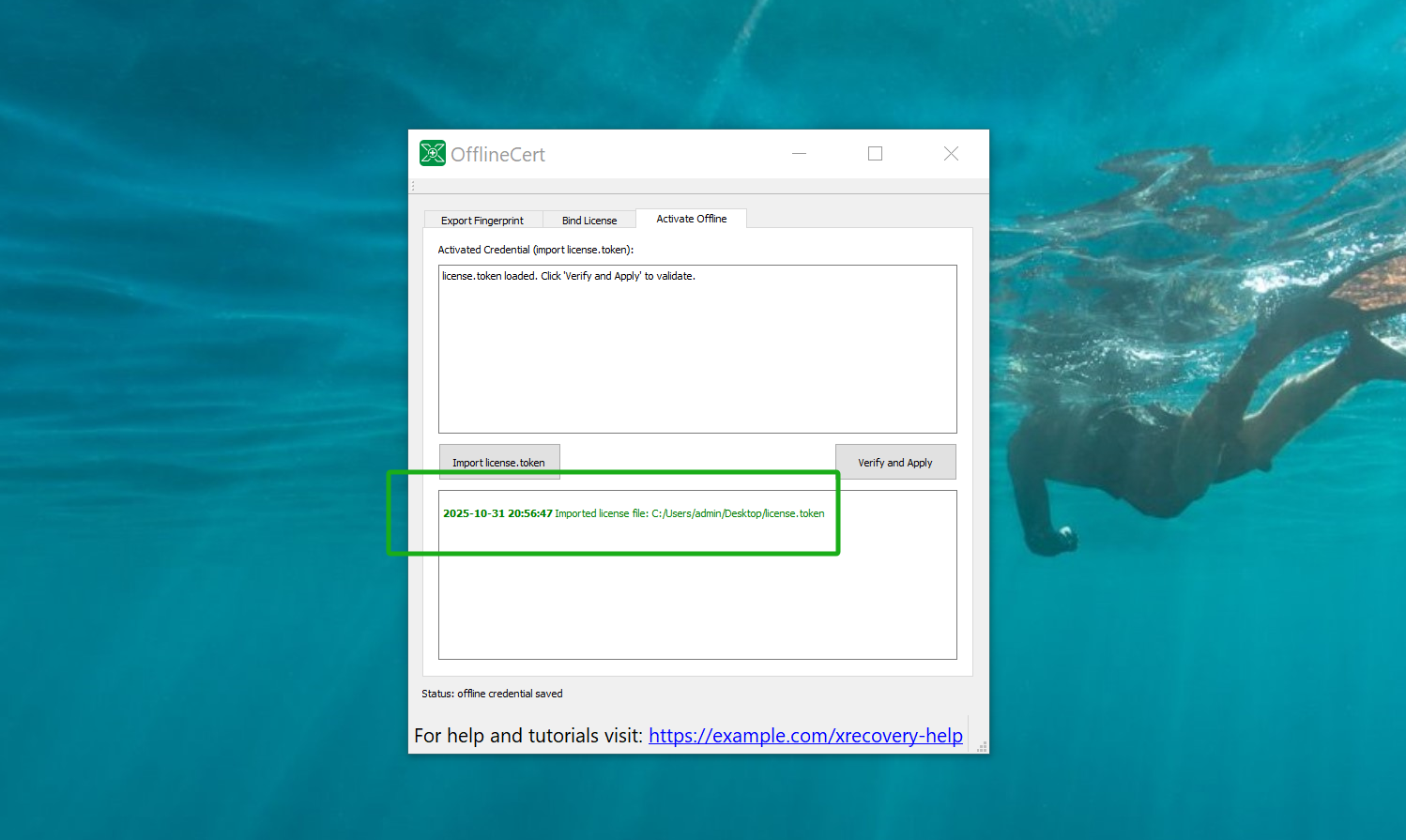
    • Click the “Import license.token” button to import the offline activation file that you have just pasted.
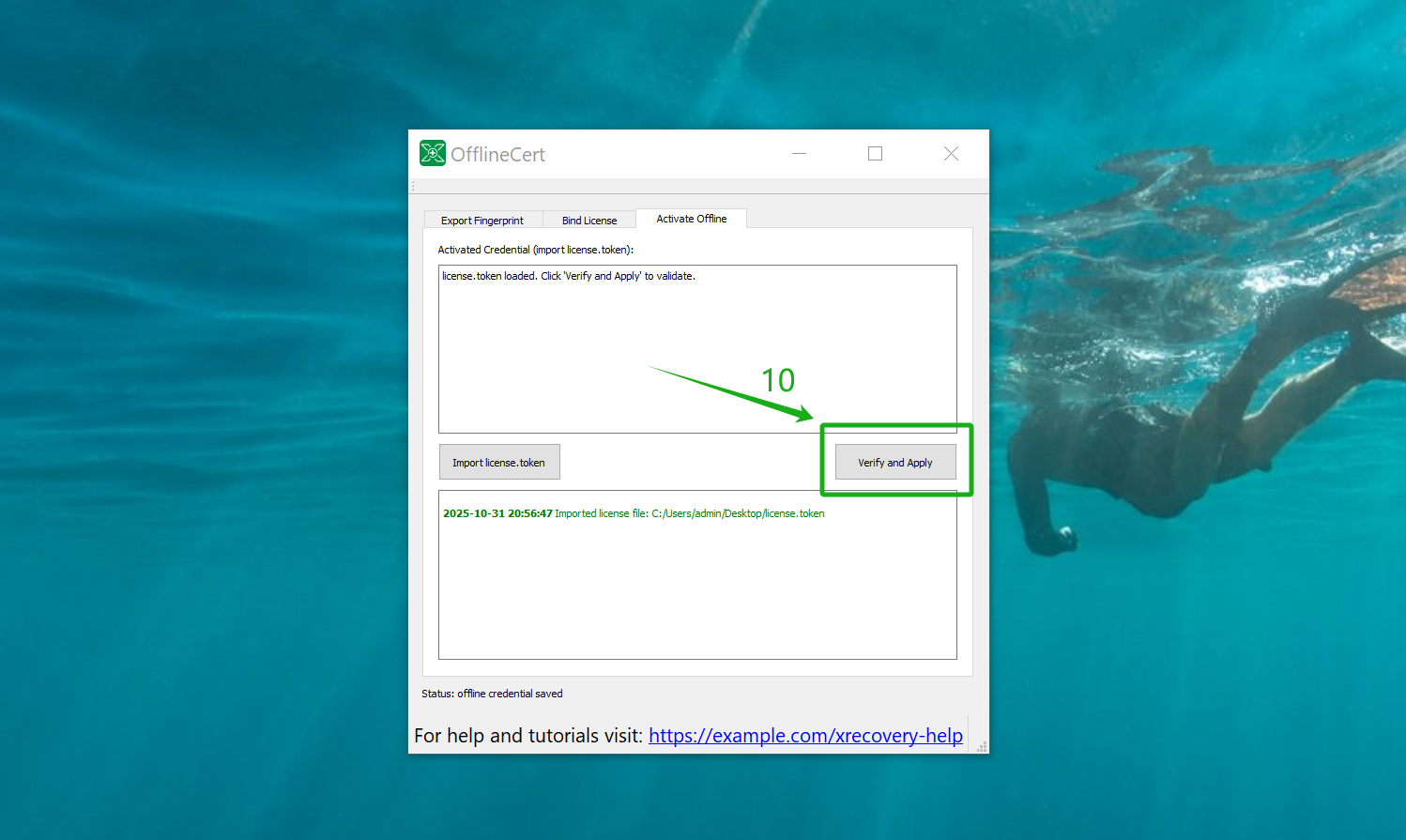
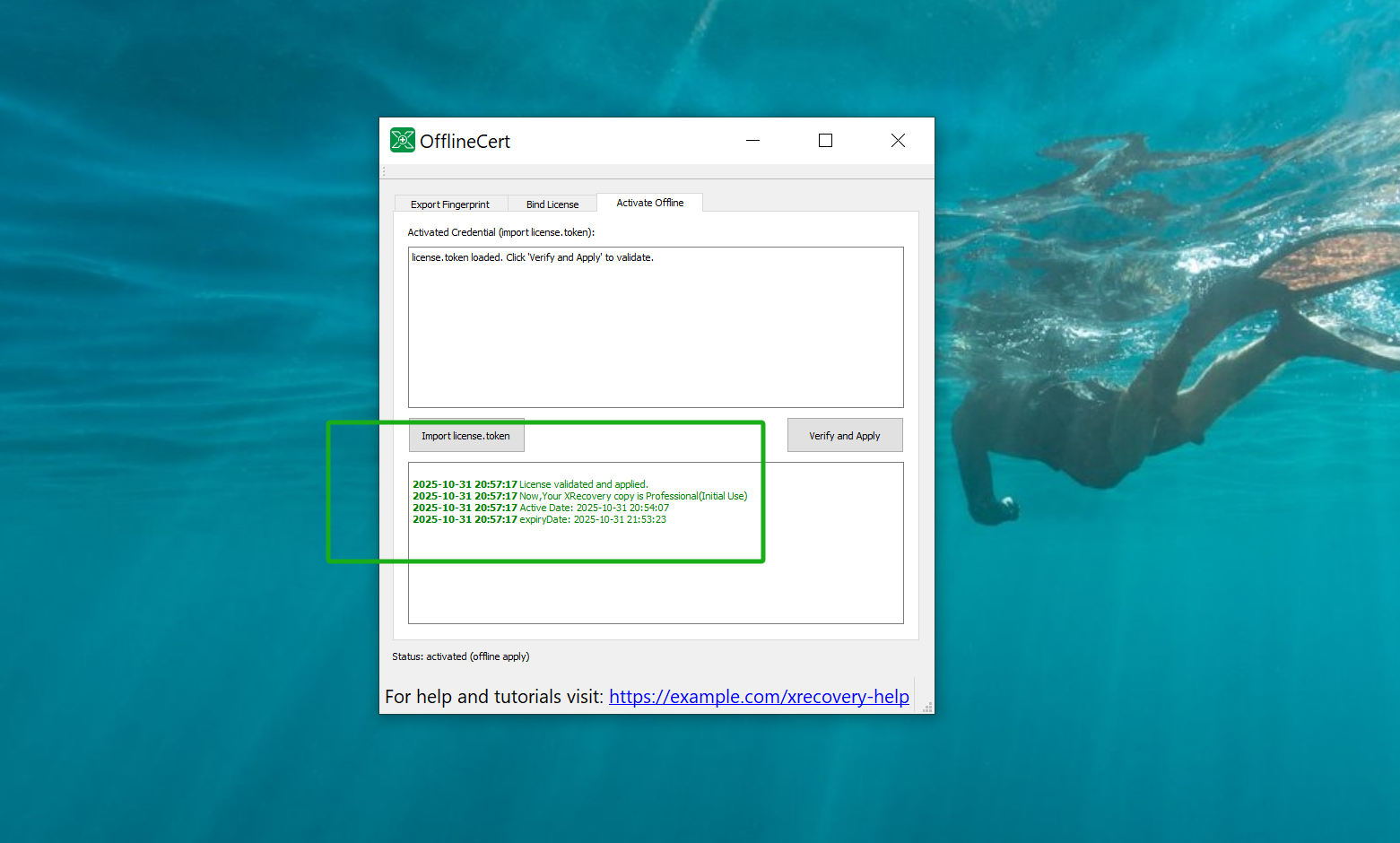
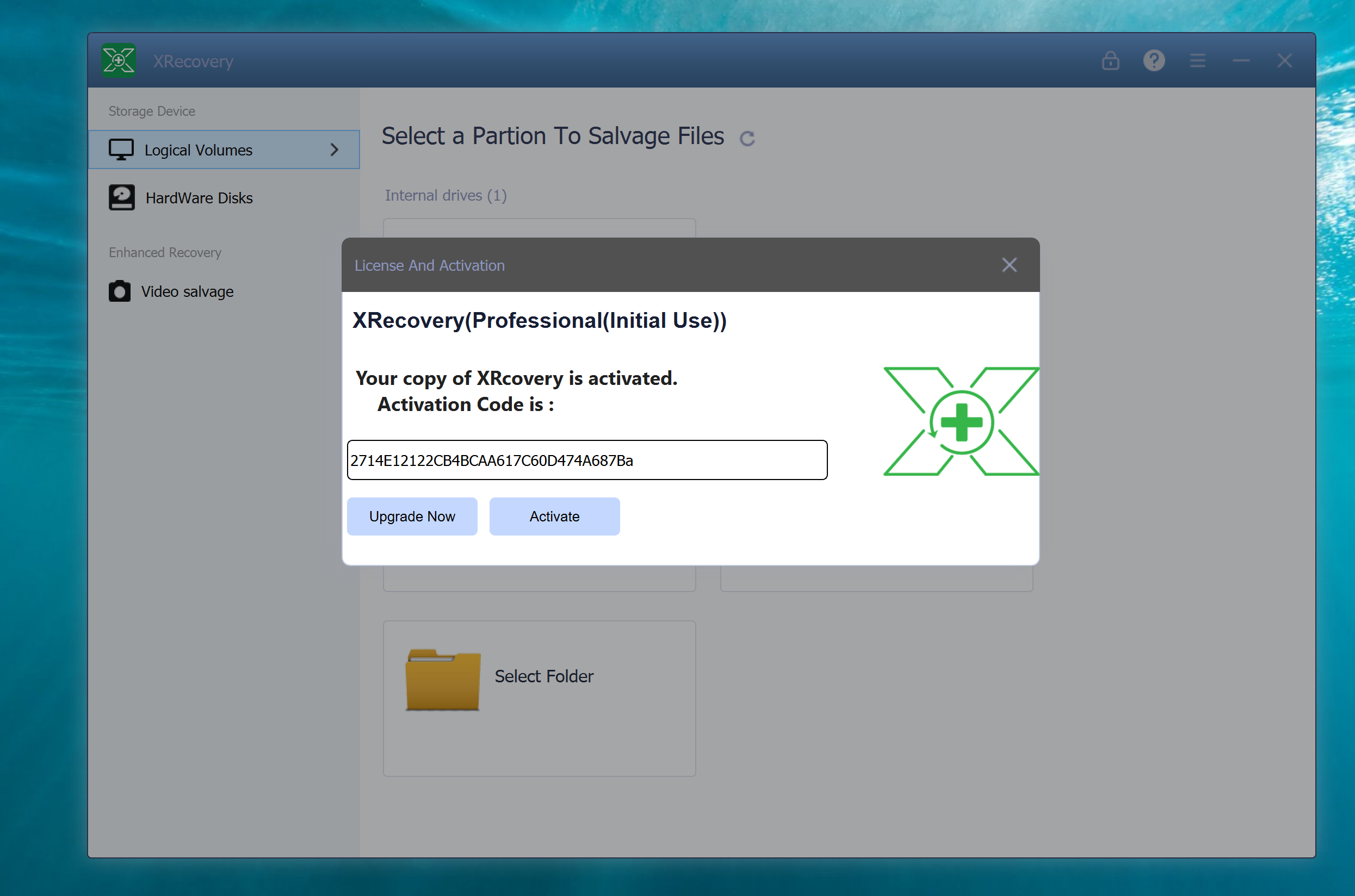
    • Finally, click the “Verify and Apply” button to activate  

    Begin Your Data Recovery Journey with XRecovery

    💡Tip: Ensure that the offline activation file is stored safely, as it can be reused.

    4.Potential Issues During Activation

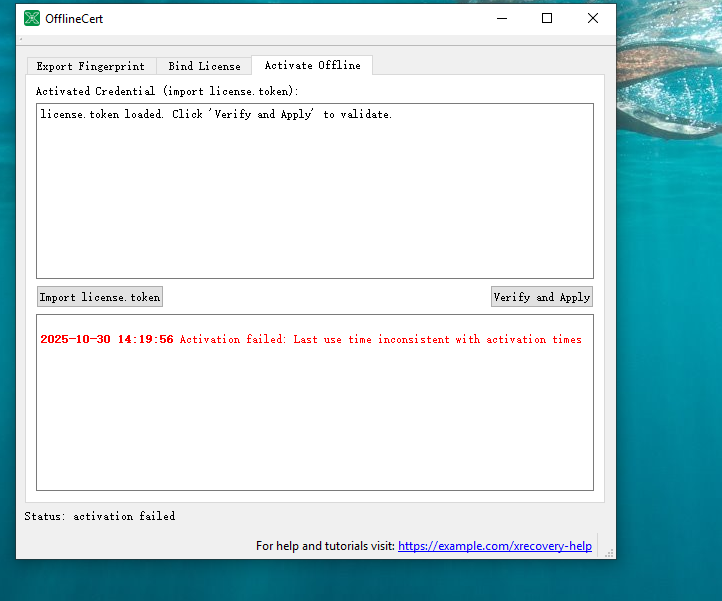
    • Ensure that the time on your offline device is accurate, or the activation process will fail.
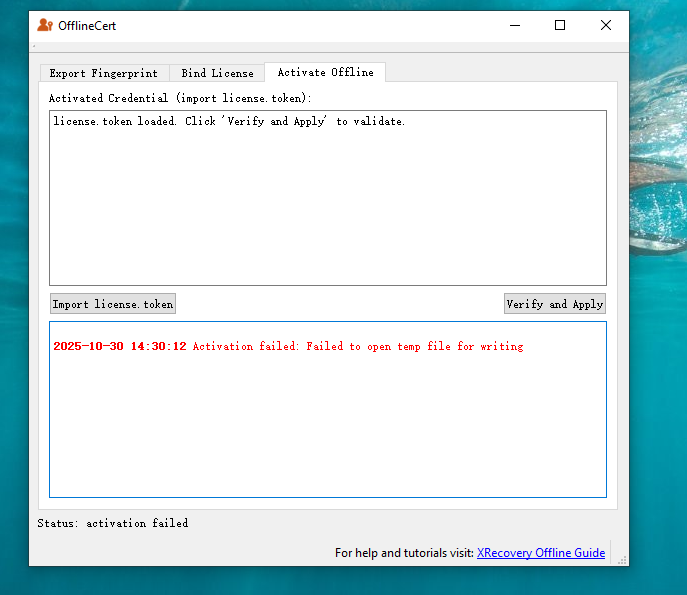
    • When the error ‘Failed to open temp file for writing’ occurs during the last activation step, exit the program and run it again as an administrator.
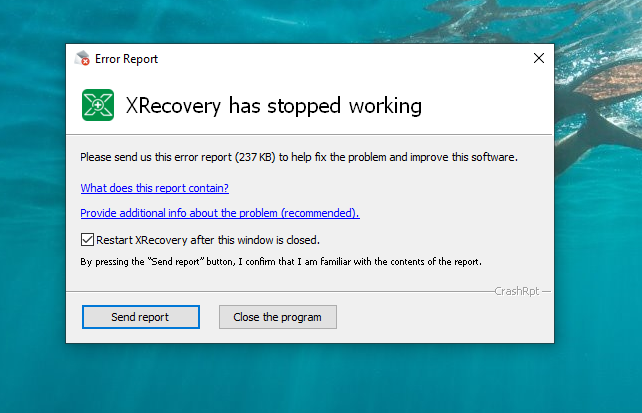
    • In case the program crashes during operation, attempt to run it again as an administrator. Should the problem persist, please reach out to us.

    5.FQA

    What is offline activation?

    Offline activation allows you to activate XRecovery on a device without internet access. It works by exporting a license request file, validating it on a separate online device, and importing the response file to complete activation.

    Use offline activation when the target device is in a restricted or isolated environment—such as an internal network, secure server, or air-gapped system—where internet access is unavailable or prohibited.

    You’ll need two files:

    • A license request file (fingerprint.req) exported from the offline device

    • A license response file (license.token) generated from the online activation portal

    No. Each “license.token” file is uniquely tied to the device that generated the”fingerprint.req” file. Reusing it on other machines will result in activation failure.

    Periodic revalidation ensures the license remains secure when XRecovery is used repeatedly on an offline device.

    You’ll need to repeat the offline activation process. A new “fingerprint.req” file must be generated and matched with a new “license.token” file.

    Not at all. Once activated, XRecovery runs with full functionality—no internet connection required.

    XRecovery_logo

    XRecovery 3.1.6

    Your Companion in Successful Windows Data Recovery

    REQUIREMENTS

    Windows 7 SP1,win8,win10,win11

    AVERAGE USER RANK

         4.8 by 1971 users

    NEWEST RELEASE

    Version 3.1.6 (November 2025)

    View release notes